Skip the Kindle. You Already Have One.
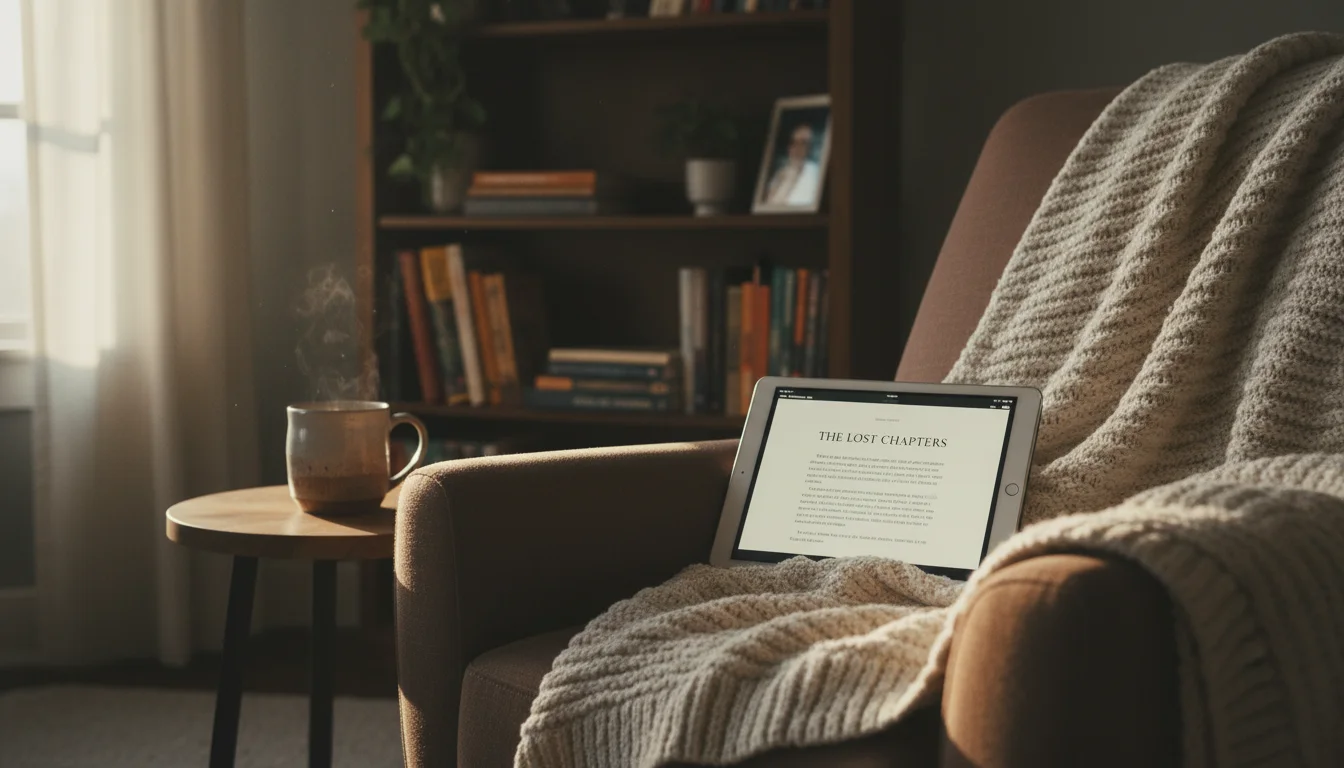
Your old iPad has a bigger, higher-resolution, full-color screen than a Kindle. It connects to your library’s digital collection for free. It runs Apple Books,  Libby, and (depending on your iOS version) several other reading apps. And you already own it.
The Kindle has an e-ink screen that’s easier on the eyes in bright sunlight. That’s a real advantage if you read at the beach. But for reading on the couch, in bed, or on your commute? An old iPad does the job beautifully – especially if you use dark mode.
Quick Setup
- Install your preferred reading app (see below)
- Go to Settings → Display & Brightness → Auto-Lock → 5 minutes (not “Never” – you want it to sleep when you’re not reading)
- Turn on Night Shift (Settings → Display & Brightness → Night Shift) – reduces blue light in the evening
- Set Dark Mode if available (Settings → Display & Brightness → Appearance → Dark)
- Turn off notifications for everything except maybe your messaging app
You’re done. Start reading.
The Best Reading Apps
A heads-up on iOS requirements: My husband went through and tested which reading apps still install on our older iPads. The short version: Apple Books and Libby work on everything. The Kindle app needs iOS 17, and Kobo, Google Play Books, and Audible all jumped to iOS 18+. If your iPad is on iOS 15 or earlier, Apple Books and Libby are your best bets – and honestly, they’re excellent.
Apple Books (Free, iPad only)
Already installed on your iPad. Clean interface, good typography, and access to the Apple Books store. Works on every iPad ever made, no download needed.
Bonus: Apple Books handles PDFs well. Drop your PDF textbooks, manuals, or documents into it for a good reading experience.
Libby / OverDrive (Free)
This is the one most people don’t know about. Libby connects to your local public library and lets you borrow ebooks and audiobooks for free. All you need is a library card.
- Install Libby (by OverDrive)
- Find your local library
- Sign in with your library card number
- Browse and borrow – books download directly to the app
- They auto-return after the lending period (usually 21 days)
This is genuinely free. Not “free trial” free – actually free, because it’s your library. The selection is broader than you’d expect. Most libraries carry bestsellers, popular series, and a deep catalog.
Audiobooks too: Libby also lends audiobooks. Your old iPad doubles as an audiobook player while you cook or drive.
Kindle App (Free – iOS 17+ or Android)
Even without a Kindle device, the Kindle app gives you access to Amazon’s entire ebook store. Your purchases sync across devices – start reading on the iPad, continue on your phone.
iOS warning: The Kindle app now requires iOS 17.0. If your iPad is stuck on iOS 16 or earlier, the app won’t install. The workaround: go to read.amazon.com in Safari. Amazon’s web reader gives you access to your Kindle library in the browser – not as polished as the app, but it works.
The reading experience on iPad is excellent: adjustable fonts, warm background color options, X-Ray (for character references in novels), and offline reading.
Tip: Amazon regularly has Kindle Daily Deals – books for $1-3. Set up a Kindle alert for genres you like and stock up.
If you burn through books fast:  Kindle Unlimited is free for 30 days, then $11.99/month. You get unlimited access to about 4 million titles plus a rotating stack of magazines and audiobooks. Worth trying if you’d otherwise be buying two or three ebooks a month. If you’re a lighter reader, Libby (above) is genuinely free forever and covers most popular titles – try that first.
Kobo (Free – Android only for old tablets)
If you want an alternative to Amazon’s ecosystem, Kobo has a good reading app, wide selection, and ePub support (Kindle uses its own format). But the iOS app now requires iOS 18.0, so it’s effectively Android-only for old tablets. If you have an old Android tablet in the drawer too, Kobo is a great option on that side.
Google Play Books (Free – Android only for old tablets)
Syncs with your Google account and the store is competitive with Amazon on pricing. Like Kobo, the iOS app jumped to iOS 18.0, making it Android-only for older devices.
Making It Comfortable for Reading
Eye Strain Reduction
Reading on a backlit screen for hours can tire your eyes. A few settings help:
- Dark Mode: White text on a dark background reduces the total light output. Most reading apps have their own dark/sepia modes – use them.
- Night Shift: Schedule it to start an hour before bedtime. The warm orange tint reduces blue light.
- Reduce brightness: You don’t need full brightness for reading. Drop it to 30-40% indoors.
- 20-20-20 rule: Every 20 minutes, look at something 20 feet (6 m) away for 20 seconds. This isn’t an iPad tip – it’s just good advice for any reading.
Font and Layout
Every reading app lets you adjust:
- Font size: Bigger than you think you need. Seriously.
- Font family: Serif fonts (like Georgia) are traditionally considered easier for long reading. But use whatever feels comfortable.
- Line spacing: A little extra space between lines reduces the “wall of text” feeling.
- Margins: Wider margins mean fewer words per line, which some people find easier to read.
The Case Matters
A reading-friendly iPad case makes a big difference:
- A case with a stand – prop the iPad at a comfortable angle instead of holding it. Your arms will thank you after 30 minutes.
- A slim, lightweight case – if you’re holding it like a book, you don’t want 2 lbs (0.9 kg) of armor. A thin TPU case protects from drops without the bulk.
Old iPad as Audiobook Player
If your eyes need a break (or you want to read while doing dishes), your old iPad is a solid audiobook player:
- Libby – free audiobooks from your library (works on iOS 10+)
- Apple Books – audiobook store with a decent selection (built-in, works on everything)
- Audible – Amazon’s audiobook service. The 30-day Premium Plus trial is free (then $14.95/month) and gets you one credit per month plus unlimited access to Audible Originals. The standalone iOS app now requires iOS 18.1, so on older iPads you’d listen at audible.com in Safari – it works, but the app experience on Android or a newer device is smoother. Libby (above) is genuinely free for most popular titles, so start there if you’re not sure you’ll use enough audiobooks to justify the subscription.
- Spotify – some audiobooks available, but requires iOS 16.1
For old iPads, Libby and Apple Books are your realistic options. Both are excellent – Libby is free through your library, and Apple Books has a large paid catalog. Connect Bluetooth headphones or a Bluetooth speaker and leave the iPad in the kitchen or workshop. The old tablet’s aging processor handles audio playback just fine.
Old iPad vs. Kindle: Honest Comparison
| Feature | Old iPad | Kindle Paperwhite |
|---|---|---|
| Screen size | 7.9-10.2″ depending on model | 7″ |
| Screen type | LCD (backlit, color) | E-ink (reflective, B&W) |
| Reading in sunlight | Harder (screen glare) | Great (reads like paper) |
| Reading in dark | Great (backlit) | Good (front-lit) |
| Battery life (reading) | 6-10 hours | Weeks |
| App ecosystem | Apple Books + Libby + Kindle (iOS 17+) + more | Kindle store only |
| Weight | 300-490g | 211g |
| Cost | $0 (already own it) | $160-200 |
| Color content | Yes (comics, cookbooks, magazines) | No (grayscale) |
If you read mostly text novels and want the lightest, longest-lasting reader, a Kindle is better. For everything else – audiobooks, PDFs, comics, magazines, library lending – your old iPad does it all for free. And if you’ve got an old Kindle Fire in the drawer too, that’s actually one of its best second lives – the Kindle app comes preinstalled and your whole library is already there.
Quick Checklist
- Open Apple Books (already installed) and/or install Libby
- Get a library card (if you don’t have one – it’s free and takes 5 minutes)
- Set up Libby with your library
- Turn on Night Shift and Dark Mode
- Adjust font size and background color in your reading app
- Get a case with a stand (or a thin case for holding)
- Download a few books for offline reading
- Read
Your old iPad just replaced a $160 Kindle and gave you free library access. Hard to beat that.
An ebook reader is just one of many second lives for an old iPad. See our complete ideas list for more projects worth trying.