The Problem: Nobody Checks the Calendar
Every family has a system for keeping track of schedules.  Google Calendar. The shared Apple Calendar. The paper calendar on the fridge with the cute illustrations. The problem isn’t having a calendar – it’s that nobody looks at it until it’s too late.
“What time is soccer?” “Did you see I have a dentist appointment?” “I told you about the parent-teacher conference.” Sound familiar?
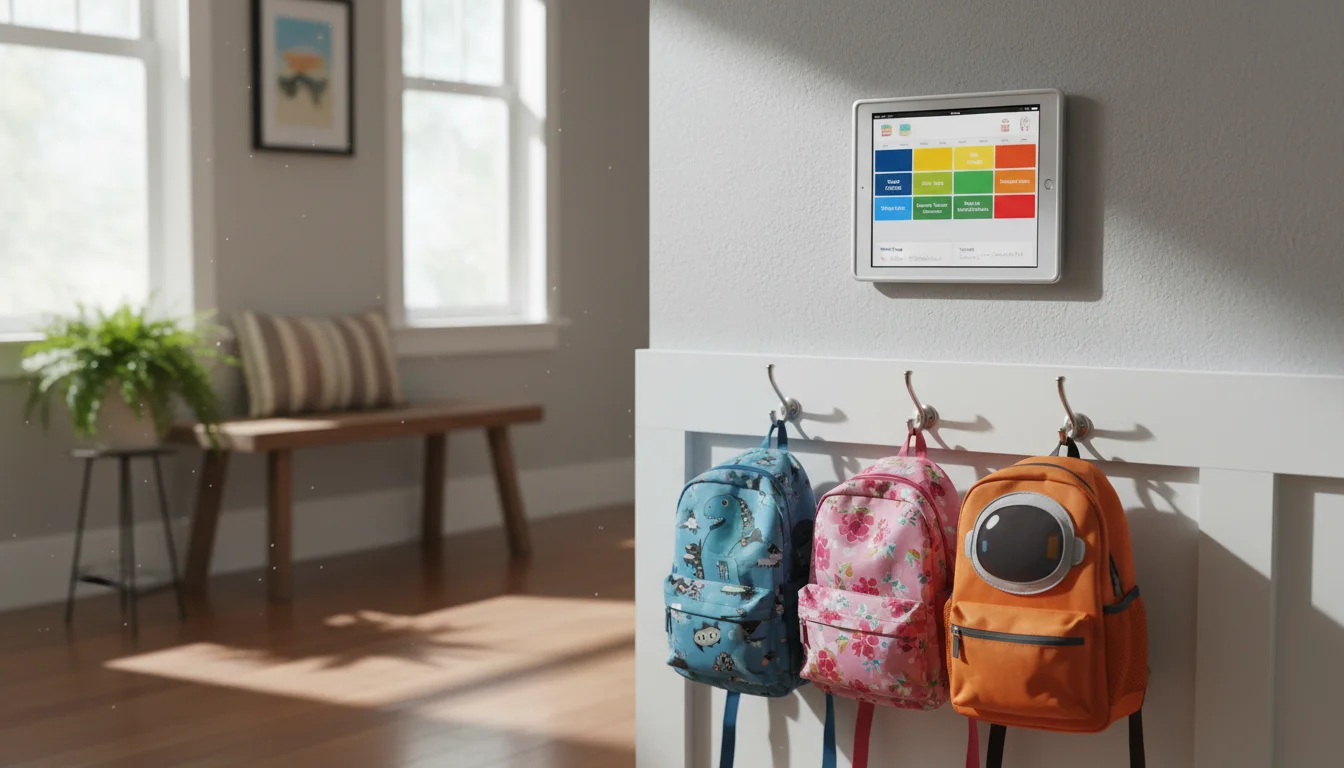
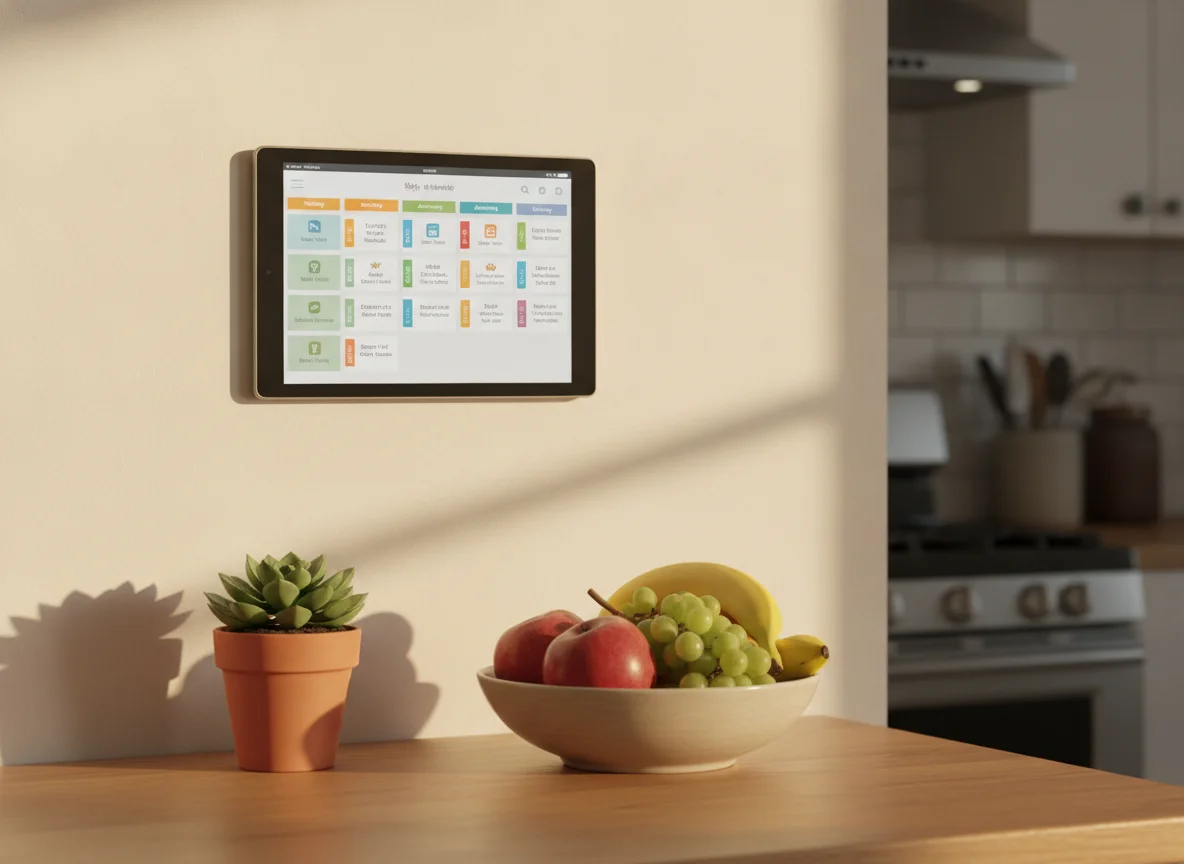
The fix is stupidly simple: put a calendar on the wall where everyone can see it, always on, always current. An old iPad or Android tablet does this perfectly. No paper, no syncing issues, no “I didn’t see your text.” Just a screen in the kitchen or hallway showing what’s happening today and this week.
The Fastest Setup: Your Calendar, Full Screen
If you want this running in 3 minutes, here’s the no-app-required approach:
On iPad
- Open Safari and go to calendar.google.com (or your preferred web calendar)
- Log in to the family’s shared Google account
- Switch to Schedule or Day view (easier to read from across the room)
- Tap the Share button → Add to Home Screen
- Go to Settings → Display & Brightness → Auto-Lock → Never
Done. The iPad now shows your family calendar, full screen, always on.
On Android Tablet
- Open Chrome and go to calendar.google.com
- Log in, switch to Schedule or Day view
- Tap the three dots → Add to Home Screen
- Go to Settings → Display → Screen timeout → 30 minutes (or use
 Fully Kiosk Browser for permanent always-on)
We have a full Android tablet calendar guide if you want the detailed walkthrough with Fully Kiosk, DAKboard, and wall mounting tips specific to Samsung, Lenovo, and Fire tablets.
This basic setup honestly covers 80% of what most families need. If you’re weighing this against buying a Skylight or similar dedicated display, we wrote up the side-by-side. If a specific product like Hearth Display has caught your eye, we walked through that one separately. And if the tablet you were planning to use turns out to be dead, a  used Fire HD 8 starts around $40 and runs a full-screen calendar just fine. If you want more – dashboard layout, weather alongside the calendar, better visuals – keep reading.
Better Option: A Calendar Dashboard
A dashboard app shows your calendar alongside other useful information – weather, to-do lists, upcoming events – all on one screen.
DAKboard (Browser-based, Free Tier – Works on Any Tablet)
 DAKboard is the most popular option for good reason. The free tier connects to Google Calendar and shows your events alongside weather and a photo background. (Apple Calendar and Outlook require a paid plan.)
Setup (5 minutes):
- Go to dakboard.com, create an account
- Connect your Google Calendar (or whichever service you use)
- Set your location for weather
- Choose a layout – “Digital Wall Display” is designed for this
- Bookmark the URL, add to home screen on your tablet
The free tier shows a small watermark. The Essential plan ($6/month, or $5/month yearly) removes it and adds multiple calendars, custom layouts, and Apple Calendar support. For most families, the free tier is plenty.
DAKboard added TouchHub in July 2026, layered on top of the dashboard. The base TouchHub view and Home Assistant control are on every plan (free tier included); the shared chore chart with points and a family leaderboard requires the Essential or Plus plan. A meal planner is coming soon. If chores are why the tablet is going on the wall, our family chore chart on a tablet guide covers the setup.
Fantastical (iPad, Free Tier – Newer iPads Only)
If you want a native app with a beautiful interface, Fantastical is hard to beat. The calendar display is clean, readable from across a room, and supports natural language event creation. The free tier includes all your calendars and one calendar set – fine if you use a single shared family calendar. Heads up: Fantastical now requires iOS 17.6, so it won’t install on older iPads. If yours is stuck on iOS 15 or earlier, stick with the browser approach above or use Apple’s built-in Calendar app.
Google Calendar App (Free, iPad & Android)
The Google Calendar app in landscape mode, zoomed to Day or Week view, is a perfectly good calendar display. It’s free, it syncs instantly, and everyone in the family already knows how to add events to it. Works identically on both platforms. One catch for older iPads: the app now requires iOS 17, so if your iPad can’t update that far, use calendar.google.com in Safari instead – it’s what we recommend in the quick setup above and it works just as well.
Making It Work for the Whole Family
The Shared Calendar That Actually Gets Used
The key isn’t the display – it’s making sure events actually end up on the calendar in the first place. Our complete family calendar setup covers the full system, but here’s the short version:
One shared Google Calendar for the family. Not individual calendars that are shared (too confusing). One calendar called “Family” that everyone has on their phone. When someone adds “Soccer practice 4pm,” it appears on the wall display immediately.
How to set this up:
- One person creates a Google Calendar called “Family” (or whatever you prefer)
- Go to calendar.google.com → Settings → “Family” calendar → Share → add each family member’s email with “Make changes to events” permission
- Each family member opens Google Calendar on their phone and accepts the invite
- On the tablet display, sign in with the account that owns the calendar
Now when anyone adds something from their phone, it shows up on the wall.
Color Coding
Use different colors for different family members or event types:
- Blue for the adults’ appointments
- Green for the kids’ activities
- Red for school events
- Orange for family events everyone needs to know about
The colors are visible from across the room. At a glance, you can see “lots of green today – busy afternoon with the kids.”
Weekly vs. Daily View
Daily view works best for busy families with lots of time-specific events. You can see the time blocks and know exactly when things overlap.
Weekly view works better for families that plan ahead. You can see the shape of the whole week at once.
Schedule view (a list of upcoming events) is the easiest to read from far away. Events are listed in order with clear text. This is my default recommendation for most families.
Where to Put It
The best location is wherever your family naturally gathers or passes through:
- Kitchen – most popular spot. Everyone’s there in the morning and evening.
- Hallway or entryway – good for a quick glance on the way out the door
- Mudroom – if you have one, this is where you grab bags and check what’s next
- Living room – works if you have a natural spot on a shelf or table
Wherever you put it, make sure it’s at a height where both adults and older kids can read it. About 54-60 inches (137-152 cm) from the floor works for most families.
A Koala Mount (about $17, adhesive, no holes) or a simple tablet stand ($12) on a shelf keeps things clean. See our guide to tablet mounts and stands for all the options.
Adhesive, no drilling, and the tablet clicks in and out for charging. This is the one that turned our own hallway iPad into a real wall calendar.
Check price on Amazon →Handling Multiple Calendars
Real family life usually involves more than one calendar:
- Mom’s work calendar
- Dad’s work calendar
- Kids’ school calendar
- Extracurricular activities
- Medical appointments
- Social events
The clean approach: Keep individual calendars for personal stuff, but put anything the household needs to know about on the shared “Family” calendar. That way the wall display shows what’s relevant without drowning in everyone’s work meetings.
The “show everything” approach: Google Calendar lets you overlay multiple calendars. If your family is comfortable seeing everything, add all calendars to the display account. Color coding keeps it readable.
Night and Weekend Settings
At night: Set up Night Shift (iPad) or Night Mode (Android) or schedule the screen to dim after bedtime. A bright calendar display at midnight in the kitchen isn’t useful – it’s just a nightlight you didn’t ask for.
On weekends: Some families switch to a more relaxed view on weekends – showing just the day’s events instead of the packed weekly view. DAKboard premium lets you schedule different screens for different times. With the basic setup, just leave it on Schedule view and let the calendar speak for itself.
Sync Speed
Google Calendar syncs in near-real-time. Add an event on your phone, and it appears on the wall display within a minute or two. Apple Calendar is similar over  iCloud.
If you’re using the web version (calendar.google.com), the page refreshes on its own. If you notice it getting stale, set DAKboard to refresh every 15 minutes, or reload the browser tab manually.
Quick Setup Summary
| What | How | Works On | Time |
|---|---|---|---|
| Basic calendar display | Open Google Calendar in browser, auto-lock off | Any tablet | 3 min |
| Dashboard with weather | DAKboard free tier + Google Calendar | Any tablet | 10 min |
| Shared family calendar | Create shared Google Calendar, invite family | Any phone | 5 min |
| Wall mount | Koala Mount or tablet stand | Any tablet | 10 min |
Total: about 30 minutes to go from “tablet in the drawer” to “family calendar on the wall.” And the next time someone asks “what time is soccer?” you can just point.
If you’re having trouble finding a calendar app that actually installs on your older tablet, the calendar apps compatibility guide covers what still works on iOS 12-15 and Android 8-11. And if getting your whole family to use the same calendar is the real challenge, the shared family calendar setup guide walks through Google, Apple, and mixed-device family setups step by step.
A calendar display is just one of many things your old tablet can do well. Our complete list of old iPad ideas has more projects if you want to put a second tablet to work.