Can You Actually Use an Old iPad as a Drawing Tablet?
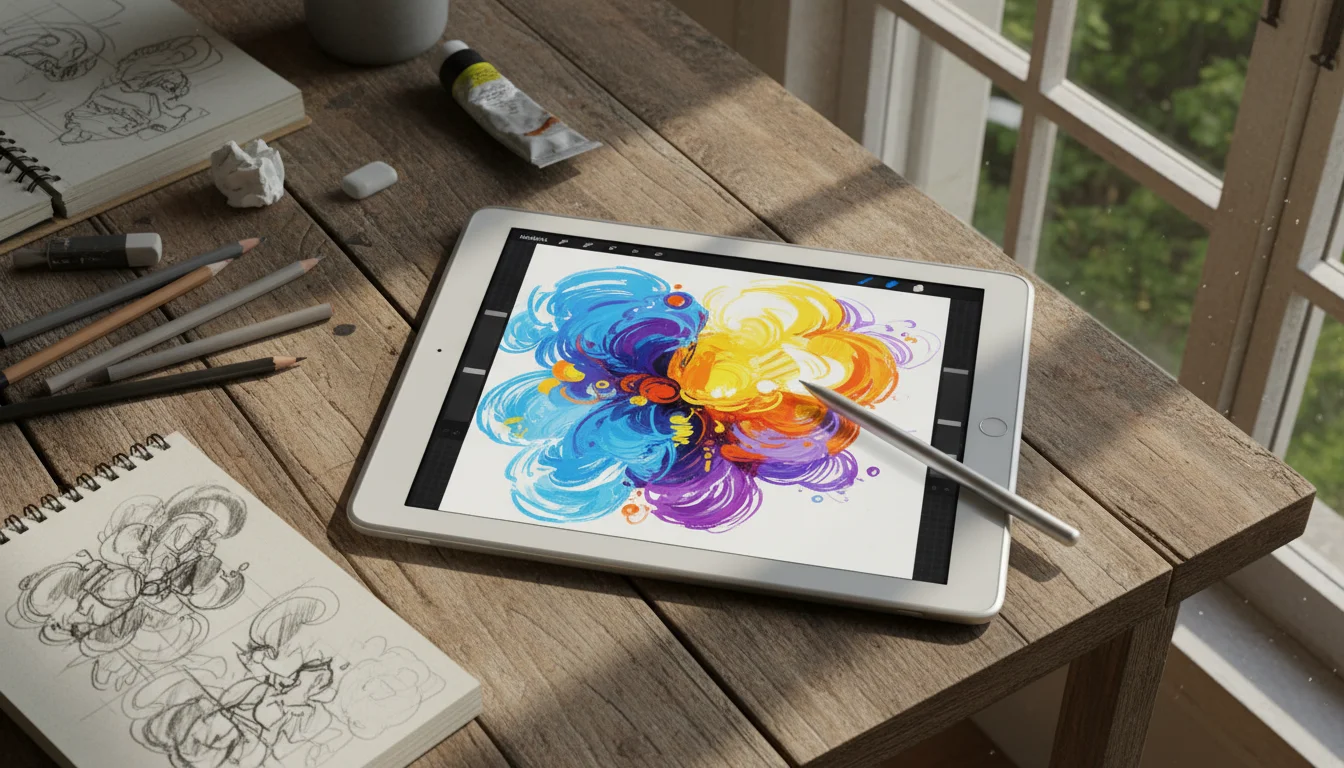
Yes. Any iPad from the last decade runs a real drawing app, and any Android tablet with a working screen does too. You don’t need an iPad Pro and an Apple Pencil to make digital art. Your old iPad or Android tablet, paired with a  capacitive stylus ($10-15), runs sketching apps that would have cost hundreds of dollars a decade ago.
Is it as good as a dedicated drawing tablet or a new iPad with Apple Pencil? No. The stylus won’t have pressure sensitivity (unless your iPad supports Apple Pencil), and the screen might not be as responsive. But for learning digital art, sketching ideas, kids’ drawing, or casual illustration, it’s more than capable.
If you’re not sure your specific tablet is up to it, the short answer is: an iPad 5 or newer, any Android tablet on version 8+, and any Samsung Galaxy Tab with an S Pen will all draw fine. Anything older will still run the free apps, just with fewer brushes and slower response. For a broader look at what still works on older hardware, our roundup of apps that work on old tablets covers the compatibility landscape.
Stylus Options
If Your iPad Supports Apple Pencil
Check  Apple’s compatibility list. Apple Pencil 1st gen works with iPad 6th-10th gen, iPad Air 3rd gen, iPad mini 5th gen, and iPad Pro 9.7″/10.5″/12.9″ (1st and 2nd gen).
If your “old” iPad supports Apple Pencil, you’ve got a professional-grade drawing experience. A used 1st gen Apple Pencil is $50-70 on  Swappa.
If Your iPad Doesn’t Support Apple Pencil
Most older iPads (pre-2018) don’t support Apple Pencil. You’ll need a capacitive stylus:
- Any capacitive mesh-tip stylus ($10-15) – the Adonit Mark is the classic pick if you can find one, but Adonit stopped stocking it direct and any generic mesh-tip stylus at the same price works the same. Basic, no pressure sensitivity, works on any touchscreen.
 Adonit Dash 4 ($60) – fine-point active stylus with better precision. On iPads from 2018+, Blue mode adds palm rejection.
Android Tablet Styluses
Some Samsung Galaxy Tabs come with an S Pen – if yours does, you already have the best stylus experience available on Android (pressure sensitivity and palm rejection included). For other Android tablets:
- Any capacitive stylus ($10-15) – same deal as iPad, basic but functional for sketching
iPad alternative: The Adonit Note+ ($70) is an iPad-only active stylus with palm rejection and pressure sensitivity – a good middle ground between a basic capacitive stylus and Apple Pencil.
The honest truth about capacitive styluses: They work, but they’re not precise. The tip is thicker than you’d like, there’s no pressure sensitivity, and palm rejection doesn’t work (you’ll need a drawing glove or be careful about your hand placement). For sketching and casual art, they’re fine. For detailed illustration, save up for a device with active stylus support.
Best Drawing Apps
Procreate ($13, iPad Only)
If your iPad can run it, this is the one to get. Brushes that actually respond like real media, proper layer support, and a replay feature that shows your whole drawing process from first stroke to finish. $13 once, no subscription.
Minimum requirement: iPadOS 16.3+. That means iPad Air 3, iPad mini 5, iPad 5th gen, or any iPad Pro. The iPad Air 2 and older can’t run it anymore. If yours qualifies, don’t overthink it – just buy  Procreate.
Sketchbook (Free – iPad & Android)
 Sketchbook went fully free a few years back – no ads, and the core drawing tools are all unlocked. There’s an optional $2.99 brush-bundle IAP if you want more variety, but you don’t need it to make real work. It runs on iOS 14+ and Android 8+, which means it works on tablets too old for Procreate. The brush engine is genuinely good (originally built by Autodesk, now developed independently by Sketchbook Inc.), and the symmetry tool is surprisingly fun to mess around with. If your tablet can’t run Procreate, start here.
MediBang Paint (Free – iPad & Android)
If your kid is into manga or comics, this is their app. MediBang Paint gives you panel templates, screen tones, and cloud storage so they can pick up drawings on different devices. Free with optional premium brushes, and it runs on both platforms.
ibis Paint X (Free – iPad & Android)
ibis Paint X is the most popular free drawing app on Android, and it’s easy to see why. You can record your drawing process as a timelapse (kids love sharing these), and the brush library is absurdly deep – over 100,000 options, though you’ll realistically use maybe 10. Free with ads; removing them is a $15.99 one-time IAP.
Paper (Free, iPad)
The most beginner-friendly drawing app. Simple, beautiful tools – a pen, pencil, marker, watercolor brush, and eraser. No overwhelming menus. Great for kids and casual sketching.
Todli: Drawing Games for Kids (Free / $3.99, iPad)
Specifically designed for young children (originally released as “Drawing for Kids”, renamed to Todli). Simple shapes, colors, stamps, and stickers. No text, just visual tools. Good for ages 3-7. iPad only – if you’re on Android, stick with Sketchbook or MediBang Paint.
Prop It at the Right Angle
The single thing that improved my drawing more than any app switch was tilting the tablet. Flat on a desk hurts your wrist inside ten minutes, and holding it in one hand while you draw with the other is a recipe for smudged everything.
Two options I’ve actually used:
- Bamboo tablet stand ($15-25) – the wedge-style ones give you two or three fixed angles and a slot to run a charging cable through. Solid, doesn’t slide, looks nicer on a desk than the metal ones.
- A cheap adjustable metal stand ($10) – the kind with the two arms that fold. Not as pretty but the angle is fully adjustable, which matters more than you’d think when you switch from sketching to lettering.
If you want a proper survey, our best tablet mounts and stands guide covers wall mounts, headrest mounts, and the stands that hold up over time.
iPad Digital Art for Beginners
If you’re new to digital art, start here:
- Install Sketchbook (free, works on everything) – learn the basics without spending anything
- Start with simple exercises – trace photos, copy simple shapes, practice lines and circles
- Watch YouTube tutorials – search “digital art for beginners iPad” or “Sketchbook tutorial” for hundreds of free lessons
- Don’t worry about the stylus – even a $10 capacitive stylus teaches you the fundamentals. You can upgrade later if you stick with it.
- Try different styles – sketching, coloring, manga, lettering, watercolor effects. Digital art apps let you experiment without wasting paper.
The old tablet is perfect for this stage. If digital art clicks for you, you’ll know it’s time to invest in better hardware. If it doesn’t, you spent $0-13 finding out.
Setup for Kids
An old tablet as a kids’ drawing surface is hard to beat:
- Install Paper, Todli (iPad only), or Sketchbook
- Set up Guided Access (iPad) or Screen Pinning (Android) to lock to the drawing app
- Get a cheap stylus ($10) or let them use their fingers
- Put on a rugged case (our kid-proofing guide covers the best options)
- Let them create
Kids don’t need Procreate. They need a canvas and colors. The old tablet provides exactly that, and if they’re talented, they’ll outgrow it and you’ll know it’s time for an upgrade.
Using It as a Secondary Drawing Display
If you have a computer with creative software (Photoshop, Illustrator, Clip Studio Paint), you can use the old tablet as a secondary display or drawing surface. This overlaps with using an old iPad as a second monitor, and the same apps handle both jobs:
- Sidecar (Mac + newer iPads) – use the iPad as a drawing surface for Mac apps with Apple Pencil
 Duet Display ($49.99/year Air, $79.99/year Pro, iPad & Android) – turns the tablet into a second screen you can draw on from Mac or PC. The Pro tier adds pressure sensitivity, which is the whole point for artists.
- Astropad Studio ($80/year, iPad) – specifically designed to turn iPads into professional drawing tablets for Mac. Astropad Standard was discontinued; Studio is the only option now.
These options work best with Apple Pencil or S Pen support. With a basic capacitive stylus, the drawing experience as a secondary tablet is mediocre.
Quick Setup
- Get a stylus ($10-70 depending on your tablet model)
- Install Sketchbook (free) or Procreate ($13, if compatible)
- Optional: get a matte screen protector ($8) – it gives the screen a paper-like texture that feels better for drawing
- Start sketching
Your old tablet won’t replace a Wacom Cintiq or a new iPad Pro for professional work. But my oldest discovered she can trace photos in Sketchbook by importing them as a layer, and she spent an entire Saturday drawing portraits of the dog. On a tablet I was about to sell for $40.
If drawing isn’t your thing, there are dozens of other uses worth trying. Our full lists of old iPad ideas and old Android tablet ideas have the whole collection.