The Budget You Actually Look At
Budget apps on your phone don’t work because you have to choose to open them. And you don’t. Spending drifts unchecked until the credit card statement arrives.
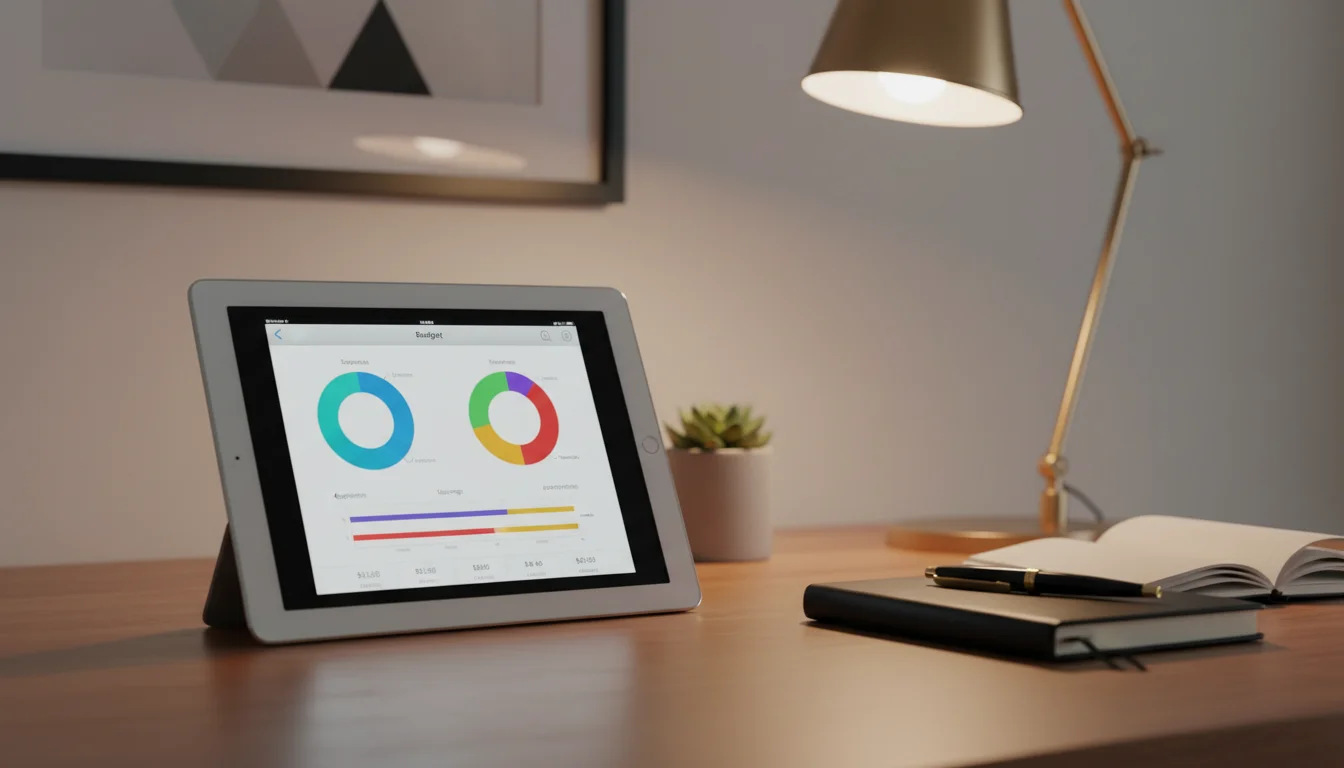
An old iPad or Android tablet on your desk, showing your budget and spending, changes that. You walk past it. You glance. You see where you stand. The difference between a budget that works and one that doesn’t isn’t the app – it’s whether you look at it.
Budget and Spending Apps
A heads-up on iOS requirements: Mark went through the App Store listings for every app in this article, and the news isn’t great for old iPads. YNAB now requires iOS 18. Most stock and brokerage apps need iOS 16 or 17. If your iPad is on iOS 15 or earlier, your realistic budget app options are Goodbudget (iOS 13),  Copilot (iOS 15.6), and Monarch Money (iOS 15.1). Android tablets don’t have this problem.
Goodbudget (Free tier – iPhone/iPad compat mode & Android)
Based on the envelope budgeting method. Set spending limits for each category and track as you go. The free tier supports 10 envelopes – enough for most families. Heads-up on iPad: Goodbudget’s iOS app is now “Designed for iPhone,” so it runs in iPhone compatibility mode (2x-scaled, not tablet-optimized) rather than as a native iPad app. It still installs on every old iPad, and the interface is simple enough that the compat-mode scaling isn’t a dealbreaker. Android tablets get a proper native interface.
Copilot ($13/month, iPad Only – iOS 15.6+)
Honestly the prettiest finance app I’ve used on iPad. You link your bank accounts and it pulls in transactions, sorts them into categories, and gives you these clean charts of where the money actually went. The iPad layout is what sold me – spending categories on one side, trends on the other. You can see in two seconds whether the grocery budget is shot for the month.
iOS note: Requires iOS 15.6. That covers iPad Air 2 and newer, but iPads stuck on iOS 12 or 13 won’t run it.
Monarch Money ($14.99/month – iPad & Android)
If Copilot’s iPad-only requirement is a dealbreaker, Monarch is where I’d point you. It does the same bank syncing and spending breakdowns, but it runs on Android too. The part Mark likes: you can share one account between partners, so we both see the same numbers without the “wait, did you already pay that?” conversation. Requires iOS 15.1, so it covers the same iPads as Copilot.
YNAB – You Need a Budget ($109/year – Android, newer iPads only)
YNAB is the one people swear by for intentional budgeting. Every dollar gets a job. On a tablet, the dashboard shows all your budget categories with a green/yellow/red indicator – immediately visible whether you’re on track.
The tablet is ideal for YNAB’s “budget meeting” – sit down with your partner, open YNAB on the tablet between you, and talk through the categories. Bigger screen, shared view, productive conversation.
iOS warning: YNAB now requires iOS 18.0. That means it won’t install on most old iPads. If your iPad can’t run YNAB, Goodbudget is your best free alternative, or try Copilot/Monarch if your iPad is on iOS 15+. On Android, YNAB works fine.
Google Sheets / Apple Numbers (Free)
If you prefer a manual spreadsheet approach, a shared Google Sheet or an Apple Numbers document with your monthly budget works perfectly on a tablet. Build it once, update it as you spend. The tablet just sits there showing your numbers.
iOS note: Apple Numbers is preinstalled on every iPad and always works, so it’s the safe pick if your iPad is stuck on an older iOS. Google Sheets on iOS now requires iPadOS 17, so on older iPads use the web version at  sheets.google.com in Safari, or switch to Numbers. On Android, Google Sheets installs fine.
Bonus: A shared Google Sheet means both partners can update it from their phones, and the tablet on the counter always shows the current state.
Stock and Investment Monitoring
If you have investments you like to keep an eye on, the old tablet makes a dedicated market ticker. Fair warning: the iOS requirement situation here is even worse than the budget apps. Most stock and brokerage apps have jumped to iOS 16 or higher. Android tablets have no issues.
Yahoo Finance (Free – Android, newer iPads only)
Create a watchlist with your holdings. The tablet shows real-time quotes, portfolio value, and market news. For passive investors, a daily glance at the overall market is healthier than checking your phone every hour.
iOS warning: Yahoo Finance now requires iOS 18.0. If your iPad can’t run it,  finance.yahoo.com works in Safari as a decent alternative.
Robinhood / Fidelity / Schwab (Free – iOS 17+)
Your brokerage’s app on a dedicated tablet. Check your portfolio without the temptation to trade impulsively from your phone. The deliberate act of walking to the tablet and looking at your investments is a natural speed bump against reactionary trading.
iOS requirements: Robinhood, Fidelity, and Schwab all need iOS 17.0 now. iPads stuck on iOS 16 or earlier won’t run any of them – but all three have decent web interfaces you can bookmark in Safari.
TradingView (Free with paid tiers – Android, newer iPads only)
If you want charts and technical analysis, TradingView’s tablet interface is excellent. Multiple chart layouts, watchlists, and real-time data. Best for active investors who want a dedicated monitoring screen.
iOS warning: Requires iOS 17.0. On older iPads,  tradingview.com in Safari gives you most of the same functionality.
Bill Tracking and Reminders
Use the tablet as a bill dashboard so nothing gets missed:
- Calendar with bill due dates – add recurring events for rent, utilities, subscriptions, credit card payments
- Apple Reminders (built-in on iPad) – shared lists of upcoming payments. Google Tasks is an option too, but its iOS app now requires iPadOS 17, so on older iPads stick with Reminders
- A shared spreadsheet – a simple Google Sheet with columns for biller, amount, due date, and paid/unpaid works surprisingly well on a tablet
The Home Office Finance Station
If you work from home or manage household finances, a dedicated finance tablet on your desk shows:
- Budget tracker (Goodbudget, Copilot, or Monarch) – current month’s spending
- Portfolio (your brokerage app or Yahoo Finance in Safari) – market overview
- Bills – upcoming payments in a calendar or shared spreadsheet
- Calculator – the built-in calculator is genuinely useful for quick math
Set Auto-Lock to 5 minutes (you don’t need it always-on – this has sensitive financial data) and require a passcode to unlock if other people are in the house. If you have a second old tablet, the smart display setup works well in the kitchen while this one handles finances in the office.
Privacy Considerations
Financial data on a shared household display requires thought:
- Don’t use always-on mode for finance apps – set Auto-Lock to 5 minutes so the screen goes dark when not in use
- Use a passcode – Settings → Touch ID / Face ID & Passcode (iPad – most old iPads have Touch ID; Face ID is only on iPad Pro 11″ 2018+ and iPad Pro 12.9″ 3rd gen+) or Settings → Security → Screen Lock (Android)
- Consider who can see it – if guests visit, you don’t want your portfolio balance visible on the kitchen counter
- Best location: A home office desk, not a high-traffic kitchen counter
Quick Setup
- Install your preferred budget app (Goodbudget, Copilot, Monarch, or YNAB if your iPad supports it)
- Connect your bank accounts (inside the app)
- Set Auto-Lock to 5 minutes (not Never – this is financial data)
- Set up a passcode
- Put it on your desk or in a semi-private spot
- Check it daily – the visibility is the point
Not the most exciting thing you can do with an old tablet. But if your budget has been more theoretical than actual, this might be the one that actually saves you money.
Want something less practical and more fun? Our old iPad ideas roundup covers everything from retro gaming to digital art.