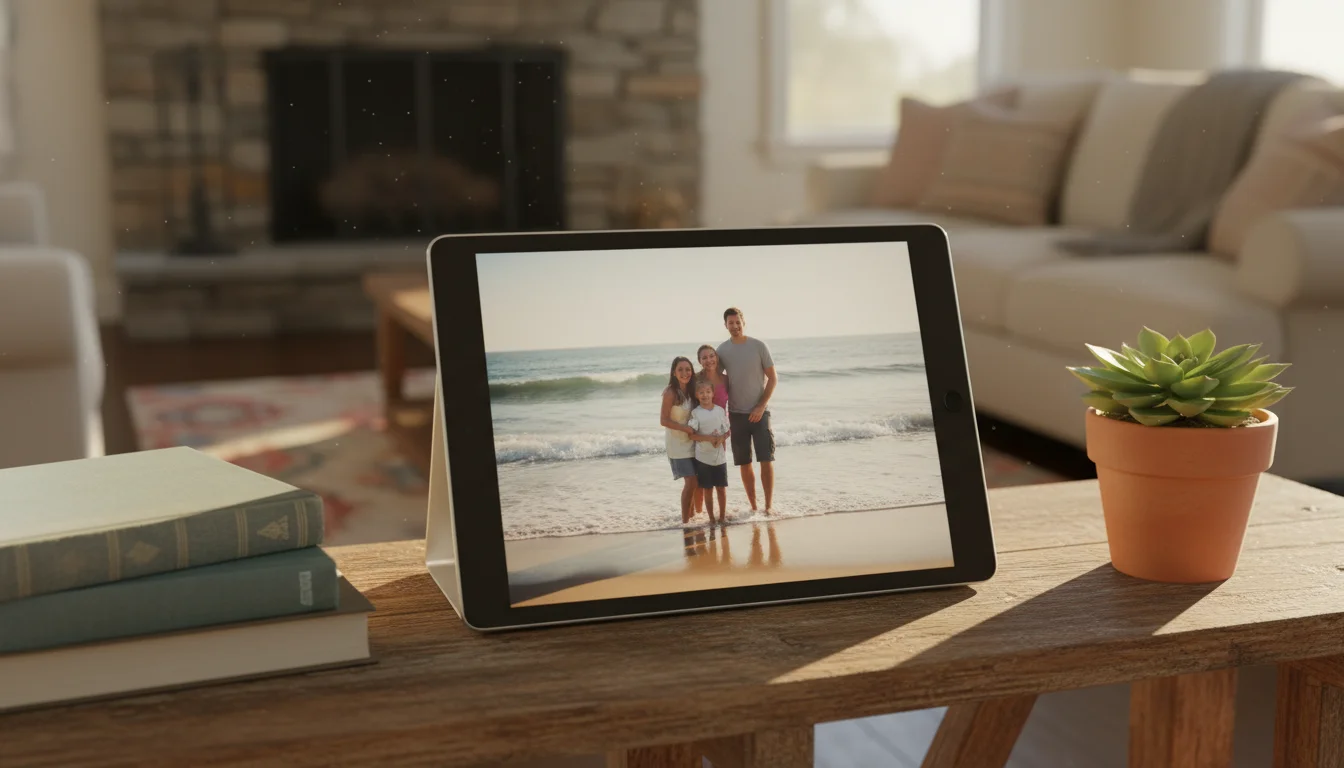
Your Old iPad Is a Better Photo Frame Than Anything You Can Buy
Somewhere in a drawer, your old iPad is gathering dust. Meanwhile, companies are selling dedicated digital photo frames for $100-200 with screens half as sharp as what you already own.
Here’s the math: a typical dedicated frame gives you a 10-inch (25 cm) screen at 1024×600 resolution. An iPad Air from 2013 has a 9.7-inch (25 cm) Retina display at 2048×1536 – four times the pixels. Even a first-gen iPad Mini has a sharper screen than most frames on the market today. Your photos look genuinely better on the old tablet.
And unlike a basic photo frame reading from an SD card, your iPad connects to Wi-Fi. Point it at an  iCloud shared album or a
 Google Photos library, and new photos show up automatically – no transfers, no SD cards, no asking grandma to figure out a companion app. (Note: Google Photos now requires iOS 18 or later. If your iPad is stuck on an older version, iCloud or the built-in Photos app are your best options for cloud sync.)
Using an Android tablet instead? We have a dedicated Android photo frame guide that covers Galaxy Tabs, Google Photos integration, and always-on display settings.
Old Tablet vs Dedicated Frame: Quick Cost Comparison
| Old Tablet | Budget Frame | Premium Frame | |
|---|---|---|---|
| Cost | $0 (you own it) | $80-120 | $180-300 |
| Screen resolution | 2048×1536 (Retina) | 1024×600 | 1280×800 |
| Cloud sync | Free (iCloud/Google Photos) | Often subscription | Often subscription |
| Monthly fees | None | $0-5/mo | $0-10/mo |
| Shared albums | Yes, unlimited | Varies | Yes |
| Gets software updates | Already has them | Vendor-dependent | Vendor-dependent |
The only real advantage of a dedicated frame is form factor – they’re thinner and come with a built-in frame. But for $0 and 10 minutes of setup, your old tablet does everything else better. We dig into the full tradeoffs in our iPad vs dedicated digital photo frame comparison, and if you’ve been eyeing Aura’s $130-500 lineup, Nixplay’s touchscreen models, or Skylight’s Frame lineup specifically, the resolution math is even more striking.
What This Guide Covers
This is a three-part series that walks you through everything – from choosing the right approach to setting up shared albums so the whole family’s photos appear automatically. If you’re just here for the app list, jump to the photo frame apps that still install on older tablets.
-
Why Your iPad Beats a Dedicated Frame – Screen quality, cost, and the cloud advantage. Plus which tablets are old enough to be free and new enough to be useful.
-
Shared Family Albums: The Real Magic – How to set up iCloud or Google Photos so everyone’s pictures appear on the frame automatically. Including the grandparent setup. If your family isn’t all on one platform, the shared album platform picker below covers Amazon Photos and Apple’s newer Shared Library too.
-
Mounting and Display Tips – Making it look like furniture, not a gadget. Stands, cases, wall mounts, and the settings that matter.
For the apps themselves –  PhotoCloud, Google Photos,
 DAKboard, and the ones that still install without an iOS 16+ wall – see the dedicated app roundup.
Which Shared Album Platform Fits Your Family
The sharp screen is why you’d try this. What keeps a photo frame on the counter for years is the shared album behind it: Mom takes a picture at soccer practice, Grandma gets a candid at Sunday dinner, and within the hour both are rotating in the kitchen without anyone emailing anything. Part 2 walks through iCloud Shared Albums and Google Photos step by step. Here’s how to pick, plus the options it doesn’t cover.
| Your family | Your frame tablet | Use this |
|---|---|---|
| All iPhones | iPad on iOS 16.1 or later | iCloud Shared Photo Library |
| All iPhones | iPad stuck on iOS 15 or earlier | iCloud Shared Albums (works back to iOS 8) |
| A mix of iPhone and Android | Any | Google Photos shared album |
| Prime members | Fire tablet | Amazon Photos Family Vault |
iCloud Shared Photo Library (Newer iPads)
Apple added Shared Photo Library in iOS 16.1. Up to six people contribute to one library, and photos can land there automatically. On each iPhone, go to Settings > Photos > Shared Library, set it up or join, and turn on Share Automatically under Sharing from Camera. That setting uses Bluetooth to notice when family members are nearby and shares the photos you take together. On the iPad, join the same library in Settings and point the slideshow at it.
The catch is the version floor. An iPad on iOS 15 or earlier can’t see a Shared Library at all, so most drawer iPads fall back to the older iCloud Shared Albums. They need someone to add photos by hand, but they work on nearly any iPad that still signs in to iCloud.
Google Photos on an Old iPad
The Google Photos app needs iOS 18, which rules out most older iPads. Open photos.google.com in Safari instead. Shared albums show up there, and you can run a slideshow straight from the browser. It’s a little less polished than the app, but it works on any iPad that can load a web page. For a couple, Partner Sharing (Google Photos > Settings > Partner Sharing) shares every photo, or only photos of chosen people like the kids, between two accounts with no album to maintain.
Amazon Photos Family Vault (Fire Tablets)
If the frame is an old Fire tablet,  Amazon Photos is already installed. Prime members get unlimited full-resolution photo storage, and Family Vault lets up to five people pool their photos into it. Invite the family from the Amazon Photos app on your phone, then start a slideshow from the Family Vault folder on the Fire. If you already pay for Prime, it costs nothing extra.
Before You Share With the Whole Family
A collaborative album means everyone invited can add photos and see everything in it. Keep the frame album to immediate family if you’d rather not have every cousin’s vacation shots in the rotation, and watch the auto-sharing features: a photo of a permission slip with your address on it will go up on the frame like anything else. Treat it like a family group chat. Part 2 has more on privacy and the grandparent setup.
What You’ll Need
- An old iPad (any model running iOS 12+) or Android tablet (Android 8+). For Google Photos, you’ll need iOS 18 or later – older iPads can use iCloud or the built-in Photos app instead.
- A charging cable
- Wi-Fi
- 10 minutes
That’s the full list. No special hardware. No subscriptions. No apps to buy (though a couple of good ones cost $5).
Quick-Start Checklist
Just want the short version? Here’s the 10-minute setup:
- Charge the old tablet and connect to Wi-Fi
- Set Auto-Lock to Never (Settings → Display & Brightness)
- Turn off notifications (you don’t want text banners over sunset photos)
- Set up a shared photo album – iCloud if your family uses iPhones, Google Photos if it’s a mix (requires iOS 18+ on the iPad)
- Open a slideshow app or the built-in photo slideshow
- Prop it on a stand ($5-15) or lean it against the wall
- Done
For the detailed version with app recommendations and family album setup, start with Part 1 above – or jump straight to our quick setup article if you want everything on one page.
Who This Is Actually For
The grandparent with a kitchen counter and no interest in learning new apps. The family that wants the school photos showing up at home without anyone emailing them around. The parent who noticed that $160  Skylight frame uses the same screen as the iPad their kid outgrew two years ago.
If you have an old tablet in a drawer and photos worth looking at, you’re ten minutes away from the most-looked-at screen in your house.