The Bedroom TV You Already Own
You’ve got a  Plex server running somewhere – a NAS in the closet, an old PC under the desk, maybe a Synology or QNAP that handles everything. You’ve got media libraries organized, metadata scraped, collections built. The server side is sorted.
But the kids’ room doesn’t have a TV. The kitchen has a dead spot where the  Chromecast signal is spotty. Or you just want to watch something in bed without arguing over the living room TV.
Your old tablet solves all of these. The current Plex app requires iOS 16 or Android 7, but older iPads on iOS 15 or 12 can still install the last compatible version from the App Store. Direct play of standard formats works smoothly on hardware that’s too slow for almost everything else. And unlike a cheap streaming stick, the tablet is portable – nightstand tonight, kitchen counter tomorrow.
Which Old Tablets Run Plex
Not every old tablet handles Plex well. The app has gotten heavier over the years, and playback quality depends on the format of your media files.
Works well (current Plex app, iOS 16+):
- iPad 5th gen (2017) or newer – runs the latest Plex app natively
- Samsung Galaxy Tab A 2019 or newer (Android 10+)
- Any Android tablet with at least 2 GB RAM running Android 7+
Works via last compatible version (iOS 15 or older):
- iPad Air 2 (2014), iPad mini 4 (2015) – these max out at iPadOS 15 and can’t run the current Plex app, but the App Store will offer the last compatible version. Basic playback works fine.
- iPad Air 1 (2013), iPad mini 2/3 – stuck on iOS 12. They get an even older Plex version. Playback works but the interface is sluggish and library browsing is slow.
Won’t work:
- iPad 4 or older (stuck on iOS 10 – too old for any compatible Plex version)
- Android tablets on Android 6 or below
- Amazon Fire 7 (2017 or older) – the 1 GB RAM just isn’t enough
If you’re not sure what you have, check Settings > General > About (iPad) or Settings > About Tablet (Android) for the model and OS version.
The Plex App: Free vs Plex Pass
Plex has a free tier and a paid Plex Pass. Pricing is $6.99/month, $79.99/year, or $749.99 lifetime. There’s also a $249.99 five-year plan that launched on July 1, 2026 – the same day the lifetime pass jumped from $249.99 to $749.99. If you saw the old $249.99 lifetime price recommended somewhere, that deal is gone; the five-year plan is what took its place at that price point. Here’s what matters for a tablet setup.
Free Plex: You can browse your server and play content on your local network. That covers most people using a tablet as a Plex player at home. You get the full library interface and standard playback over Wi-Fi.
Important change (April 2025): Plex removed free remote streaming from most clients. If you want to play your media from outside your home network, you now need either a Plex Pass or a Remote Watch Pass ($2.99/month or $29.99/year). Mark flagged this one for me – we’d been telling people remote playback was free, and it’s not anymore. On your home Wi-Fi, free Plex still works fine.
Plex Pass adds: Offline sync (download media to the tablet for playback without network), hardware-accelerated transcoding on the server, remote streaming, and mobile sync. The offline sync is the killer feature for tablets – download a few movies, take the tablet in the car, watch without Wi-Fi.
If the tablet is staying at home on your Wi-Fi network, free Plex handles it. If you want to take it on road trips or stream from outside your house, you’ll need Plex Pass or the Remote Watch Pass ($2.99/month or $29.99/year).
Setting Up Plex on the Tablet
Step 1: Install the App
iPad: Search “Plex” in the App Store. The current version requires iOS 16. If your iPad is on iOS 15, you’ll get prompted to install the last compatible version – that older version still works for basic playback.
Android: Search “Plex” in the Play Store. Requires Android 7.0 or later. On Fire tablets, Plex is available in the Amazon Appstore.
Step 2: Sign In and Find Your Server
Open the app and sign in with your Plex account. Your server should appear automatically if the tablet is on the same network. Tap it, and you’ll see your libraries – movies, TV shows, music, whatever you’ve organized.
If the server doesn’t appear, check that both the tablet and the server are on the same Wi-Fi network. Also verify that remote access is enabled in Plex server settings if you want to stream from outside your home.
Step 3: Test Playback
Pick something and play it. If it plays smoothly, you’re done. Most standard media files (H.264 video in an MP4 container) play directly without any transcoding – the tablet handles it natively.
If playback stutters or buffers, the server is probably transcoding the file to a format the tablet can handle. This uses more server CPU and more network bandwidth. See the optimization section below.
Optimizing Playback for Old Hardware
Old tablets have two limitations: processing power and Wi-Fi speed. Here’s how to work around both.
Reduce Streaming Quality
In the Plex app, go to Settings > Quality and set the remote and local streaming quality. For old tablets:
- Local network: Try “Original” first. If it stutters, step down to 8 Mbps 1080p or 4 Mbps 720p.
- Remote: Set to 4 Mbps 720p. Old tablets on 2.4 GHz Wi-Fi can’t reliably stream higher.
Let the Server Do the Work
If a video stutters during direct play, the issue is usually the video codec. HEVC (H.265) and 4K content are too much for most old tablets to decode.
The fix is server-side transcoding. In your Plex server settings, make sure transcoding is enabled. The server will convert unsupported formats on the fly. If your server has a decent CPU (or a GPU for hardware transcoding), this works transparently.
Practical tip: If most of your library is H.264 MP4 at 1080p or lower, transcoding rarely kicks in and old tablets handle direct play just fine. If you have a lot of 4K HEVC content, the server will be doing more work.
Use 5 GHz Wi-Fi
If your tablet supports 5 GHz Wi-Fi (most tablets from 2015+ do), make sure it’s connected to the 5 GHz band. The 2.4 GHz band is more congested and maxes out at lower speeds. The difference between a buffering mess and smooth playback often comes down to which Wi-Fi band you’re using.
Download for Offline Viewing
With Plex Pass, you can download movies and shows directly to the tablet. This bypasses all streaming issues – the file plays from local storage with zero network dependency.
Go to any movie or episode, tap the download icon, and choose quality. For a tablet with 16 GB of storage, 720p downloads are the sweet spot – good quality, reasonable file sizes (about 1-2 GB per movie). If your tablet has a microSD card slot (Android), add a 64 GB card and you can store a small library offline.
This is especially useful for:
- Kids’ tablets in the car (no Wi-Fi needed)
- Bedside tablets with weak Wi-Fi signal
- Travel – download before leaving, watch on the plane
Room-Specific Setups
Bedroom Nightstand
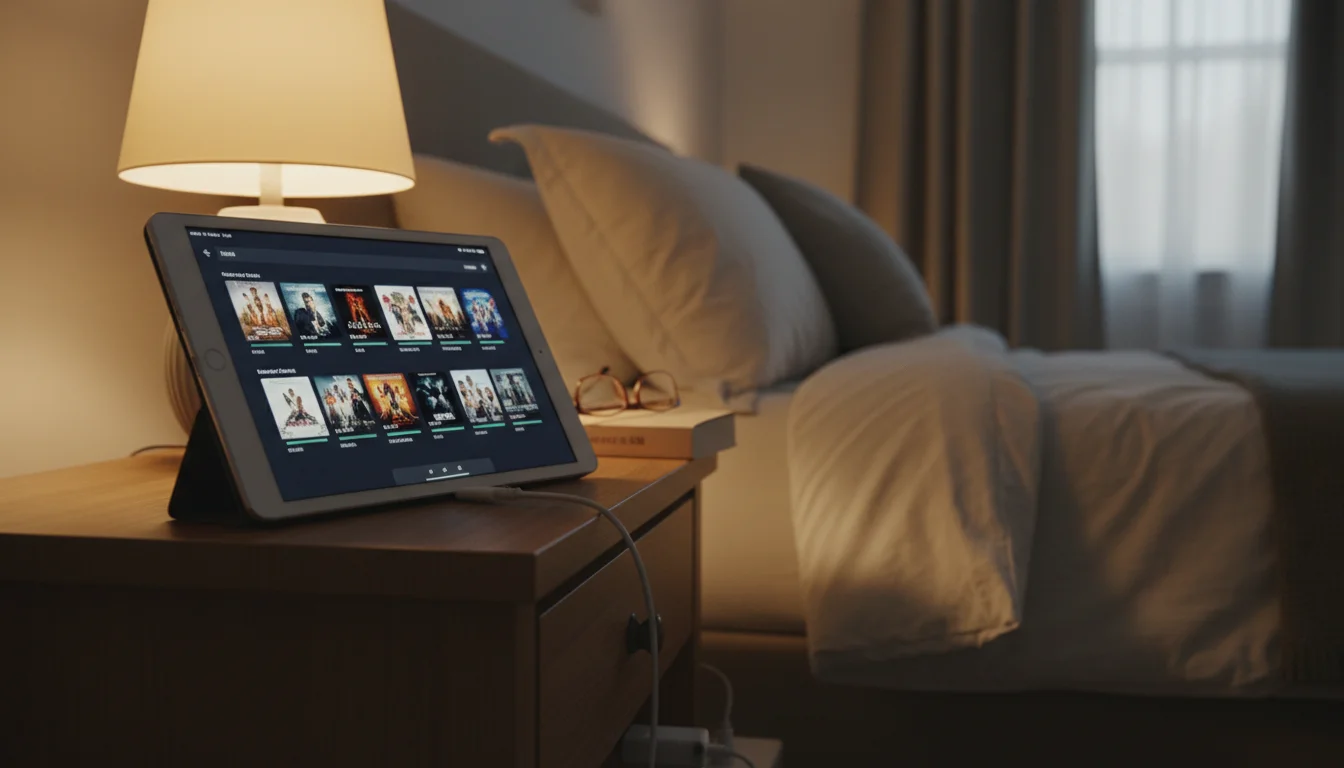
Prop the tablet on a small stand next to the bed. Install Plex, set the brightness to low, and you’ve got a personal screen for watching shows before sleep.
Settings to change:
- Auto-lock: 30 minutes or Never (so it doesn’t lock mid-episode)
- Brightness: 25-30% for nighttime viewing
- Volume: consider Bluetooth earbuds so you don’t wake anyone
Kitchen Counter
Lean it against the backsplash or mount it on the wall. Plex in the kitchen is great for catching up on shows while cooking. The tablet handles the occasional splash better than a laptop.
Keep it plugged in and use a stand with a good viewing angle. If you’re also using the tablet as a kitchen display, Plex is just one more app in the rotation.
Kids’ Room
Download approved content ahead of time and turn on Plex’s parental controls. Go to Settings > Plex Home and create a managed profile for the kids with content ratings restrictions.
The advantage over a streaming stick: no remote to lose, no HDMI switching, and the tablet goes back in the drawer when screen time is over. You control what’s on it by controlling what’s downloaded.
Jellyfin: The Free Alternative
If you don’t want to deal with Plex’s subscription model,  Jellyfin does the same core job for free. It’s open-source, no account required, no premium tiers.
Jellyfin on tablets: The Jellyfin app is available on the Play Store for Android. On iPad, the current Jellyfin app (v1.7) still supports iOS 12+, though future versions will require iOS 15.1 or later. For older iPads that lose support, use the Jellyfin web interface in Safari – it works but isn’t as smooth as the native app.
Trade-offs: Jellyfin’s interface is less polished than Plex. The metadata scraping is good but not quite as automatic. And there’s no equivalent to Plex’s offline sync for mobile downloads. But the price is right, and for a tablet that’s always on Wi-Fi at home, the web interface works fine.
Casting From the Tablet
The tablet doesn’t have to be the screen. Use it as a Plex remote that casts to your TV.
Chromecast: Tap the cast icon in the Plex app, select your Chromecast, and the video plays on the TV while the tablet becomes the remote. Browse, queue, pause – all from the tablet screen.
AirPlay (iPad): Cast to an Apple TV or AirPlay-compatible TV. The Plex app supports AirPlay natively.
Fire TV: Plex can cast to Fire Stick devices from the app.
This is actually the most common way people end up using Plex on an old tablet – not watching on the tablet screen, but using it as a touchscreen remote for the TV. The bigger screen and touch interface make browsing a large library much faster than a TV remote.
For more ways to use an old tablet as a media controller, our media remote and streaming hub guide covers Spotify,  Sonos, smart TV remotes, and more.
Is It Worth Setting Up?
If you already run a Plex server, putting the app on an old tablet takes five minutes and costs nothing. You get a portable screen that plays your entire media library anywhere in the house.
The bedroom setup is the one that sticks. That old iPad on the nightstand, with your whole movie collection a tap away, quietly becomes the thing you reach for every night. No subscriptions, no ads, no algorithm deciding what you should watch next. Just your library, your tablet, and the show you’ve been meaning to finish.
A Plex player is one of the best things you can do with an old tablet, but we’ve got a whole list of runner-ups. See our old iPad ideas guide for more.