Why Your Old iPad Beats a Dedicated Photo Frame
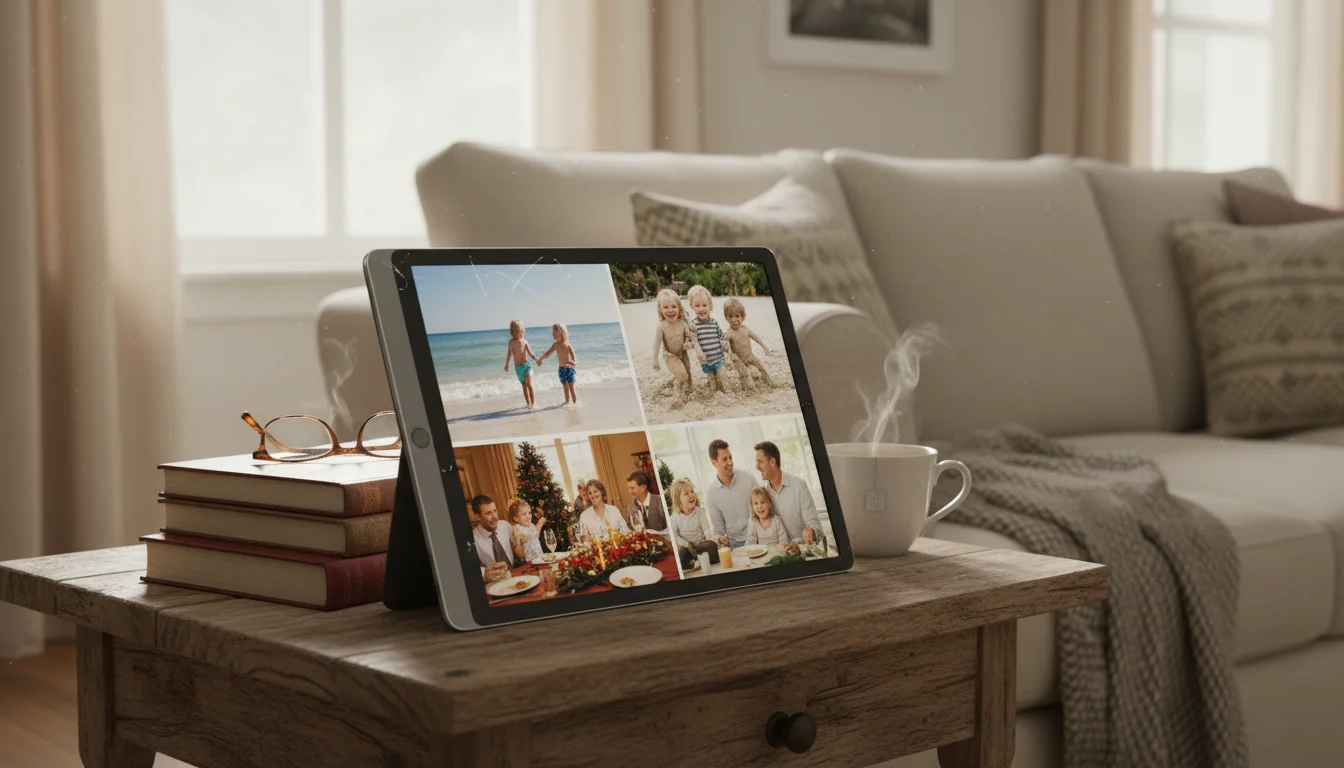
There’s an entire industry built around selling you digital photo frames for $80-200. Meanwhile, your old iPad – sitting in a drawer, too slow for modern apps – has a screen that’s better than almost all of them.
Think about it: a dedicated digital photo frame typically has a 10-inch (25 cm) screen with 1024×600 resolution. Your old iPad? Even an iPad Air from 2013 has a 9.7-inch (25 cm) Retina display at 2048×1536. That’s four times the resolution. Your photos look dramatically better.
And unlike a basic photo frame that reads from an SD card, your old iPad connects to Wi-Fi. That means it can pull photos from  iCloud,
  Google Photos, or a shared family album – automatically showing new pictures as you take them, without anyone transferring files.
What You’ll Need
- An old iPad (iOS 12 or later) or Android tablet (Android 8+)
- A charging cable
- Wi-Fi
- A stand or mount (or just lean it against the wall – no judgment)
That’s the full list. No apps to buy. No accounts to create. Everything you need is either already on the tablet or free to download. (Got an Android tablet instead? Our Android photo frame guide covers the setup for Galaxy Tabs, Lenovo, and other Android devices.)
The Easiest Setup: Apple Photos Slideshow (iPad)
If you’re on an iPad and just want a photo frame running in the next 5 minutes, use what’s already built in:
- Open Settings → Display & Brightness → Auto-Lock → Never (so the screen stays on)
- Open the Photos app
- Go to Albums and pick the album you want to display (or “Favorites” for your best shots)
- Tap the first photo, then tap the … menu → Slideshow
- Choose a transition style and speed. “Dissolve” at 5 seconds per photo is a nice default.
That’s it. The iPad is now a photo frame.
The downside: Apple’s built-in slideshow doesn’t run indefinitely by default – it stops after cycling through the album. For a permanent, always-on display, you’ll want a dedicated app (see below).
Better Option: A Dedicated Photo Frame App
These apps are purpose-built for turning a tablet into an always-on photo display. They handle brightness, transitions, and pulling photos from cloud services automatically. We’ve tested which apps still install on older devices – see our full photo frame app roundup for the complete list with compatibility details.
Fotoo (Android) – Free with Premium at $5
The best option for Android tablets. Connects to Google Photos, Dropbox, and local storage. Includes motion detection (screen dims when nobody’s nearby), clock overlay, and weather widget. The free version has everything you need – premium removes the logo and adds a few features.
Photo Slideshow Apps (iPad) – Free
For iPads, there are several free slideshow apps that run continuously and pull from your Photos library. The choices depend on your iOS version – our photo frame app roundup has the full compatibility list. If your iPad is stuck on iOS 12 or 13, the built-in Apple Photos slideshow (described above) is your most reliable option.
Google Photos Live Albums (Android, and Newer iPads) – Free
If your family uses Google Photos, this is the most seamless option for Android tablets. Create a Live Album (Google Photos → Library → New Album → select people or pets), and the album automatically adds new photos of those people. Your tablet shows them as they’re taken.
Everyone in the family can contribute photos by just taking them normally. The album updates itself. Your kitchen photo frame shows pictures from this morning’s school drop-off by afternoon.
iPad compatibility note: The Google Photos app now requires iOS 18, so it won’t install on older iPads. If you’re on an iPad, use iCloud Shared Albums instead (see below) – same idea, just through Apple’s ecosystem.
Making It Look Like Furniture, Not a Gadget
A photo frame should be something you glance at and smile, not something that screams “I stuck a tablet on the counter.”
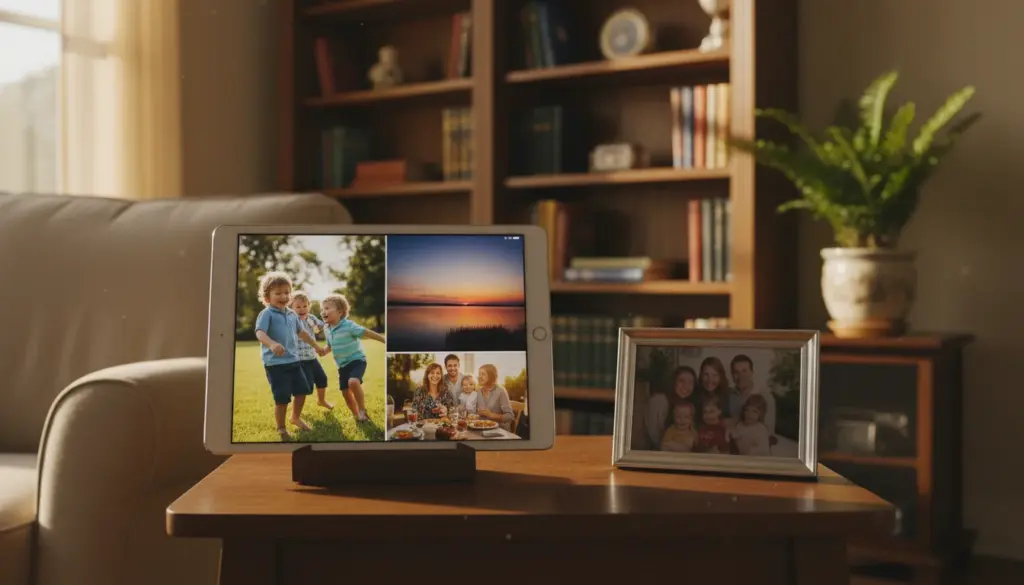
Frame it. A wooden tablet stand or even a simple picture easel ($5 from any craft store) makes the tablet look intentional. There are also actual digital photo frame cases – hard cases that surround the tablet like a traditional picture frame – for $15-25 on Amazon. Search for “iPad photo frame case” or “tablet picture frame.”
Turn off notifications. Nothing kills the ambiance like a text message banner popping up over a sunset photo. Go to Settings → Notifications and turn off everything on this device.
Set Night Shift. The display should warm up in the evening and dim at night. Settings → Display & Brightness → Night Shift → schedule.
Consider the angle. Photo frames work best at a slight upward angle. Most tablet stands have adjustable tilt – set it so you can see the photos from a few feet (about a meter) away without glare.
Shared Family Albums: Why This Actually Works
A tablet does something no traditional photo frame can: it connects to the cloud. Here’s how to set up a shared family album so everyone’s photos appear automatically:
iCloud Shared Albums (Apple)
- Open Photos on your phone
- Go to Albums → + → New Shared Album
- Name it and invite family members
- Everyone adds photos from their phone
- On the iPad photo frame, display this shared album
Google Photos Shared Albums
- Open Google Photos on your phone
- Library → New Album → add family members as collaborators
- Everyone adds photos naturally
- On the tablet, set up the slideshow from this album
The result: grandma takes a photo of the grandkids at her house. It shows up on your kitchen photo frame an hour later. Nobody had to email, text, or transfer anything.
Grandparent Setup
This is honestly one of the best uses: set up a tablet as a photo frame at a grandparent’s house, connected to a shared album. Every time you take a photo of the kids, it appears on their display automatically.
For grandparents, keep the setup simple:
- Use a stand (not a wall mount – easier to move and charge)
- Set it up with a Google Photos or iCloud shared album
- Turn on auto-brightness so they don’t have to touch it
- Turn off all notifications
- Set Auto-Lock to Never
Then just take photos. The grandparents don’t have to do anything – new pictures just appear. If you’ve been looking for a way to share more photos without teaching anyone how to use a photo sharing app, this is it.
Battery and Screen Tips
Leave it plugged in. This is a stationary display, not a portable device. The battery was already too degraded for portable use – that’s why it’s available for this project.
Screen burn-in isn’t a real concern. Photos rotate, brightness changes throughout the day, and LCD screens are highly resistant to burn-in. After a year of continuous use, you won’t see any ghosting.
Dim at night. Either use Night Shift on a schedule, or set the tablet to turn off the screen at a certain time. On Android,  Fotoo has a built-in schedule. On iPad, you can use Shortcuts to trigger Do Not Disturb (which dims the screen) at bedtime.
What About Dedicated Photo Frames?
Products like  Aura,
Aura,  Nixplay, and
  Skylight exist specifically for this purpose. They’re well-designed and come with their own sharing apps. But they have drawbacks:
- Cost: $80-200 for a new frame vs. $0 for a tablet you already own
- Screen quality: Most dedicated frames have lower resolution than even an old iPad
- Subscriptions: Some (Nixplay, Skylight) charge monthly fees for cloud features. Your tablet with Google Photos does this for free.
- Ecosystem lock-in: If the company shuts down, your frame becomes a brick. Your iPad keeps working regardless.
If you’re buying a gift and the recipient doesn’t have an old tablet, a dedicated frame makes sense. But if there’s already an iPad in the drawer? Save your money. We break down the full cost and feature comparison in our iPad vs dedicated digital frame article.
Quick-Start Checklist
- Charge the old tablet
- Connect to Wi-Fi
- Set Auto-Lock to Never
- Set up a shared photo album (iCloud or Google Photos)
- Open the slideshow or photo frame app
- Put it on a stand
- Turn off notifications
- Done
Total time: about 10 minutes. Total cost: $0 (or $5-15 for a nice stand).
Your old iPad just became the most-looked-at screen in the house – and this time, everyone’s smiling at what’s on it.