Why an Old iPad Is Perfect for Kids
Here’s what I’ve learned about kids and electronics: they will drop it. They will spill juice on it. They will somehow manage to download 47 apps in the time it takes you to make a sandwich. This is not a criticism – it’s physics.
Which is exactly why an old tablet is perfect for kids. When the 5-year-old drops it on the kitchen floor, you don’t need to quietly hyperventilate about your $800 investment. It was already retired. If something happens to it, you shrug.
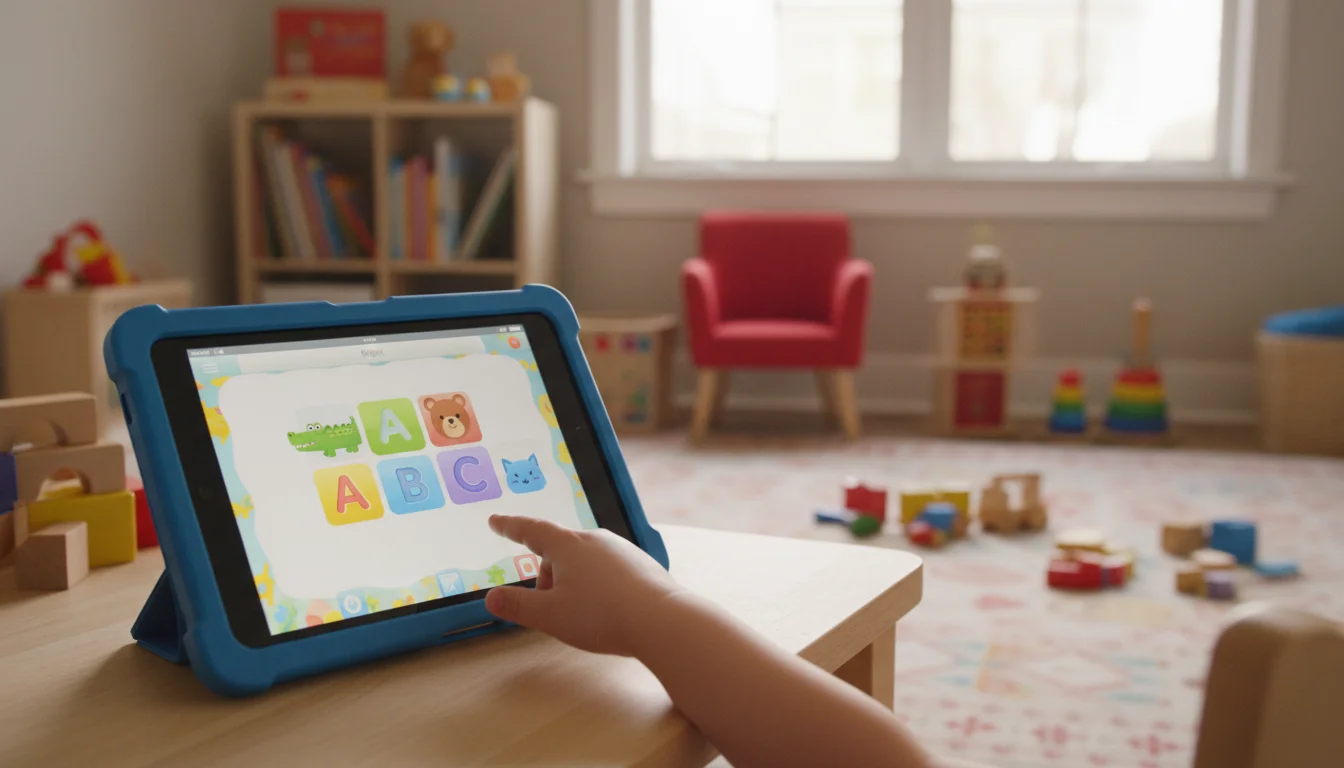
But “old” doesn’t mean “useless.” Even an iPad from 2015 runs Khan Academy, PBS Kids, and dozens of excellent educational apps. The screen is sharp. The speakers work. The apps load. For a kid learning to read, do math, or explore the solar system, it’s more than enough. Have a second old tablet? It makes a solid naptime baby monitor while the older kids are busy.
Setting Up Parental Controls (Do This First)
Before handing the iPad to your kid, spend 10 minutes on restrictions. Future you will be grateful.
iPad (Screen Time)
- Settings → Screen Time → Turn On Screen Time
- Use Screen Time Passcode – set a passcode your kid doesn’t know
- Content & Privacy Restrictions → Turn On
- Configure:
- App Store Purchases: Don’t Allow (prevents downloading or buying without your approval)
- Content Restrictions: Set age-appropriate limits for apps, movies, music, web content
- Web Content: Choose “Limit Adult Websites” or “Allowed Websites Only” (for younger kids, whitelist specific sites)
- App Limits: Set daily time limits per app or category (e.g., 1 hour of games, unlimited educational)
- Downtime: Schedule hours when only allowed apps work (great for bedtime)
Android Tablets
- Create a child profile or use
 Google Family Link
 - Family Link lets you:
- Approve or block app downloads
- Set daily screen time limits
- Lock the device at bedtime
- See what apps they’re using
- Google Family Link app (install on your phone): link your child’s profile and manage remotely
For a deeper walkthrough of parental controls, screen time limits, and physical protection, see our complete guide to kid-proofing an old tablet.
Guided Access (iPad, Quick Method)
If you just want to lock the iPad to a single app so your 3-year-old can’t exit to YouTube:
- Settings → Accessibility → Guided Access → Turn On
- Set a passcode
- Open the educational app
- Triple-click the Home button → Start
- The iPad is now locked to that one app. Triple-click again + passcode to exit.
This is the fastest solution for toddlers. One app, no escape.
Best Educational Apps for Old iPads
iOS reality check: Mark went through the App Store listings for every app below, and the picture is mixed.  Khan Academy Kids, Homer, Epic!, Todo Math, the Tinybop apps, ScratchJr, and ABCmouse all work on old iPads (iOS 11-13). But Prodigy Math now requires iOS 16, Duolingo requires iOS 17, PBS Kids and the NASA app need iOS 15.6, and Kodable needs iOS 15. Android tablets have no issues with any of these.
Reading & Literacy
Khan Academy Kids (Free) The gold standard. Reading, writing, math, social-emotional learning. Ages 2-8. Completely free, no ads, no subscriptions. If you install only one educational app, make it this one.
Homer (Free trial, then $10/month) Personalized reading program. Ages 2-8. Adjusts to your child’s level. The stories and phonics lessons are genuinely engaging – my kids ask to use it, which says something. Works on all old iPads (iOS 12+).
Epic! (Free with limited access, $14/month for unlimited) Digital library with 40,000+ children’s books. Read-to-me audio for younger kids. Great for families that go through books faster than the library can supply them. Works on all old iPads (iOS 12+).
Math
Prodigy Math (Free, optional premium – iOS 16+ or Android) Turns math into an adventure game. Covers grades 1-8. The free version has all the educational content – premium just adds cosmetic game features. iOS warning: Requires iOS 16.0, so it won’t install on most old iPads. Works fine on Android tablets.
Todo Math (Free with premium) For younger kids (ages 3-8). Number recognition, counting, basic operations. Very visual and tactile – good for pre-readers.
Science & Exploration
Tinybop apps ($4 each) Beautiful interactive science apps. The Human Body, Plants, Weather, The Earth. No text needed – kids discover through interaction. Each app is about $4 and genuinely good. Works on all old iPads (iOS 11+).
NASA App (Free – iOS 15.6+ or Android)
For older kids (8+). Real NASA images, mission updates, ISS tracking. Surprisingly engaging for kids who are into space. iOS note: Requires iOS 15.6, so iPads stuck on iOS 12-14 can’t run it. You can use  nasa.gov in Safari as a workaround.
Coding
ScratchJr (Free) Visual programming for ages 5-7. Kids make characters move, jump, and interact by snapping together colorful blocks. Created by MIT – it’s well-designed and genuinely teaches programming thinking.
Kodable (Free trial, then $25/month – iOS 15+ or Android) More structured coding curriculum. Ages 4-11. Progresses from visual puzzles to actual JavaScript concepts. iOS warning: Requires iOS 15.0 and the subscription has gone up significantly. ScratchJr (free, works on everything) is the better bet for old iPads.
Languages
Duolingo (Free with ads, $13/month for Super – iOS 17+ or Android)
Works great on tablets. Spanish, French, Mandarin, and 30+ other languages. The gamification keeps kids (and, let’s be honest, adults) coming back. iOS warning: Duolingo now requires iOS 17.0, so it won’t install on most old iPads. The free version works in Safari at  duolingo.com as a workaround.
General / Multiple Subjects
PBS Kids Games (Free – iOS 15.6+ or Android)
Free games based on PBS shows. Daniel Tiger, Curious George, Wild Kratts. High quality, no ads, no in-app purchases. If your kids watch PBS, they already know the characters. iOS note: Requires iOS 15.6, so the oldest iPads (iPad Air 1, iPad mini 2/3) can’t run it. You can play games at  pbskids.org in Safari instead.
ABCmouse (Free trial, then $15/month) Full early learning curriculum. Ages 2-8. Reading, math, science, art. Very structured – almost like a preschool program. Works on most old iPads (iOS 13+).
Creating a Learning-Focused Setup
Home Screen Organization
Set up the home screen so educational apps are front and center:
Page 1: Learning apps only – Khan Academy, reading app, math app Page 2: Creative apps – drawing, music, coding Page 3: Entertainment (if you allow it) – videos, games
Or even simpler: if using Guided Access, just put the one app you want them to use and lock it.
App Folders by Subject
Create folders:
- Reading – Khan Academy Kids, Homer, Epic
- Math – Prodigy, Todo Math
- Explore – Tinybop apps, NASA
- Create – Drawing apps, ScratchJr
Remove Distractions
Before handing it over:
- Delete or hide Safari (Content Restrictions → Allowed Apps → Safari off)
- Delete social media apps
- Turn off Siri (Settings → Siri & Search → toggle off)
- Turn off notifications for everything except maybe a timer
Making It Durable
Kids are hard on devices. Protect the old iPad with:
A rugged case ($15-25). Get a chunky, drop-proof case with a handle. Amazon has dozens. The Fintie ShockProof case and the ProCase Kids Case are popular options. These cases make the iPad nearly indestructible for normal kid use.
A screen protector ($8). Glass screen protectors prevent scratches from fingernails, stylus abuse, and mysterious grime.
Don’t bother with AppleCare. It’s an old iPad. If it breaks beyond repair, recycle it. The case and screen protector are your insurance policy.
Age-Specific Setups
Toddlers (2-4)
- Use Guided Access to lock to one app at a time
- Install Khan Academy Kids and PBS Kids
- Set daily time limit to 30-60 minutes
- Turn off all purchase capability
- Get a chunky case with a handle
- Put it away when time is up – don’t leave it accessible
Early Elementary (5-7)
- Multiple educational apps accessible
- Screen Time limits: 1-2 hours/day
- Content Restrictions: age-appropriate
- Add ScratchJr for coding, Duolingo for language
- Allow some creative apps (drawing, music)
- Introduce the concept of “app time is over”
Upper Elementary (8-10)
- More freedom with educational apps
- Epic! for reading, Prodigy for math
- Allow supervised web access for school projects
- Introduce responsibility: “You manage your time, but the iPad goes away if it becomes a problem”
- Consider using it as a second monitor for homework
The “But They’ll Just Watch YouTube” Concern
Fair concern. Here’s how to handle it:
Delete YouTube. Just remove it. If they need a specific educational video, watch it together on your phone or computer.
If you keep YouTube: Use YouTube Kids instead (the app, not regular YouTube). Set it to the appropriate age group. It’s not perfect – some weird content gets through – but it’s dramatically better than unrestricted YouTube. Note: YouTube Kids requires iOS 16, so it may not install on the oldest iPads.
Block Safari if your kids are resourceful enough to find youtube.com in the browser.
Accept the reality: Some screen time will be entertainment. That’s fine. The goal isn’t zero fun – it’s that the default, easy-to-reach apps are educational, and entertainment requires slightly more effort.
Quick Setup Checklist
- Charge the iPad and update to the latest available iOS/Android version
- Set up Screen Time / Family Link (10 min)
- Install 3-5 educational apps for your child’s age (10 min)
- Remove distracting apps and disable Safari
- Organize the home screen (5 min)
- Put on a rugged case
- Set daily time limits
- Hand it over and watch them learn
Total setup: about 30 minutes. Total cost: $0-25 (case + screen protector). The iPad goes from “retired” to “the kids’ favorite learning tool” – and you go from worrying about them dropping your phone to not caring at all.