Your Phone Doesn’t Belong Near the Stove
Let’s be honest about what happens when you cook with your phone: you unlock it with wet hands. The screen goes dark mid-recipe. You get a text and lose your place. Someone calls. Your 5-year-old picks it up and you find it later, sticky, on the wrong recipe entirely.
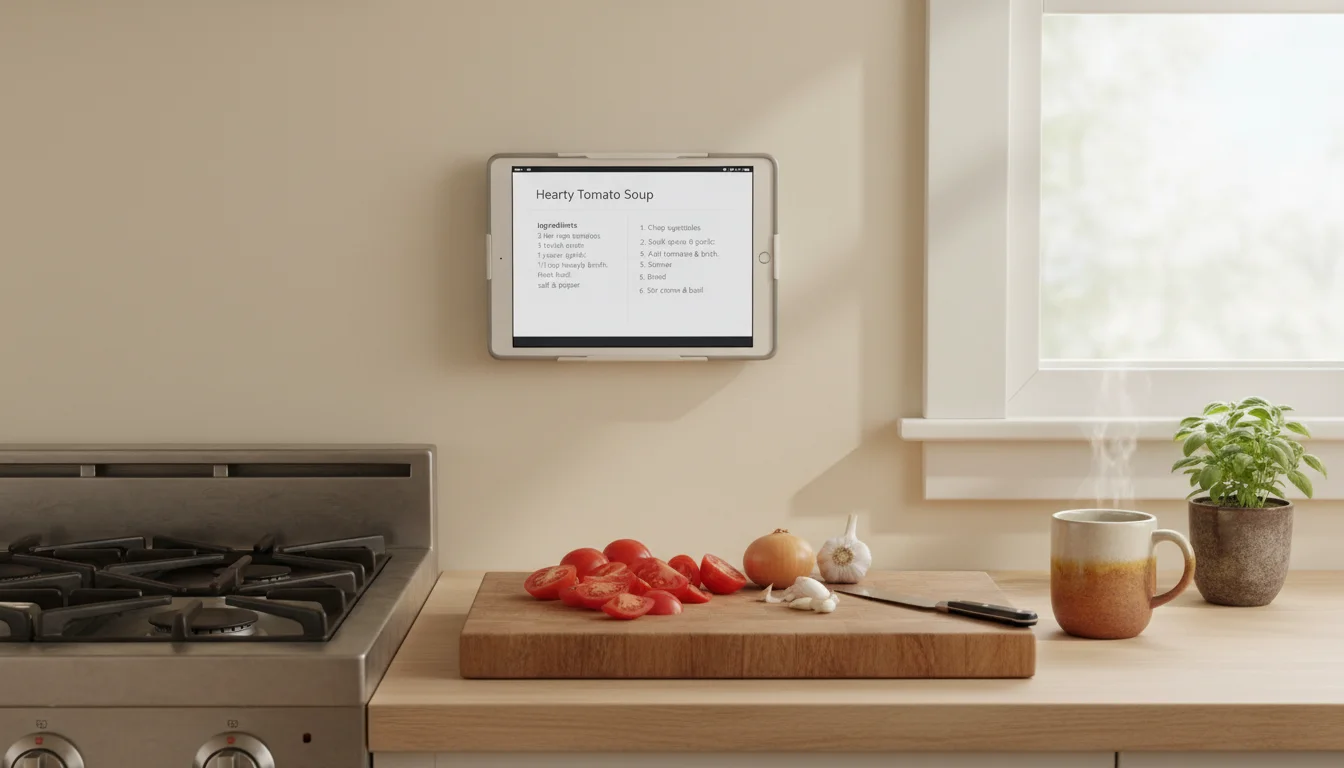
An old iPad on the counter fixes all of this. Bigger screen (readable from arms-length while stirring), always on, dedicated to one job: helping you cook. No phone calls interrupting. No texts covering the ingredients. Just the recipe, a timer, and maybe some music.
And it’s been sitting in your drawer for free.
Recipe Display: The Core Use
 Paprika ($5, One-Time)
Paprika is the single best cooking app for a kitchen tablet. Here’s what it does:
- Saves recipes from any website – paste a URL and it strips out the ads, life stories, and pop-ups, leaving just the ingredients and steps
- Scales recipes – cooking for 6 instead of 4? Tap a button and all measurements adjust
- Grocery list integration – add ingredients from a recipe directly to your shopping list
- Offline access – recipes download to the device, no Wi-Fi needed mid-cook
- Built-in timers – set timers from within the recipe. Multiple timers for different dishes
The $5 one-time purchase is the best money you’ll spend on a kitchen app. Save the recipes you actually make, and your old iPad becomes a personalized cookbook that never loses your page.
Allrecipes (Free – iOS 15.6+ or Android)
If you prefer browsing rather than saving, Allrecipes has a solid iPad app with user ratings and reviews that help you filter out the duds. The larger screen makes recipe browsing much more pleasant than on a phone. iOS note: The app requires iOS 15.6, so the oldest iPads (iPad Air 1, iPad mini 2/3) will need to use allrecipes.com in Safari instead. Food Network Kitchen was discontinued in March 2024 and is no longer available.
Just Open the Browser
Don’t overthink this. You can also just open Safari or Chrome, go to your favorite recipe site, and prop up the iPad. The bigger screen means the recipe text is actually readable from the counter without squinting.
Tip: Reader mode (tap the “aA” icon in Safari → Show Reader) strips ads and sidebars from recipe websites, leaving clean text. A lifesaver on recipe sites with 8,000 words of backstory before the actual recipe.
Timers: Multiple, Named, and Visible
The Built-In Clock App
The Clock app that comes with your iPad has a timer tab that works fine for simple cooking. But it only runs one timer at a time.
Thyme (Free) or Kitchen Timer+ (Free)
Multi-timer apps designed for cooking. Set “Pasta – 12 min,” “Sauce – 25 min,” and “Garlic bread – 8 min” all running simultaneously, with labels you can read from across the kitchen. Thyme works on all old iPads (iOS 9+). Kitchen Timer+ needs iOS 15.1.
This is genuinely useful for complex meals. When you’re juggling three dishes with different cook times, having named timers on a visible screen beats trying to remember which phone alarm was which.
Siri / Google Assistant
“Hey Siri, set a timer for 15 minutes called chicken.” It works, it’s hands-free, and on old iPads Siri handles timers perfectly well even if it struggles with more complex requests.
Meal Planning
Mealime (Free with Pro – iOS 15.6+ or Android)
A meal planning app that suggests recipes based on your dietary preferences, generates a grocery list, and shows step-by-step cooking instructions. The free version covers most needs. iOS note: Requires iOS 15.6, so the oldest iPads can’t run it.
Keep it open on the kitchen iPad so the whole family can see what’s for dinner tonight (and stop asking you).
AnyList ($10/year – iOS 15+ or Android)
Combines meal planning with grocery lists. Plan the week’s meals, and AnyList generates a shopping list from the recipes. Share it with your partner – they can see the list update in real time while shopping.
Want the complete system for getting your family to share meal planning and grocery duties? The family meal planning guide walks through the whole workflow, from choosing an approach to getting everyone involved.
The Analog Approach: A Shared Note
If you don’t want another app, open Apple Notes, create a shared note called “This Week’s Meals,” and list Monday through Sunday. Anyone in the family can check the iPad to see what’s planned. Simple, no subscription, and it just works. (Google Keep works too, but the app requires iOS 17 – use  keep.google.com in Safari on older iPads.)
Grocery Lists
The old iPad on the kitchen counter is the perfect place for a running grocery list. See something running low? Walk over and add it. Heading to the store? Check the iPad before you leave (or check the synced list on your phone).
AnyList (Free / $10 per year)
The best grocery list app. Shared lists sync instantly – add “eggs” on the kitchen iPad and it appears on your phone. Items auto-categorize by store section. The free version handles basic lists; premium adds meal planning integration.
Apple Reminders (Free, Apple devices)
Create a shared list in Reminders, share it with your family. Everyone sees updates in real time. It’s already on your iPad – no download needed.
Google Keep (Free – iOS 17+ or Android)
Shared notes that work as grocery lists. Color-code them by store, add checkboxes, and access from any device. iOS warning: Google Keep now requires iOS 17.0, so it won’t install on most old iPads. Use keep.google.com in Safari instead – it works fine for grocery lists.
Music and Podcasts While Cooking
An old iPad on the kitchen counter with a Bluetooth speaker (or even its own speakers) makes a solid music player for cooking.
iOS heads-up: Mark checked the music and podcast apps, and several have bumped their iOS requirements. Spotify now requires iOS 16.1 and won’t install on most old iPads. Overcast (a popular podcast app) requires iOS 18.0 and won’t install on any old iPad. Your best bets:
- Apple Music (built-in) – works on every iPad, no download needed
- Apple Podcasts (built-in) – same, works on all iOS versions
- Spotify (iOS 16.1+ or Android) – only if your iPad can run it
- YouTube Music – whatever you already subscribe to. The YouTube app needs iOS 16, but youtube.com works in Safari
This is a low-key excellent use for an old tablet. Dedicated kitchen music without tying up your phone.
Voice Control for Messy Hands
When your hands are covered in raw chicken or flour, touching a screen isn’t ideal.
“Hey Siri” works on iPads running iOS 14+. You can:
- Set timers
- Ask for unit conversions (“Hey Siri, how many tablespoons in a quarter cup?”)
- Play music
- Add items to a list
“OK Google” on Android tablets does the same.
The voice recognition on old tablets isn’t as sharp as a modern smart speaker, but for kitchen-distance commands (standing near the tablet), it works well enough.
The Kitchen Assistant Setup
Here’s my recommended setup for a cooking-focused kitchen iPad:
Home screen:
- Paprika (or your recipe app)
- AnyList (or your grocery list app)
- Clock/Timer
- Apple Music or Spotify (or your music app)
- Notes (for the meal plan)
Settings:
- Auto-Lock: 5 minutes (you want it to sleep between cooking sessions, unlike an always-on display)
- Brightness: moderate (save battery between uses)
- Turn off notifications for everything
- Night Shift: on from 7 PM
Hardware:
- A tablet stand angled so you can read while standing at the counter
- Positioned away from the stove (steam and grease are enemies)
- Near-ish to a power outlet, but it doesn’t need to be always plugged in – you can charge it overnight
Compared to a Smart Speaker
If you already have an Echo Show or a Google Nest Hub in the kitchen, you might wonder why you’d also want a tablet. Fair question.
The tablet is better for:
- Reading recipes – the screen is bigger and you can scroll through ingredients
- Saving favorites – Paprika builds a personal cookbook that voice assistants can’t
- Grocery lists – adding and checking items by sight is faster than dictating to Alexa
- Multiple timers – visible, named, all at once
The smart speaker is better for:
- Quick questions – “How many ounces in a cup?” is faster by voice
- Music – better speakers, easier to start
- Hands-free everything – when you can’t touch anything
They actually complement each other well. Smart speaker for voice, tablet for visual recipes and lists.
Quick Checklist
- Install Paprika ($5) and a grocery list app (AnyList or whatever you prefer)
- Save 5-10 recipes you actually make
- Put the iPad on a counter stand, away from the stove
- Set Auto-Lock to 5 minutes
- Turn off notifications
- Cook something tonight using the iPad instead of your phone
You’ll wonder how you cooked without it. And your phone will stay dry, clean, and in your pocket where it belongs.
If you’re ready to go further with a full kitchen setup, including wall mounting and keeping it running long-term, our kitchen display guide covers the whole process from start to finish.