Too Slow for Modern Games. Perfect for the Good Ones.
Your old iPad can’t run Genshin Impact. But it runs classic and retro games without breaking a sweat. These games were designed for hardware a fraction as powerful, and your old iPad has a better screen than any console they originally ran on.
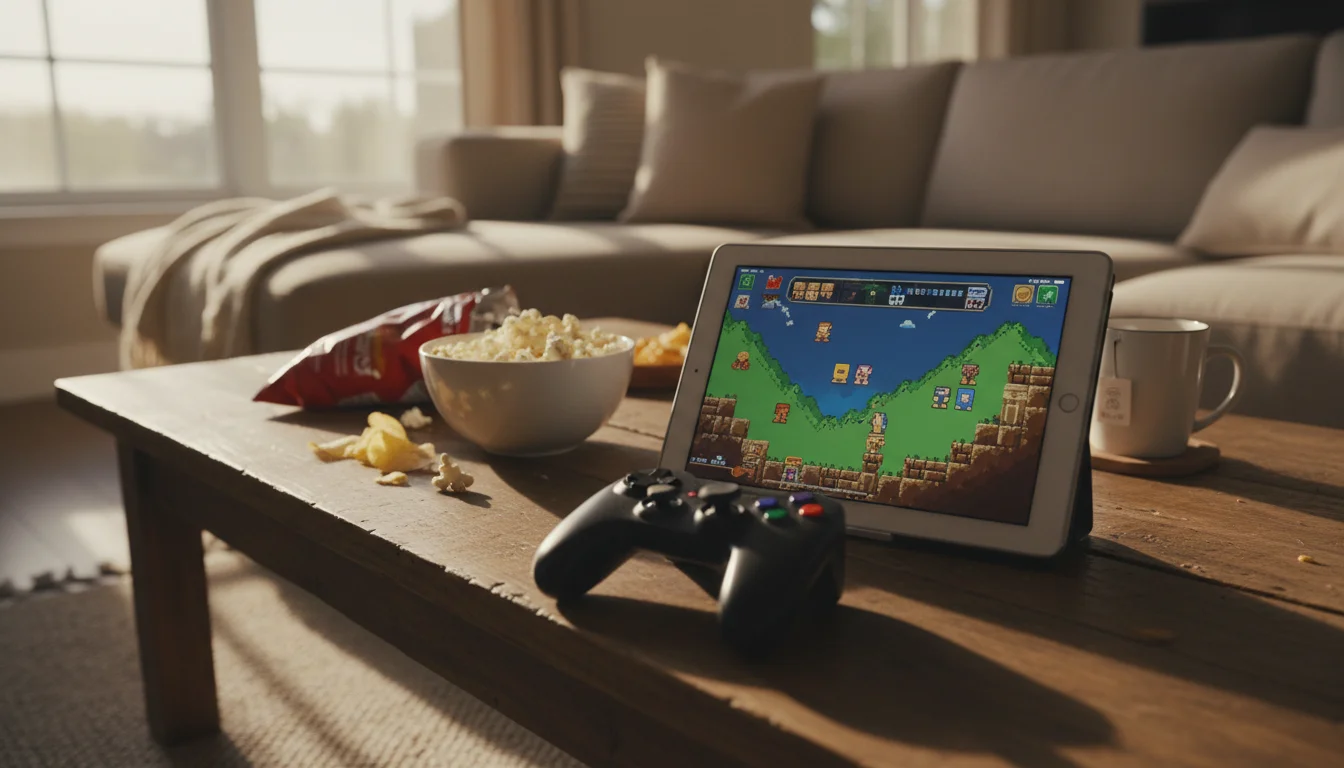
My 8-year-old discovered this by accident. He grabbed the old iPad Air from the kitchen counter, downloaded some free game, and didn’t put it down for two hours. That was the moment I stopped thinking of it as “the old iPad” and started thinking of it as the family game console. Pair it with a $25 Bluetooth controller and you’ve got a setup with a massive library.
What Runs Well on Old iPads
Games designed for less powerful hardware run better on old devices. Here’s what plays great:
Classic iOS Games
The App Store has thousands of games from the early smartphone era that run perfectly on older iPads:
 Monument Valley ($4) – beautiful puzzle game, runs on any iPad
- Alto’s Adventure ($5) – endless runner, gorgeous visuals, no performance issues
- Plants vs. Zombies (free) – the classic, runs on anything
- Angry Birds (free) – the original still works
- Fruit Ninja Classic ($2) – perfect for touch screens
- Cut the Rope (free) – physics puzzles, runs everywhere
These games were literally built for the hardware you have. They look great and run smooth.
Apple Arcade ($7/month)
Apple Arcade includes many games optimized for older hardware. Since they’re designed to run across all Apple devices, they tend to be less demanding:
- Sneaky Sasquatch – adventure game, family-friendly
- What the Golf? – absurd golf puzzles
- Grindstone – color-matching puzzler
- Mini Motorways – strategy/simulation
The $7/month subscription gives you access to 200+ games with no ads or in-app purchases. Good value for a dedicated gaming iPad – and the whole family can share one subscription.
Retro Emulation (Legal Gray Area)
This is the big one. Emulators can run games from classic consoles – NES, SNES, Game Boy, Sega Genesis, PlayStation 1. As of 2024, Apple allows emulator apps on the App Store:
Delta (Free, App Store) – this is the one to start with. You install it, drop in a game file, and you’re playing Super Mario World in about two minutes. It handles NES, SNES, Game Boy, Game Boy Advance, N64, and DS games. Save states work great, and it picks up Bluetooth controllers automatically. Requires iOS 14+.
RetroArch (Free, App Store) – covers way more systems than Delta (everything from Atari to PlayStation 1), but the tradeoff is setup time. There’s a learning curve with “cores” and configuration menus. Mark got it running on our old iPad mini in about 20 minutes, but he also does this stuff for fun. If you just want to play Nintendo games, stick with Delta. RetroArch is for when you want PS1 or Sega. Works on iOS 12+.
Legal note: Emulators are legal. Game ROMs are where it gets complicated – you’re legally entitled to play ROMs of games you own physical copies of. Downloading ROMs of games you don’t own is piracy. We’ll leave the ethics to you, but the software itself is legitimate.
Controller Setup
Touch controls work for puzzle games and simple titles, but for anything with a D-pad and buttons, you want a real controller.
Compatible Controllers
Any Bluetooth game controller that supports iOS works:
 Xbox Wireless Controller ($45-60) – pairs via Bluetooth, great ergonomics, the default recommendation
- PlayStation DualSense/DualShock 4 ($50-70) – also works via Bluetooth
 8BitDo SN30 Pro ($45) – retro-styled controller, perfect for classic games
- 8BitDo Zero 2 ($20) – tiny, pocketable, good enough for 2D games
 Backbone One ($100) – clips onto your iPhone like a Nintendo Switch. Designed for phones, not iPads, but a premium mobile gaming option
How to Pair
- Put the controller in pairing mode (varies by controller – usually hold a button for 3 seconds)
- On iPad: Settings → Bluetooth → find the controller → tap to pair
- That’s it. The controller works system-wide with any game that supports it.
Most games from the App Store and all emulators support MFi (Made for iPhone) and Bluetooth controllers.
The Gaming Station Setup
If you want to use the old iPad as a dedicated gaming device:
- Get a stand – prop it up at a comfortable viewing angle
- Pair a controller – Bluetooth, no cables
- Connect to a TV (optional) – Lightning to HDMI adapter ($30) or wireless via AirPlay to an Apple TV. Now it’s a console on the big screen.
- Download games – start with a few from the list above
- Set it up for the kids – Guided Access locks it to the game, Screen Time limits prevent 8-hour sessions
Old iPad as Kids’ Gaming Device
This is honestly one of the best uses for an old iPad. Instead of buying a Nintendo Switch ($340) for young kids who might break it, give them the old iPad with:
- Apple Arcade subscription ($7/month, shared with the family)
- A rugged case
- A cheap controller ($20)
- Screen Time limits
If the 5-year-old drops it, you’re out $0. If they scratch the screen, who cares? It was in the drawer. (Got an old Kindle Fire instead? Same idea, different ecosystem.)
Performance Expectations
| iPad Model | What Runs Well |
|---|---|
| iPad Air 1 / mini 2 | 2D games, puzzle games, NES/SNES/GB emulation |
| iPad Air 2 / mini 4 | All of above + N64 emulation, Apple Arcade |
| iPad 5th-6th gen | All of above + PS1 emulation, most 3D games |
| iPad Pro 1st gen | Pretty much everything except AAA current titles |
The takeaway: Even the oldest supported iPads handle 2D and retro games perfectly. For 3D games and PS1-era emulation, you want an iPad Air 2 or newer.
Quick Setup
- Charge the iPad
- Pair a Bluetooth controller ($20-45)
- Download a few games (App Store, Apple Arcade, or Delta emulator)
- Get a stand or case with a kickstand
- Optional: connect to TV via HDMI or AirPlay
- Play
Our old iPad Air now lives on the coffee table with an 8BitDo controller next to it. The kids fight over it more than the Switch, which is honestly a little insulting to the Switch. But I’m not complaining. It was free.
Gaming is one of the most fun things to do with an old iPad, but it’s far from the only one. Our old iPad ideas guide has the complete rundown.