More Screen Space for $0
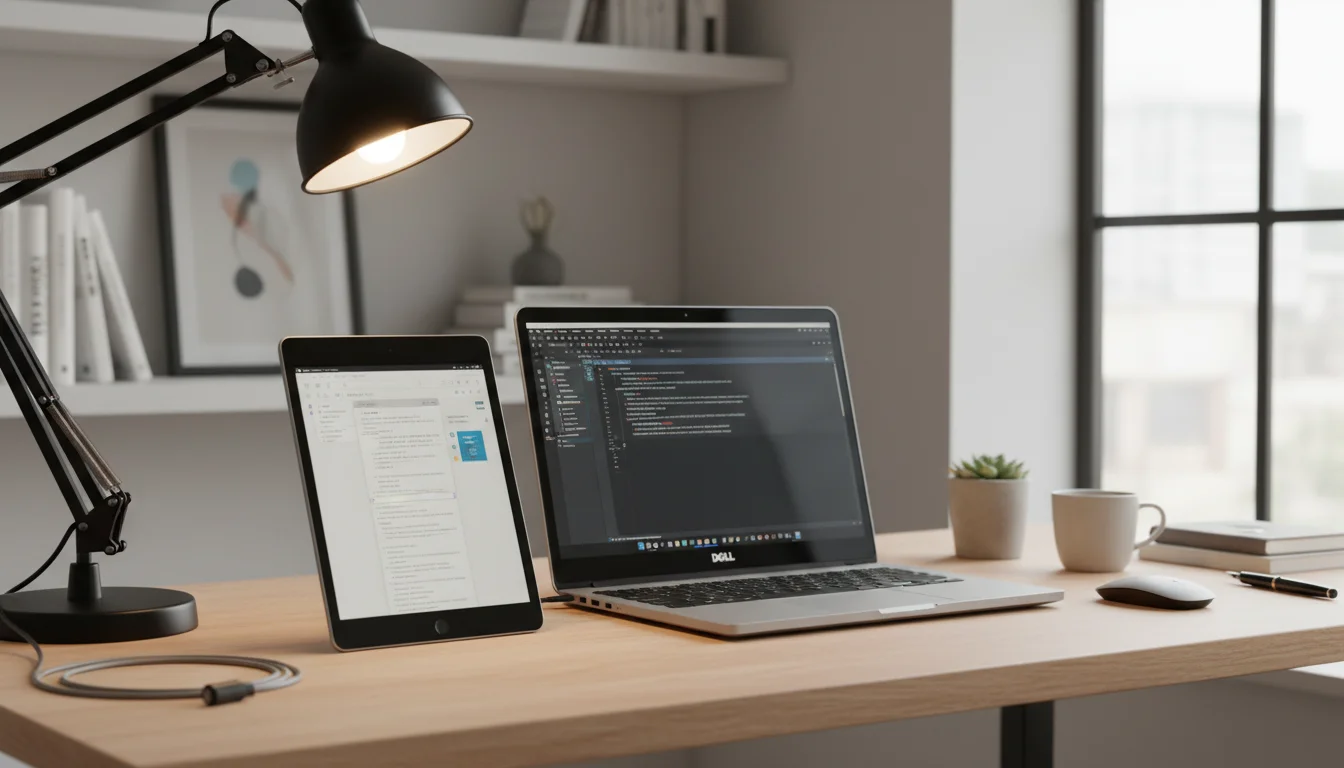
I started working from the kitchen table when my youngest was born. One laptop screen, a dozen tabs, and I kept losing track of which window had my notes. Then Mark dug an old iPad out of the drawer and said, “Just use this.”
A decent standalone monitor runs $150-300. Your old iPad does the same job for free. Apple built it right into macOS, and if you’re on Windows or have an older iPad, there are solid third-party options that work just as well.
Option 1: Sidecar (Mac + iPad) – Free, Built In
If you have a Mac and a reasonably modern iPad, Sidecar is the answer. It’s built into macOS and iPadOS, it’s free, and it just works.
Requirements:
- Mac running macOS Catalina (10.15) or later
- iPad running iPadOS 13 or later
- Both signed in to the same Apple ID
- Both on the same Wi-Fi network (or connected via USB cable)
Supported iPads:
- iPad Pro (all models)
- iPad Air (3rd gen / 2019 and newer)
- iPad (6th gen / 2018 and newer)
- iPad mini (5th gen / 2019 and newer)
How to set it up:
- On your Mac, click the Control Center icon in the menu bar (or go to System Settings → Displays)
- Click Screen Mirroring
- Select your iPad
- Choose “Use as Separate Display” (not “Mirror”)
That’s it. Your iPad is now a second monitor. Drag windows to it, adjust the arrangement in Display settings, and work.
What about older iPads? If your iPad is too old for Sidecar (iPad Air 2, iPad mini 4, or anything earlier), skip to Option 2 or 3 below. Those work with older devices.
Option 2: Duet Display – $48/year
 Duet Display works with older iPads and Android tablets that Sidecar doesn’t support. It also works with Windows PCs.
Requirements:
- iPad running iOS 12+ or Android tablet running Android 8+
- Mac or Windows PC
- Duet Display subscription ($48/year for Air, $84/year for Pro) plus the companion app on your computer
- USB cable or Wi-Fi connection
Setup:
- Download Duet Display from the App Store or Google Play
- Download the Duet companion app on your Mac or PC (duetdisplay.com)
- Connect via USB cable (most reliable) or Wi-Fi
- Your tablet appears as a second display
Why Duet over free alternatives: Lower latency, better color accuracy, and it supports touch input – you can tap and interact with your computer through the tablet screen. The responsiveness is noticeably better than the free options, especially over USB.
The pricing situation: Duet used to be a one-time $10 purchase, then briefly $4/year, and has since jumped to $48/year (Air) or $84/year (Pro with drawing features). That’s a significant cost. If you bought it years ago, your old license may still work on an older iPad – worth checking. Otherwise, try the free alternatives below first.
Option 3: Spacedesk (Windows + Any Tablet) – Free
If you’re on Windows and don’t want to pay for Duet,  Spacedesk is the one to try. Install the driver on your Windows 10 or 11 PC, open the Spacedesk app (or just a browser) on any iPad or Android tablet on the same Wi-Fi network, and it connects as a second display. That’s the whole process.
It’s not as snappy as Duet, and the interface looks like it was designed in 2012. But it’s genuinely free with no feature gates, and it runs on tablets old enough to have a headphone jack. If all you need is Slack or a document visible on a second screen, Spacedesk does the job without asking for your credit card.
Option 4: Deskreen (Any Computer + Any Tablet) – Free, Open Source
 Deskreen turns any device with a web browser into a second screen for any computer. Mac, Windows, Linux – doesn’t matter.
Setup:
- Download Deskreen on your computer (deskreen.com)
- Open a browser on your tablet
- Scan the QR code or enter the URL that Deskreen provides
- Choose to extend or mirror your display
It’s free, open source, and works with literally any tablet that has a browser. The latency is higher than the other options, so it’s better for static content (documents, chat, reference material) than for video or fast-moving visuals.
Which Option Should You Pick?
| Situation | Best Option | Cost |
|---|---|---|
| Mac + newer iPad (2018+) | Sidecar | Free |
| Windows PC + any tablet | Spacedesk | Free |
| Any computer + any tablet | Deskreen | Free |
| Want the lowest latency | Sidecar or Duet | – |
| Want touch input on the tablet | Duet Display | $48/yr |
| Mac + older iPad or Android tablet | Duet Display | $48/yr |
Getting the Most Out of Your Second Screen
Once you have the second display working, a few tips to make it actually useful:
What to Put on the Tablet Screen
- Email or Slack – keep communication visible without it stealing your main screen
- Reference material – documentation, specs, PDFs, the spreadsheet you’re cross-checking
- Music or podcast controls – Spotify on the tablet, work on the main screen
- Video calls – put the call on the tablet, your work on the main display
- Calendar – keep your schedule visible all day
- Budget tracker – your spending, always visible
Arrange Your Displays
In your display settings (System Settings → Displays on Mac, Settings → Display on Windows), drag the tablet display to match its physical position. If the iPad is to the right of your laptop, put it to the right in settings. This makes dragging windows between screens feel natural.
Use a Stand
If the iPad is lying flat on the desk, you’ll be craning your neck down all day. A simple tablet stand (~$20) props it up at eye level next to your laptop. The  Lamicall adjustable stand works well for this.
Wired vs. Wireless
USB cable gives you less latency and doesn’t depend on your Wi-Fi being stable. If you’re doing anything where speed matters (design work, coding with fast scrolling), use the cable. For static content like email or documents, wireless is fine.
What About Using the iPad as a Drawing Tablet?
If you have an Apple Pencil-compatible iPad and Sidecar, yes – you can use it as a drawing tablet for your Mac. Sidecar supports Apple Pencil input, which means your iPad becomes a Wacom-style drawing surface for Photoshop, Illustrator, or any Mac drawing app. You can also skip Sidecar entirely and draw directly on the iPad in apps like  Procreate (iPadOS 16.3+) or the free
  Sketchbook (iOS 14+).
For older iPads without Pencil support, Duet Display supports basic stylus input, but it’s not as precise. We have a full guide on setting up an old iPad as a drawing tablet if that’s what you’re after.
Performance on Old Tablets
The honest answer: it depends on the app.
Sidecar on supported iPads: Smooth. Apple optimized this well. Even an iPad 6th gen (2018) handles it without lag.
Duet on older iPads (iPad Air 1, iPad mini 2): Works, but there’s noticeable lag when scrolling quickly or moving windows. Fine for email, documents, and chat. Not great for video or design work.
Spacedesk and Deskreen on old tablets: Similar story. Static content is fine. Fast motion shows artifacts and delay.
So: if you mostly need a second screen to glance at things (Slack, email, reference docs), any old tablet works well. If you need to click around and interact with it constantly, you want a newer iPad with Sidecar or Duet over USB.
Quick Setup Checklist
- Check your devices against the requirements above
- Pick the right option for your combination
- Install the software on both devices
- Connect via cable or Wi-Fi
- Arrange displays in your settings
- Put the tablet on a stand at eye level
- Drag a window over – you now have two screens
Total time: 5-10 minutes. Total cost: $0 if you use the free options (Sidecar, Spacedesk, or Deskreen).
Five minutes of setup. 50% more screen space. And that old iPad finally has a daily job again.
Not sure a second monitor is the right fit? Our old iPad ideas page covers every project we’ve tested, from kitchen displays to retro gaming.