Put Your Phone in Another Room
Using your phone as an alarm clock is a trap. You set the alarm, then check Instagram “for one minute,” and suddenly it’s midnight. In the morning, you dismiss the alarm and immediately start scrolling email before your feet hit the floor.
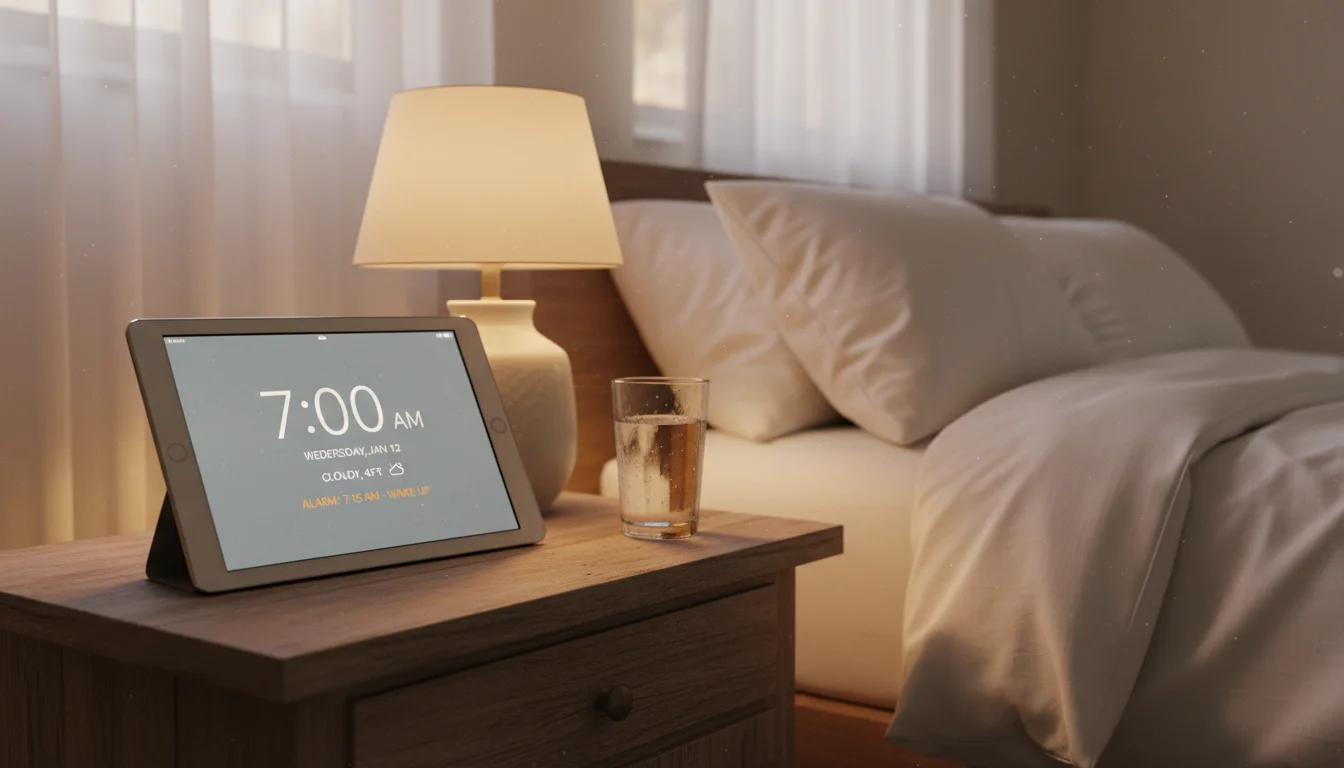
An old iPad on your nightstand breaks that cycle. Alarm clock, weather, tomorrow’s schedule – and nothing else. No social media, no email, no temptation. When the alarm goes off, there’s nothing to scroll.
And unlike a traditional alarm clock, it can show you tomorrow’s weather and first appointment before you close your eyes.
The Quick Setup
iPad as a Basic Alarm
- Open the Clock app → Alarm tab
- Set your alarm(s)
- Settings → Display & Brightness → Auto-Lock → Never (if you want an always-on clock display)
- Settings → Display & Brightness → Night Shift → Schedule (warm, dim display at night)
- Reduce brightness to minimum at bedtime
That’s a functional bedside clock. For something smarter, the apps below are worth the few dollars.
Best Alarm Clock Apps
 Nightstand ※ (Free)
A clean bedside clock app that shows the time in large, readable digits. The display dims based on ambient light – bright enough to read at night, but not a spotlight.
Features worth mentioning:
- Tap to dim, tap to brighten
- Customizable clock faces and themes
- Sleep timer
- Requires iOS 13.0+
Light Alarm ($7)
Gentle, light-based alarm. Your iPad screen gradually brightens before the alarm – simulating sunrise. Starts dim and gets brighter over 30 minutes, waking you more naturally than a jarring alarm tone. Multiple alarm sounds (birds, chimes) and customizable buildup times.
Works on iOS 9.0+, so even the oldest iPads can run it. One-time purchase, no subscription.
Sleep Cycle (Free with Premium)
Goes beyond a basic alarm – it tracks your sleep using the iPad’s microphone (detecting movement sounds) and wakes you during a light sleep phase within a 30-minute window before your alarm time. The theory is that waking during light sleep makes you less groggy.
Works better than you’d expect on an old iPad. Place the tablet on your nightstand with the microphone facing the bed. Requires iOS 15.0+, so it won’t work on the very oldest iPads (iPad Air 1, iPad mini 2/3).
The Bedside Dashboard
A bedside iPad works best when it shows you just two things: what you need to know before falling asleep, and what you need to know when you open your eyes.
Before bed (a glance):
- Tomorrow’s weather (do I need the heavy coat?)
- First appointment (what time do I need to be up?)
- Current time
When you wake up (another glance):
- Weather and temperature
- Today’s schedule
- Time
 DAKboard works well for this – set up a night-friendly layout with dark background, current weather, and today’s calendar. Schedule it to dim at bedtime and brighten at your wake-up time (premium feature).
Night Mode Is Everything
A bedside display that lights up the room at 2 AM defeats the purpose. Get the night settings right:
Brightness
- Auto-Brightness on – the sensor dims the screen in a dark room
- Manually drop to minimum before bed if auto doesn’t go dark enough
- Most alarm clock apps have their own dimming: tap the screen to cycle through brightness levels
Blue Light
- Night Shift (iPad) or Blue Light Filter (Android) – reduces blue light, which can interfere with sleep
- Schedule it from sunset to sunrise
- Some alarm clock apps have a red-only mode, which is even better for night vision
Do Not Disturb
- Focus → Do Not Disturb → Schedule – set it to activate at bedtime
- This silences all notifications so a random email at midnight doesn’t light up the room
- Alarms still ring during Do Not Disturb
Smart Home Integration
If you have smart lights or a smart thermostat, your bedside iPad can double as a smart home controller:
- Good Night scene – one tap: lights off, thermostat to 67°F (19°C), doors locked
- Good Morning scene – alarm triggers: lights on gradually, thermostat to 72°F (22°C)
The Apple Home app (built-in) can trigger these scenes. Keep a “Good Night” button on the home screen for one-tap bedtime mode. If you use Google Home smart devices, note that the Google Home app now requires iOS 17.0 – it won’t install on most old iPads. You can still control Google Home devices through a browser at home.google.com as a workaround.
Where to Put It
- Nightstand – obvious, but make sure it’s angled so you can see the clock without lifting your head
- A small shelf on the wall – keeps the nightstand clear for a glass of water and a book
- A stand with a wireless charger base (for your phone) – some stands have a phone charging spot underneath, combining functions
A small easel-style stand (~$15) at a slight backward angle is ideal – you can see the display lying down, and it takes up minimal space.
Compared to Dedicated Smart Alarm Clocks
| Feature | Old iPad |  Echo Show 5 ($90) Echo Show 5 ($90) |
|---|---|---|
| Screen size | 7.9-10.2″ | 5.5″ |
| Always-on clock | Yes (with app) | Yes |
| Sunrise alarm | Via Light Alarm app | Via Alexa |
| Calendar display | Full calendar view | Basic schedule |
| Weather | Full forecast | Basic |
| Voice assistant | Siri | Alexa |
| Smart home control | Full app support | Alexa only |
| Cost | $0-7 | $90 (often $60 on sale) |
The iPad wins on screen size, customization, and cost. The Echo Show wins on compactness and always-on voice response.
Quick Setup
- Install a bedside clock app (Nightstand ※ for a clock display, Light Alarm for sunrise wake-up)
- Set your alarm(s) in the Clock app
- Schedule Night Shift for sunset-sunrise
- Set up Do Not Disturb on a schedule
- Reduce brightness at bedtime
- Put on a small stand on your nightstand
- Remove social media and email from this iPad
- Sleep better
The whole point of a bedside iPad is that it does less, not more. Clock, weather, alarm, schedule. That’s it. Your phone goes in another room – and you’ll sleep better for it.
Got another old iPad kicking around? Our complete list of old iPad ideas has projects for every room in the house.