Not the Comparison You’re Used To
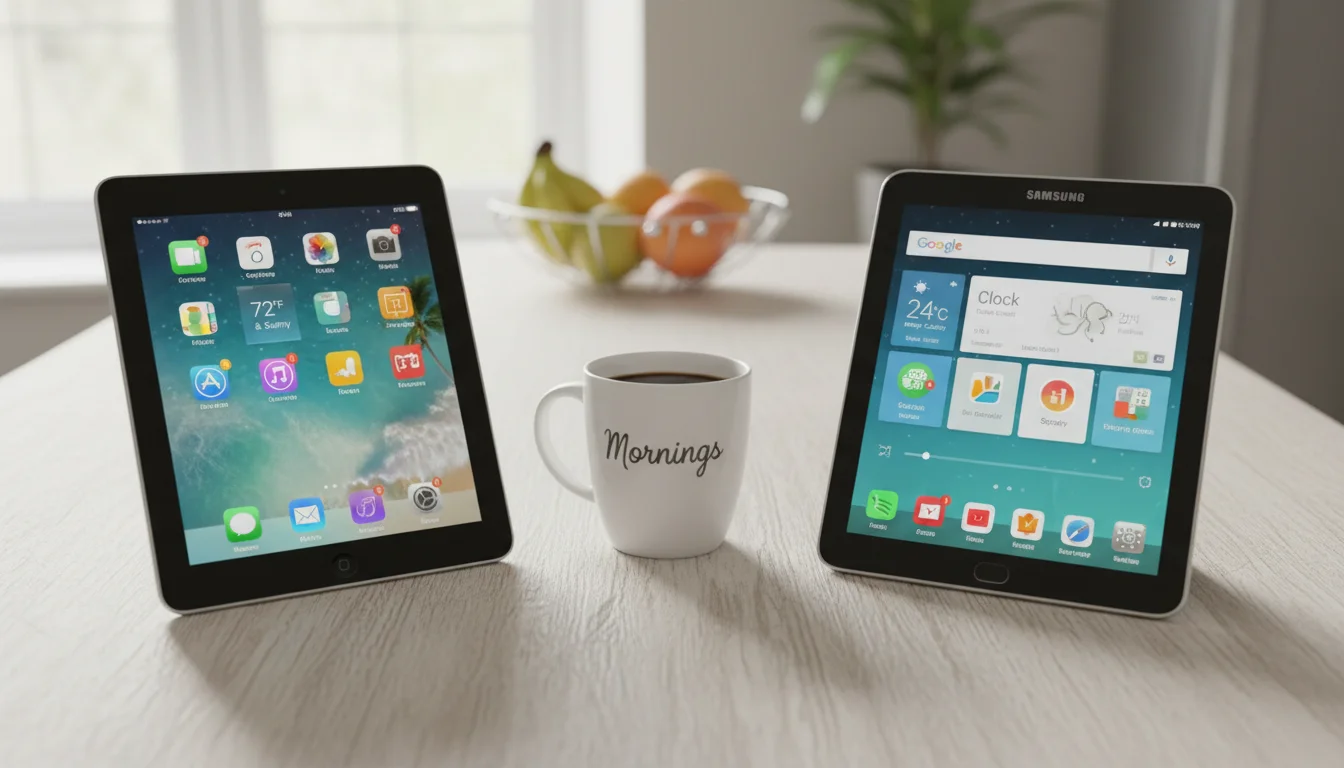
Every iPad vs Android article on the internet compares the latest $500 models. This isn’t that. We’re comparing the tablets in your drawer – the iPad Air 2 that stopped getting updates, the Samsung Galaxy Tab from 2018, the Amazon Fire tablet the kids abandoned. (Not sure how old your iPad actually is? That’s worth checking first.)
For a home display, the comparison is completely different than for a primary device. You don’t care about processor benchmarks or multitasking. You care about one thing: can this tablet do one job reliably, all day, without crashing?
Both can. But they get there differently. If you recently upgraded, we have ideas for your old iPad too.
Where Old iPads Win
Screen Quality
This is the iPad’s biggest advantage and it’s not close. Even an iPad Air from 2013 has a 2048×1536 Retina display. Most Android tablets from the same era (and plenty from later) top out at 1280×800.
For a photo frame, this matters enormously – photos look genuinely sharp on the iPad while budget Android screens show visible pixels from a few feet away. For a kitchen display or calendar, the difference is less dramatic but still noticeable. Text is crisper. Colors are more accurate.
Build Quality
Old iPads are aluminum and glass. They feel like real objects. An old iPad on a wooden stand looks like a piece of home tech. Most old Android tablets are plastic – lighter, sure, but they look and feel cheaper when you’re trying to make something that blends into a room.
App Ecosystem (Mostly)
Apple held the line on app quality for longer. Many popular apps – Paprika for recipes, photo frame apps, calendar widgets – still support iPads back to the Air 2 (iOS 15). The iPad version of apps tends to have better layouts that actually use the bigger screen instead of just stretching a phone app.
Guided Access
This is an iPad-only feature and it’s perfect for a home display. Guided Access locks the tablet into a single app – no accidental exits, no kids pressing the home button and ending up in Settings. Turn it on once and the tablet just shows your chosen app. Period.
Where Old Android Tablets Win
Always-On Display
Android handles always-on screens better than iOS, full stop. Android has native screen saver modes, “Stay Alive” apps that keep the screen on without hacks, and better control over what happens when the screen dims. Old iPads fight you on this – Auto-Lock set to “Never” works, but some apps still dim or pause after extended periods.
Screen Saver Mode
On many Android tablets, you can set  Google Photos as the screen saver (Settings, Display, Screen saver). When the tablet charges or goes idle, it automatically cycles through your photo albums. No app needed, no setup beyond choosing the album. iPads have nothing equivalent built in.
Kiosk / Single-App Mode
While iPads have Guided Access, Android goes further with proper kiosk mode options. Apps like  Fully Kiosk Browser (about $8 one-time) give you a full kiosk setup: auto-launch on boot, motion detection to wake the screen, remote management from your phone, and scheduled on/off times. It was literally designed for using tablets as wall displays.
If you’re setting up a smart home control panel or a weather station that runs a web dashboard, Fully Kiosk Browser on Android is the best tool for the job.
USB Power Management
Many older Android tablets can be set to limit charging to 85% or can run directly from USB power without charging the battery at all. This matters if you’re keeping the tablet plugged in 24/7 – lithium batteries don’t love sitting at 100% for months. Some Samsung tablets and most Amazon Fire tablets handle constant power better than iPads do.
Price and Availability
Old Android tablets are everywhere and they’re cheap. A used Samsung Galaxy Tab A from 2019 costs $40-60. An Amazon Fire HD 8 (previous generation) goes for $30-50. Old iPads hold their value stubbornly – even an iPad Air 2 from 2014 still sells for $70-100 used.
If you’re buying a tablet specifically for this project rather than raiding your own drawer, Android is significantly cheaper. We have a full list of ideas for old Android tablets to help you decide what to do with it.
Sideloading
Android lets you install apps from outside the official store. This matters because old tablets lose app store support – the Play Store starts hiding apps that don’t support your OS version. With Android, you can download and install older APK versions directly. On iPad, if an app drops support for your iOS version, you’re mostly stuck.
The Honest Comparison
| Feature | Old iPad | Old Android |
|---|---|---|
| Screen quality | Excellent | Varies (often mediocre) |
| Build quality | Aluminum, premium feel | Usually plastic |
| Always-on reliability | Good (with settings) | Great (native support) |
| Screen saver mode | No built-in | Yes, with Google Photos |
| Single-app lock | Guided Access (good) | Kiosk apps (great) |
| App availability | Good through ~2020 | Good, plus sideloading |
| Battery management on power | Limited | Better options |
| Used price | $70-100 | $30-60 |
| Mounting options | More accessories | Fewer brand-specific |
| Photo frame quality | Superior (screen) | Good (with  Fotoo app) Fotoo app) |
Which Models Work Best?
iPads Worth Using
iPad Air 2 (2014) – The sweet spot. Thin, Retina display, still runs iOS 15. Enough RAM to run one app without crashing. You can find these for $80-100 used.
iPad mini 2/3/4 – Great for nightstands, small shelves, or an alarm clock setup. The 7.9-inch (20 cm) screen is small for a kitchen display but perfect for a bedside photo frame.
iPad 5th-7th gen (2017-2019) – More recent, more capable, still very affordable used. If you find one under $100, grab it.
Avoid: iPad 2, iPad 3, original iPad mini. They’re stuck on iOS 9, and almost nothing useful runs on those anymore.
Android Tablets Worth Using
Samsung Galaxy Tab A 10.1 (2019) – Solid 1920×1200 screen, runs Android 11, widely available used for $50. Good all-around choice.
Amazon Fire HD 10 (any generation after 2019) – Cheap ($30-50 used), 10-inch (25 cm) screen, and Show Mode turns it into a quasi-Echo Show. Limited to the Amazon app store unless you sideload Google Play, but for a single-purpose display, the Amazon apps cover most needs.
Samsung Galaxy Tab S series (older) – The AMOLED screens on Tab S and Tab S2 are gorgeous for photo frames – true blacks, vibrant colors. Older models go for $50-80 used.
Avoid: Tablets with less than 2 GB of RAM. They’ll crash running even one app continuously. Also avoid anything running Android 7 or older – app compatibility drops off a cliff.
So Which Should You Pick?
Use an iPad if:
- You already have one in a drawer (most common scenario)
- You care most about photo display quality
- You want the tablet to look premium on a stand or mount
- You’re setting it up for grandparents and want minimum complexity
Use an Android tablet if:
- You’re buying specifically for this project (cheaper)
- You want a dedicated kiosk or smart home dashboard
- You need always-on reliability without workarounds
- You want to run a web-based dashboard (Fully Kiosk Browser is unbeatable)
The honest answer: use whatever’s already in your drawer. Both platforms work well enough as a single-purpose display that the platform matters less than actually setting it up. The best home display is the one you already own and can have running by this weekend.
If you have both an old iPad and an old Android tablet, put the iPad where screens quality matters most (photo frame, living room display) and the Android where always-on reliability matters (kitchen assistant, weather station).
The tablet in your drawer is already better than buying a new $150 smart display. The only wrong move is leaving it in the drawer.