The Calendar Problem Nobody Talks About
The tablet part is easy. Mount it on the wall, open a calendar app, done. No need for a $700 Hearth Display. The hard part is getting your entire family to actually use the same calendar.
My husband uses  Google Calendar for work. I use Apple Calendar because it’s on my phone and I never switched. The kids’ school sends event invitations through a system that syncs with Outlook. And the soccer league emails PDF schedules that nobody puts into any calendar at all.
Sound familiar? A shared family calendar on a wall-mounted tablet is only as useful as what’s on it. If half the family’s events are missing because someone forgot to add them, you’re back to “what time is soccer?” So before you think about which app to put on the old tablet, you need to solve the people problem first.
Step 1: Pick One Calendar Everyone Adds To
You need one shared calendar that every family member can edit from their own phone, regardless of whether they use Google, Apple, or Outlook. Just one. Everything else feeds into this.
Google Calendar (Best for Most Families)
Google Calendar is the most flexible choice because it works on every platform. iPhones, Android phones, web browsers, work laptops. Everyone can access it without switching their personal setup.
How to create a shared family calendar:
- Open
 calendar.google.com on a computer (not your phone – the mobile app can’t create shared calendars)
 - On the left sidebar, click the + next to “Other calendars” and select Create new calendar
- Name it something obvious: “Family” or “Ward Family” or whatever you want
- Click Create calendar
- Go to the new calendar’s settings (three dots > Settings and sharing)
- Under Share with specific people or groups, add each family member’s email
- Set permission to Make changes to events so everyone can add and edit
Each family member will get an email invitation. When they accept, the “Family” calendar appears in their own calendar app automatically. It shows up alongside their personal and work calendars, color-coded differently.
The important detail: You’re not sharing your personal calendar. You’re creating a separate “Family” calendar that lives alongside everyone’s existing setup. Nobody has to change how they manage their own schedule. They just add family events to the shared one.
Apple Family Sharing Calendar (If Everyone Has iPhones)
If your whole family uses iPhones and iPads, Apple makes this automatic. When you set up  Family Sharing, Apple creates a shared “Family” calendar for you. It appears in everyone’s Calendar app without any setup.
To add events to it:
- Create a new event in the Calendar app
- Tap the Calendar field
- Select Family instead of your personal calendar
Events sync through iCloud to every family member’s device. If you’re already using Family Sharing for App Store purchases or iCloud storage, you already have this calendar. Check Settings > [your name] > Family Sharing on your iPhone.
The catch: This only works with Apple IDs in your Family Sharing group. If your spouse uses Android, their events won’t show up here unless they manually add them from a browser at icloud.com.
Outlook (If a Parent Uses It for Work)
Outlook’s family calendar features exist but aren’t great for mixed-device families. The Outlook app on iOS and Android can subscribe to Google Calendars via iCal links, but it’s one-way only. You can see events but can’t add to the shared calendar from Outlook.
The practical move: if one parent lives in Outlook for work, have them subscribe to the Google Family calendar on their iPhone (Settings > Apps > Calendar > Calendar Accounts > Add Account > Google on iOS 18+, or Settings > Calendar > Accounts > Add Account > Google on iOS 14-17) so they can see family events alongside work meetings. They add family events directly to Google Calendar from their phone.
Step 2: The “Everything Shows Up Here” Rule
A shared calendar only works if people actually put things on it. This is more about habits than technology.
What goes on the shared calendar:
- Kids’ activities and practices
- School events (parent-teacher nights, half days, concerts)
- Medical appointments for anyone
- Social events that affect the household (“I told you I was going out Friday”)
- Travel dates
What stays on personal calendars:
- Work meetings
- Personal reminders
- Anything that doesn’t affect other family members
We made a rule: if it changes when someone is home, or if someone else needs to handle pickup/dropoff because of it, it goes on Family. Everything else stays personal.
The first week is the hardest. After that, adding events to the shared calendar becomes automatic. A weekly calendar review helps too – 15 minutes on Sunday to walk through the week catches gaps before they cause problems. The wall display reinforces this because people see what’s missing. “Wait, nobody put the dentist on there yet.”
Step 3: Getting It on the Wall Tablet
Now the fun part. You’ve got a shared calendar that everyone contributes to. Time to put it on that old tablet in the kitchen.
Google Calendar on the Tablet (Simplest)
If you went with Google Calendar as your shared calendar:
On an old iPad: Open Safari, go to calendar.google.com, log in with the account that owns the family calendar, and add it to your home screen. Set Auto-Lock to Never. The calendar display setup guide has the full walkthrough.
On an old Android tablet: The Google Calendar app is probably already installed. Open it, make sure the “Family” calendar is checked (visible), then add the calendar widget to your home screen. Set the widget as large as possible.
Apple Calendar on an Old iPad
If you’re an Apple family, open the built-in Calendar app on the old iPad. Sign in with your Apple ID under Settings > Passwords & Accounts (iOS 12-13) or Settings > Mail > Accounts (iOS 14+). The Family calendar will appear automatically if Family Sharing is set up. Set the display to Day or Week view in landscape mode.
DAKboard for the Prettiest Display
 DAKboard displays your calendar on a beautiful dashboard alongside weather and photos. If you want the wall display to look like something from a magazine instead of a plain calendar grid, this is the way.
The free tier connects up to two Google Calendars – enough for a shared Family calendar plus one personal calendar. If you use Apple iCloud or Outlook calendars, you’ll need the Essential plan ($6/month) to pull those in. The calendar apps guide covers DAKboard pricing and setup in detail.
The Mixed-Device Family Fix
Here’s the reality most guides ignore: families aren’t all on one platform. One parent is on iPhone, the other has a Samsung. The babysitter uses whatever. The school’s system exports to Outlook format.
The fix is simple, even if it feels redundant:
Pick Google Calendar as your shared hub. Every platform can connect to it.
- iPhone users: Add your Google account in Settings > Apps > Calendar > Calendar Accounts > Add Account > Google (iOS 18 and later), or Settings > Calendar > Accounts > Add Account > Google (iOS 14-17). Your shared Google Calendar appears in the Apple Calendar app alongside your iCloud calendars.
- Android users: It’s already there. Just make sure the “Family” calendar is checked in the Google Calendar app.
- Outlook users: Subscribe to the Google Calendar iCal link. In the Google Calendar web settings, under “Integrate calendar,” copy the iCal URL. In Classic Outlook (2019/2021/365 with the File menu), paste it under File > Account Settings > Internet Calendars. In New Outlook or Outlook on the web (no File menu), right-click Other Calendars in the sidebar, choose Add Calendar > Subscribe from web, and paste the URL there.
This way everyone uses whatever app they prefer on their own phone, and events still show up on the wall tablet. Nobody has to switch anything.
When Events Come from Outside
School event emails. Sports league schedules. Birthday party invitations with Evite links. Half the events in your family’s life don’t start in anyone’s calendar app.
School calendars: Most schools publish an iCal feed (.ics link). Find it on the school website (usually under the calendar page) and subscribe to it in Google Calendar. Every school event appears automatically.
Sports leagues: If the league uses TeamSnap, GameChanger, or similar, those apps can export to Google Calendar. Look for “Sync to Calendar” in the app settings.
For everything else: When you get a date in an email or text, one person adds it. In our house, whoever sees it first puts it on the shared calendar. If neither of us does, it doesn’t exist. The wall display makes the missing events obvious.
What the Wall Display Actually Looks Like
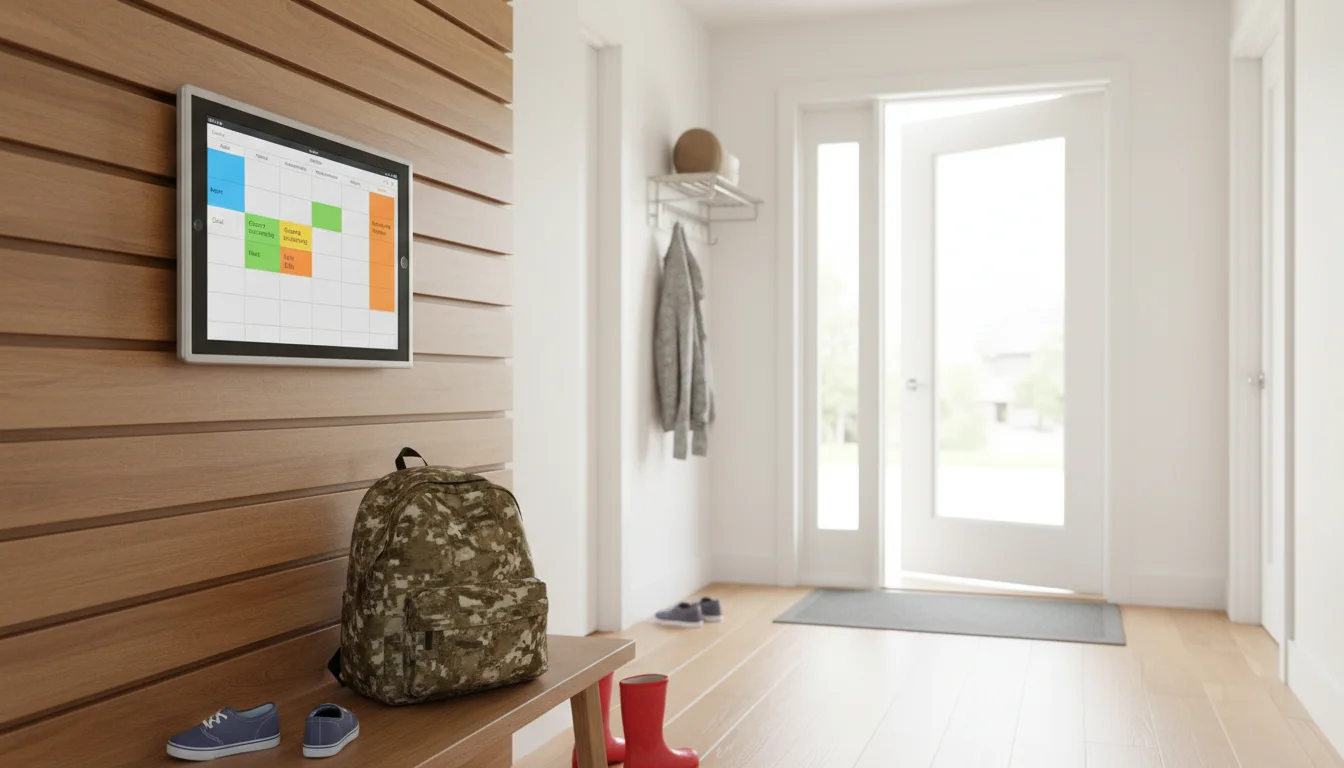
Once everything is flowing into one shared calendar, the wall tablet becomes the single source of truth. The morning routine is: walk past the tablet, glance at today and tomorrow, adjust plans accordingly.
Color coding is what makes it readable at a glance. We use blue for the adults’ stuff, green for the kids’ activities, red for school events, and orange for anything the whole family needs to be at. You can see the shape of the week without reading a single event title.
The family calendar display guide covers the physical setup: where to mount it, how to keep it always on, and the night settings so it’s not glowing at 3 AM. And if you need help choosing a calendar app that actually installs on older tablets, the calendar apps roundup has a compatibility guide.