You Already Have a Better Calendar Than Skylight
A  Skylight Calendar starts at $279.99 for the 15-inch model – and the 27-inch Calendar Max runs $599.99 and up. Hearth Display is in the same neighborhood at $699 plus a monthly subscription. They show your Google Calendar on a screen in the kitchen. That old Samsung Galaxy Tab or Fire tablet in the drawer? It does the same thing for free.
If you’ve seen our iPad calendar display guide and thought “great, but mine’s an Android” – this is the one for you. I set up my husband’s old Galaxy Tab as a second calendar display in the hallway, and honestly, the Android version was easier than the iPad in some ways. More on that in a minute.
Quick Setup: Google Calendar Full Screen (3 Minutes)
If you want this running before your coffee gets cold:
- Open Chrome and go to calendar.google.com
- Log in to your family’s shared Google account
- Switch to Schedule or Day view (readable from across the room)
- Tap the three-dot menu and select Add to Home Screen
- Go to Settings > Display > Screen timeout and set it to the maximum (usually 30 minutes)
That’s a working wall calendar. You’ll need to tap the screen every 30 minutes to keep it awake, which is fine for a kitchen counter. For a true always-on wall mount, keep reading.
The Android Advantage: Fully Kiosk Browser
This is where Android tablets have a real edge over iPads.  Fully Kiosk Browser is a free app that turns any Android tablet into a locked-down, always-on display. No more screen timeout. No more accidentally swiping to another app. No more kids closing your calendar to open YouTube.
Setup (10 minutes):
- Install
 Fully Kiosk Browser from the Play Store
 - Open the app and enter calendar.google.com as the Start URL
- In Fully’s settings, enable:
- Keep Screen On (under Web Content Settings or Device Management)
- Autostart on Boot (so it comes back after a power outage)
- Motion Detection to wake the screen when someone walks by (uses the front camera – saves battery and screen life)
- Kiosk Mode to lock the tablet to just the calendar (optional but useful if kids are around)
- Set a Screen Off Timer of 60 seconds and enable Motion Detection Wakeup so the screen sleeps when nobody’s in the room and wakes when you walk past
The free version does everything above. The Plus license ($10.99 per device, one-time) adds remote management and a few extras, but most families don’t need it.
Why this matters for old tablets: iPads can’t do this. There’s no iOS equivalent that truly keeps the screen on and locks the device to a single webpage. On Android, Fully Kiosk handles it natively – even on Android 8 and 9.
Dashboard Apps Worth Installing
Plain Google Calendar on a screen is useful, but a dashboard app shows your calendar alongside weather, to-do lists, and family photos – all on one screen.
DAKboard (Free Tier, Browser-Based)
 DAKboard is the most popular option for this. You set it up in your browser, connect your
  Google Calendar, and point your tablet at your personal DAKboard URL.
The free tier connects two calendars and shows your events alongside weather and a photo background. The Essential plan ($6/month, or $5/month yearly) adds up to 5 calendars, Apple Calendar support, custom screen layouts, and removes the watermark. The Plus plan ($10/month, or $8/month yearly) adds unlimited calendars and faster refresh rates.
If you’re using Fully Kiosk Browser, set your DAKboard URL as the Start URL. Now you have an always-on dashboard that launches itself after a reboot.
Mango Display (Android App, Free)
 Mango Display is an Android app (not browser-based) that does the same thing but runs natively. Connect your calendars, choose a layout, and it handles the always-on display settings for you.
The free tier covers clock, weather, news, photos, and quotes (2 screen licenses). Pro ($5.99/month) is what adds calendar sync – Google, Outlook, Apple iCloud, or Cozi. If you want a calendar dashboard specifically, you need Pro. If Fully Kiosk Browser feels like too much setup, Mango Display is a simpler path.
Google Calendar App (Free)
The Google Calendar app in landscape mode, zoomed to Day or Week view, is honestly fine for most families. It syncs instantly, everyone knows how to add events, and it’s free. Pair it with Fully Kiosk Browser for the always-on behavior.
One thing to check: open the Play Store on your old tablet and search for Google Calendar. If it says “not compatible with this device,” you’re on too old a version. Use calendar.google.com in Chrome instead.
Fire Tablet? Read This
Amazon Fire tablets are the most common “old tablet in the drawer” because they were cheap to begin with. They work great as calendar displays, but there are a few differences.
The browser approach works fine. Open Silk Browser, go to calendar.google.com, and follow the same quick setup above. Amazon’s Silk browser handles Google Calendar well.
For Fully Kiosk Browser or other Play Store apps, you’ll need to sideload the Google Play Store first. Amazon doesn’t officially support this, but it’s a well-documented process – search “install Play Store on Fire tablet” and you’ll find step-by-step walkthroughs from  How-To Geek and others. It takes about 15 minutes and works on most Fire tablets running Fire OS 5 or later.
Show Mode is built into older Fire OS versions and turns the device into an Echo Show-like display. It shows the time, weather, and Alexa widgets – but not your Google Calendar. Recent Fire OS updates may not include Show Mode, so if you don’t see it under Settings, use the Fully Kiosk Browser approach instead.
If your Fire tablet is an older HD 7 or HD 8, the smaller screen works better in portrait orientation. Mount it vertically and use Schedule view – it reads like a to-do list for the day.
Settings by Manufacturer
The most annoying part of Android is that every manufacturer hides the display timeout setting in a different place. I had to dig through three submenus on the Galaxy Tab before I found it. Here’s where to look.
Samsung Galaxy Tabs
Settings > Display > Screen timeout – set to maximum (usually 10 minutes). For true always-on, install Fully Kiosk Browser.
Some Samsung tablets also have Settings > Display > Screen saver (Daydream on older versions). You can set it to show a clock or photos when plugged in, but it won’t show your calendar. Fully Kiosk is the better option.
Lenovo Tabs
Settings > Display > Sleep – set to maximum. Lenovo tablets running Android 9+ also support Settings > Display > Ambient Display for wake-on-tap.
Generic Android (Pixel, Nokia, etc.)
Settings > Display > Screen timeout – same as above. On Android 9+, you can enable Developer Options > Stay Awake to keep the screen on while charging. To enable Developer Options: Settings > About Tablet > tap Build Number 7 times.
The “Stay Awake while charging” option is honestly the simplest always-on solution if you don’t want to install Fully Kiosk Browser. It works on any Android tablet and doesn’t require any extra apps. The catch is that it keeps the screen on for everything, not just your calendar – so if someone exits Chrome, the screen stays on wherever they end up.
Making It a Family Calendar
The display is only useful if events actually end up on it. The short version: create one shared Google Calendar called “Family,” invite everyone, and sign in to that account on the tablet. When anyone adds an event from their phone, it shows up on the wall.
Color-code by family member so you can see at a glance whose afternoon is packed. Our shared family calendar setup guide covers the whole system in detail, and the tablet-specific calendar setup walks through the device configuration.
Where to Put It
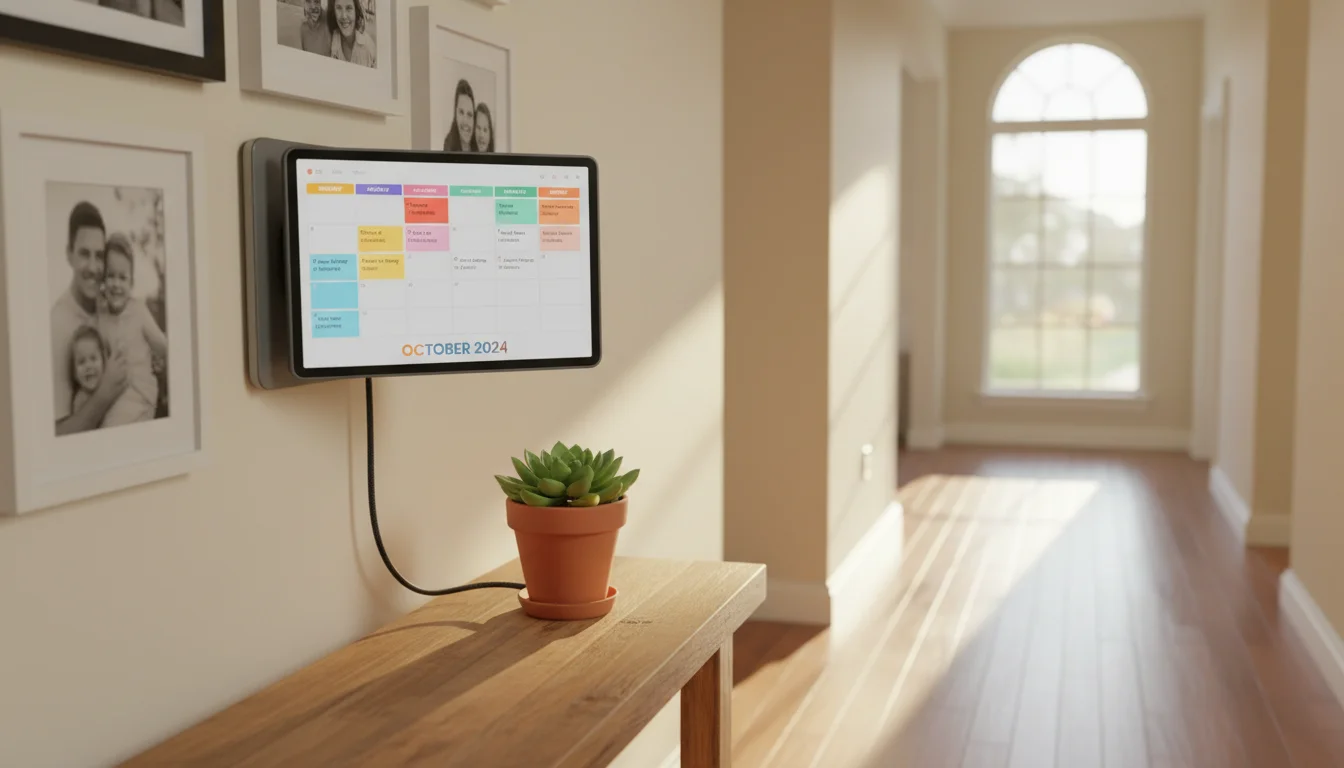
Kitchen or hallway. That’s where 90% of these end up, and for good reason – everyone passes through. Mount at about 54-60 inches (137-152 cm) from the floor so adults and older kids can both read it.
A wall mount (adhesive, no drilling) or a simple stand on a shelf works. Our guide to tablet mounts and stands covers all the options with prices. Keep the charging cable managed –  cable clips along the wall or behind furniture keep it clean.
Since this thing will be plugged in around the clock, it’s worth reading the battery safety guide – especially for older tablets where the battery has already degraded.
Quick Setup Summary
| What | How | Time | Cost |
|---|---|---|---|
| Basic calendar display | Google Calendar in Chrome, extend screen timeout | 3 min | Free |
| Always-on display | Fully Kiosk Browser with motion detection | 10 min | Free |
| Dashboard with weather | DAKboard free tier + Google Calendar | 10 min | Free |
| Shared family calendar | Create shared Google Calendar, invite family | 5 min | Free |
| Wall mount | Adhesive mount or tablet stand | 10 min | $12-17 |
Total: about 30 minutes to go from “tablet in the drawer” to “family calendar on the wall.” Every bit of this is free except the mount.
If you’re weighing this against buying a dedicated calendar display like a Skylight, we did the side-by-side comparison. And if your old Android tablet is feeling sluggish, the speed-up guide might be worth a detour before you start.