A Friend Asked Me If She Should Buy a Skylight
She has three kids, a dog, a husband who forgets school picture day every September without fail. Someone in her Mommit thread mentioned the  Skylight Calendar – a 15-inch touchscreen that lives on the wall and shows everyone’s schedule. She looked it up. $279.99 for the device, $79 a year for the Plus subscription to get meal planning and the photo screensaver. Her husband said, “Don’t we have an old iPad somewhere?”
That’s the whole question, really. Before you drop $300 to $700 on a wall display that shows your family calendar, should you just use the tablet you already own?
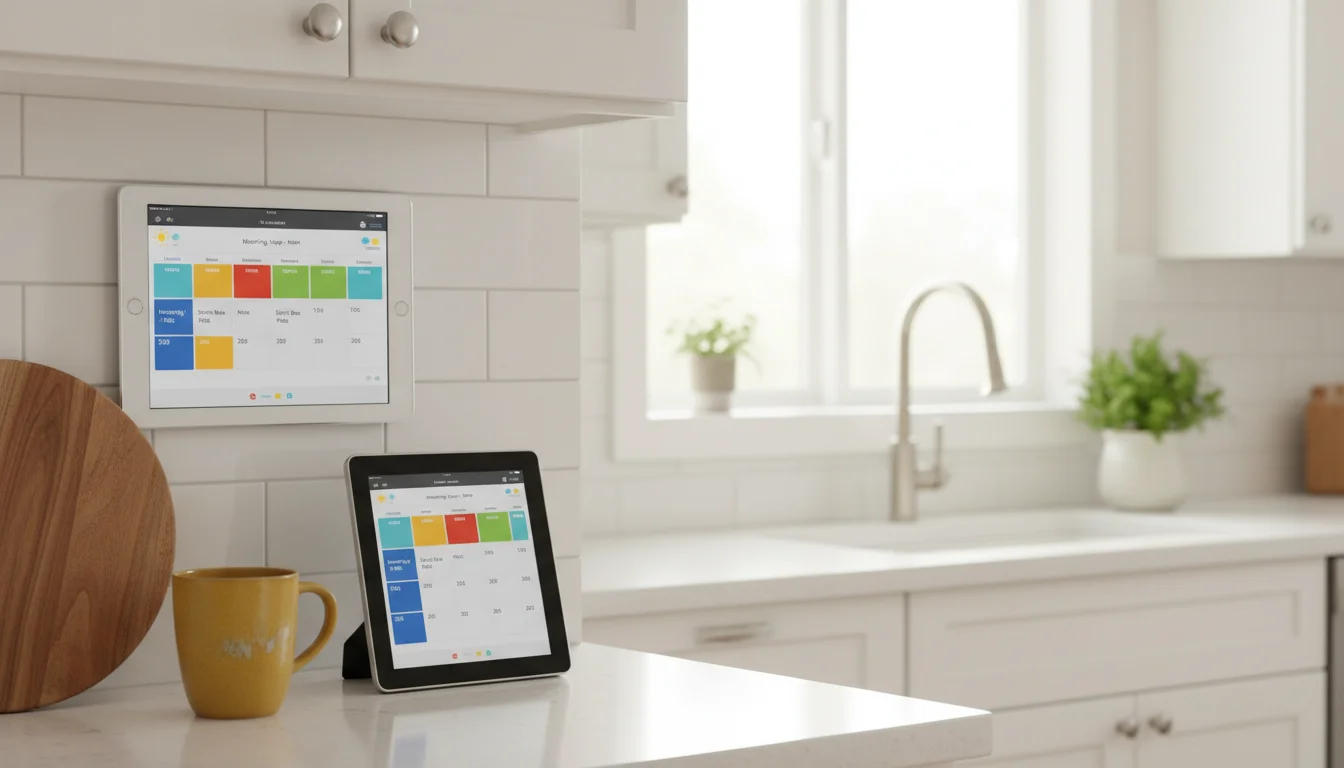
I’ve done both math problems. My own wall calendar runs on an old iPad in our kitchen – Google Calendar on a cheap mount, eight bucks for the app, done. We also looked hard at Skylight for my mum because I don’t live close enough to fix things when they break. Different answers for different situations, and I want to walk through why.
What a Family Calendar Actually Has to Do
The reason any of this exists is that paper calendars on the fridge go stale. Somebody wrote “spirit week” on Monday in November and by Thursday the paper is covered in magnets and a grocery list, and the eight-year-old shows up without her pajamas. Phone reminders are worse because they’re private. You get the ping, your husband doesn’t, and he’s still the one doing pickup.
So a digital family calendar needs to:
- Show everyone’s schedule at a glance, without anyone unlocking anything
- Sync from the phones and apps people already use (Google, Apple, Outlook, the school portal)
- Let kids check what’s happening today without a device of their own
- Ideally, let someone add or tick off something without walking to the kitchen, getting a password wrong, and giving up
- Look okay on the wall, because nobody wants another ugly black rectangle
Everything else – photos, chores, meal plans, weather – is a nice-to-have. If you can’t get the first five right, the rest doesn’t matter.
The Field, Briefly
There are really two categories here.
Dedicated digital calendar displays. Single-purpose devices sold specifically as family calendars. The current shortlist:
- Skylight Calendar 2 (15 inches, $279.99, optional Plus subscription at $79/year)
 Hearth Display (27 inches, around $699, required subscription at $9/month or $5.76/month on a multi-year plan; we wrote a Hearth-specific deep dive if it’s the one you’ve been considering)
 Cozyla Calendar+ 2 (15.6 inches, $349.99, no subscription required – it runs Android underneath)
- Apolosign and a handful of similar displays – $250 to $800 depending on size, no subscription on core features, less polish
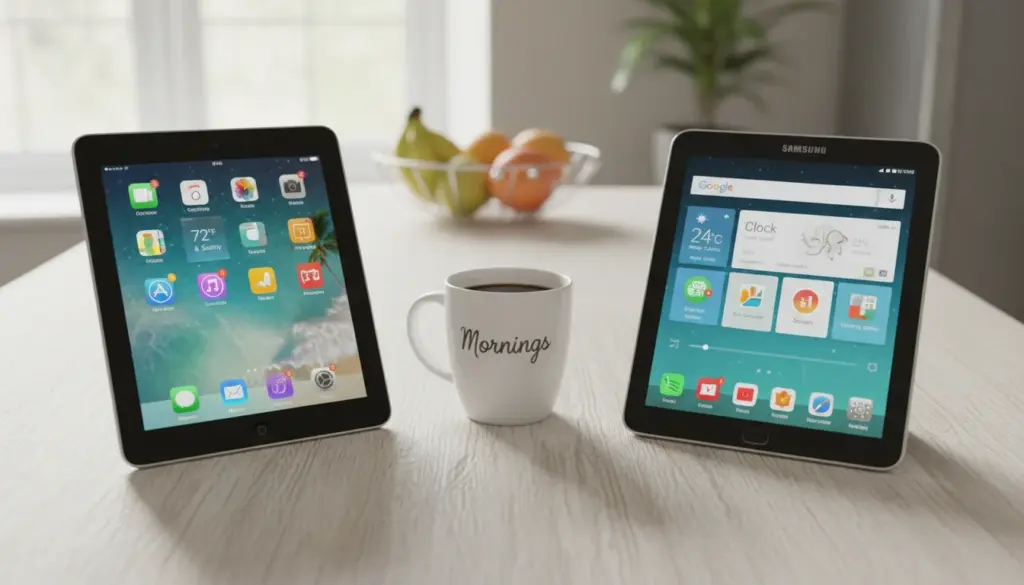
The old tablet route. An iPad or Android tablet you already own, paired with Google Calendar or Apple Calendar (or Outlook if that’s your life), a wall mount, and optionally a dashboard app like  DAKboard or
  Mango Display to make it look less like an iPad and more like a home display.
The “old tablet route” isn’t one product. That’s part of the tradeoff. You’re assembling something.
The Three-Year Cost, Out Loud
The subscription pattern sneaks up on people. Here’s what you actually pay over three years, in USD.
| Setup | Year 1 | Years 2-3 | 3-Year Total |
|---|---|---|---|
| Old tablet + Google/Apple Calendar + mount | ~$25 (wall mount) | $0 | ~$25 |
| Old tablet + DAKboard Essential |
~$85 ($25 mount + $60/yr) | $120 | $205 |
| Skylight Calendar 2 (no subscription) | $279.99 | $0 | $279.99 |
| Skylight Calendar 2 + Plus | $358.99 | $158 | $516.99 |
| Cozyla Calendar+ 2 | ~$350 | $0 | ~$350 |
| Hearth Display (monthly plan) | $807 ($699 + $108 sub) | $216 | $1,023 |
| Hearth Display (multi-year plan) | $768.12 | $138.24 | ~$906 |
The cheapest dedicated display costs more than a decade of the tablet route. The most expensive costs about forty times as much. None of this includes what you paid for the original tablet, because the whole point is that you already own it.
A note on subscriptions: Skylight works without Plus for the basic calendar, and Cozyla has no subscription at all. Hearth is the outlier – you can’t really use it without the subscription. That’s a decision you’re making once and then living with.
Where Dedicated Displays Genuinely Win
I want to be fair here, because the cost table makes it look one-sided and it isn’t.
On-device editing that doesn’t feel like a chore. You tap the Skylight or Hearth and a proper keyboard appears. A kid can walk up and tick off their chore. You can add “dentist – 2pm Thursday” on your way past the fridge without digging out your phone. On a tablet, you can technically do all this, but the reality is you open the Calendar app, wait for it to load, miss the little plus button twice, and give up. Dedicated displays are built for touchscreen calendar interaction in a way a general-purpose tablet isn’t.
One-line setup. Unbox, plug in, scan a QR code, connect to Wi-Fi. Twelve minutes later it’s showing your Google Calendar. The old tablet route can be that simple, but usually isn’t. You need to pick an app, figure out screen timeout settings, deal with notifications, run the right cable. See our shared family calendar setup guide for the reality.
Hardware polish. The screen is mounted for wall viewing. The bezels aren’t weird. There’s no home button or notch. When your sister-in-law walks in, she doesn’t say “is that an iPad on the wall?” she says “oh, that’s cute.” For some people this genuinely matters.
It stays on. A dedicated display is wake-on-approach and brightness-adjusting and just works. With a tablet, you’re fighting the auto-lock settings, the app suddenly updating and closing itself, iOS asking to verify your Apple ID at 11pm.
Non-technical people can actually use it. This is the real one. If the person who’s going to live with the calendar is not you – your mum, your mother-in-law, a teenager who doesn’t care – a dedicated display removes a whole category of “it stopped working” conversations.
Where the Old Tablet Route Genuinely Wins
You already own the tablet. The screen is probably better than the dedicated display you’re comparing it to. Most iPads from 2018 onward run at 2048×1536. The Skylight Calendar 2 runs at 1920×1080 on a 15-inch screen. Your old iPad in a drawer is literally sharper than a brand-new Skylight.
No subscription, ever. Google Calendar is free. Apple Calendar is free. The best calendar apps for old tablets are $5 to $15 one-time, if anything. You are not paying $9 a month for the privilege of seeing your own schedule.
It does more than one thing. A dedicated calendar shows a calendar. A tablet on the wall can show the calendar in the morning, a cooking timer at dinner, the weather before school, and Spotify during cleanup. Our old tablet smart display guide and home assistant dashboard piece get into this.
It uses the calendar you already use. This is underrated. Skylight and Hearth want to be the source of truth. If you’re already running the family on Google Calendar, the display should reflect your calendar, not ask you to mirror it. The tablet route is the calendar you already use, just visible on the wall.
No lock-in. If Skylight ever goes out of business, the hardware is mostly a brick. If an app on your tablet disappears, you install a different one. Your Google Calendar data is yours.
It’s reversible. When the kids are older and you don’t need a wall calendar anymore, an iPad becomes an iPad again. A Hearth Display becomes a $700 touchscreen with nothing to do.
The Three Questions That Actually Decide It
Every time I talk a friend through this, it comes down to three things.
Question 1: Who’s going to set it up, and who’s going to fix it when it breaks?
If you’re the Weekend Tinkerer in your house, this is easy. You’ll enjoy mounting the tablet, picking the app, tuning it until it looks right. A tablet setup is an afternoon project and then it runs for years.
If the person who needs to use this isn’t you – your mum, your partner who doesn’t do tech, a shared workspace where nobody owns it – pay for the dedicated display. I mean this seriously. A spouse who won’t touch DAKboard costs you more in arguments than a Skylight does in dollars.
Question 2: Do you want to edit on the display, or only from your phone?
Most families I know mostly add events from their phones. Mum adds the pediatrician appointment from the parking lot. Dad adds soccer from the Team Snap app. The display is for viewing, not inputting. If that’s you, the tablet route is genuinely fine – the on-device editing gap barely matters.
If you want the kid to walk up and tick off “pack gym bag,” or you want to brainstorm the week’s meal plan by tapping at it with your partner, a dedicated display is a better experience. Not impossible on a tablet. Just less pleasant.
Question 3: Will a subscription feel worth it in month eight?
This is the Hearth question specifically. Nine dollars a month feels fine on day one when the thing is new and the family is excited. In month eight, when the novelty has faded and you notice the auto-renewal, do you still feel good about it? Some people do – Hearth’s AI scheduling assistant genuinely earns its keep for some families. Most people don’t. Skylight’s $79/year for the Plus tier is an easier ask, but Skylight works fine without it for basic calendar use.
If the idea of a forever subscription for a household utility bothers you, ignore Hearth, run Skylight on the free tier, or use your tablet.
When the Tablet Route Is Right
For most families with a working tablet, this is the answer.
If you (or someone in the house) can handle the setup, if you’re already running the family on Google Calendar or Apple Calendar, if you have an old tablet that still works, and if the “editing on the display” use case doesn’t matter much – use the tablet. Your screen is better. Your calendar is already the source of truth. Your budget goes to something else.
Practical setup: mount it somewhere with power, pair it with a good calendar app, turn off auto-lock, dim the screen at night. Our digital calendar how-to walks through it end to end, and the shared family calendar tablet setup covers the sync part.
When a Dedicated Display Is Right
- You’re buying it for someone who doesn’t want to fiddle with tablets (a grandparent, a non-technical partner, a shared family space where nobody owns the setup).
- The on-device editing matters – chore check-off, meal planning, standing at the wall mapping out the week together.
- You want the hardware polish and the “it just works” forever.
- Budget genuinely isn’t tight and you’d rather pay once (or monthly) than set it up.
For those cases, I’d look at Skylight Calendar 2 on the no-subscription tier first. If the family needs the AI scheduling help and can absorb $9 a month, Hearth is a real product. Cozyla sits in the middle – no subscription, looks nice, less polished than Skylight.
What We Actually Did
In our house, the iPad won. A 2018 iPad, Google Calendar, a $20 wall mount in the kitchen, a dashboard app making it look less like a tablet. Works. Been running for a year.
For my mum, we bought her a Skylight. I don’t live close enough to restart a stuck iPad, she doesn’t want to learn DAKboard, and the $300 paid itself back the first Christmas when everyone could send photos to one address and they showed up on her wall. The subscription stays off.
“Which one is right?” depends on who lives with it, who fixes it, and whether you want to own one calendar or two. If you already use Google or Apple Calendar and you have a tablet in a drawer, you’re most of the way there without spending anything. That’s the real pitch.
FAQ
Is a Skylight Calendar worth it?
For some families, yes. It removes a layer of friction for non-technical users and it’s the easiest way to get a wall calendar running in one evening. For families already on Google Calendar who have a working tablet, it’s usually not worth $300 when you can replicate 80% of it for $0.
Can I use an old iPad as a digital family calendar?
Yes. An iPad running Apple Calendar (iCloud) on a wall with a decent stand or mount is the most common DIY family calendar setup, and Apple Calendar works on anything from roughly 2015 onward. On a 2018 (6th generation) iPad or newer, you can also install  Google Calendar from the App Store. If your tablet is too old to install the current Google Calendar app, our app list covers what still works on older iOS.
Do digital family calendars need a subscription?
It depends on the brand. Hearth requires a subscription. Skylight works without one for the basic calendar but charges $79/year for Plus features. Cozyla and most mid-range displays have no subscription. The old tablet route has no subscription at all.
What about Cozi or other app-only options?
 Cozi is a shared family calendar app. It’s fine, but it doesn’t solve the visibility problem on its own – you still need something to display it on. Running Cozi on a wall-mounted old tablet is a perfectly valid version of the tablet route.
How does this compare to an Echo Show or Nest Hub?
Different category. Echo Shows and Nest Hubs are voice-first smart displays that also show a calendar. Skylight and Hearth are calendar-first displays that also do a few other things. We covered that tradeoff in old tablet vs smart display – short answer: the tablet beats a Nest Hub on every front except voice control.