A Second Screen for $0
I work from the kitchen table during nap time. One laptop screen, a dozen browser tabs, and I kept losing track of which window had my notes. I’d flip back and forth between a document and my email, and by the third switch I’d forget what I was looking for.
Then Mark pulled an old Galaxy Tab out of the drawer – the one our oldest used for Minecraft two years ago – and said, “Just use this as a second screen.”
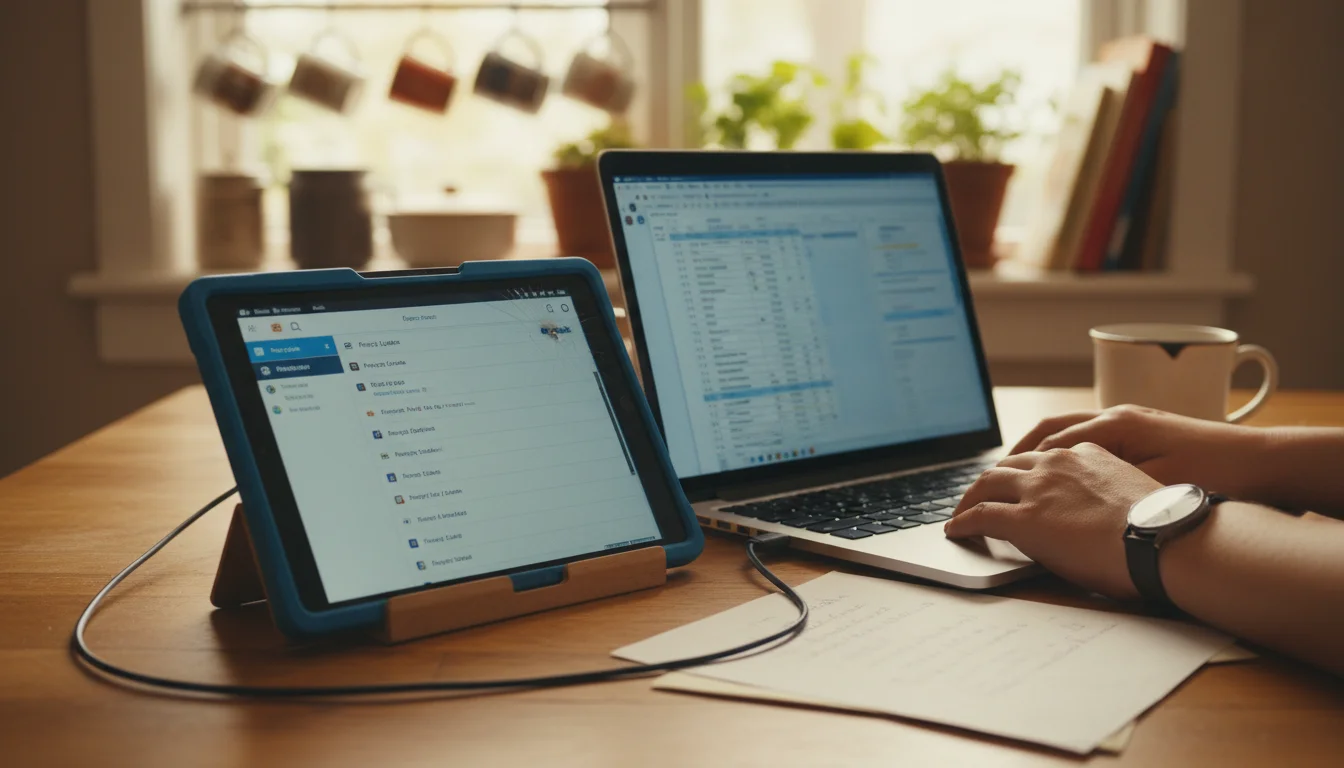
A decent portable monitor costs $100-200. The old Android tablet in your drawer does the same basic job for free. You install an app on the tablet, install a companion app on your computer, and the tablet becomes an extended display. Drag windows to it, keep your email or notes visible, and stop playing the alt-tab shuffle.
If you have an old iPad instead, we have a separate guide for using an iPad as a second monitor.
Option 1: Spacedesk (Windows + Any Android Tablet) – Free
If you’re on Windows and want the simplest free option,  Spacedesk is the one.
What you need:
- Windows 10 or 11
- Android tablet running Android 5.0 or later
- Both devices on the same Wi-Fi network (or a USB cable)
Setup:
- On your PC, download and install the Spacedesk driver from spacedesk.net
- On your Android tablet, install
 Spacedesk from the Play Store
 - Open the app on your tablet – it should find your PC automatically
- Tap to connect
- Go to Windows Settings, then Display, then arrange the screens to match their physical positions
That’s it. Your tablet is now a second monitor.
The catch: Spacedesk only works with Windows. If you’re on a Mac or Linux, skip to Option 2 (Deskreen). The interface also looks like it was designed in 2012, but the functionality is solid. There’s a slight delay when scrolling quickly – fine for email and documents, noticeable if you’re trying to watch video on it.
One gotcha: When you connect, Windows may route your audio through the tablet. If your speakers suddenly go quiet, check your sound settings and switch the output back to your PC.
Option 2: Deskreen (Any Computer + Any Tablet) – Free, Open Source
 Deskreen is the most universal option. Mac, Windows, Linux – doesn’t matter. It works through a web browser, so your tablet doesn’t even need to install an app.
What you need:
- Any computer (Mac, Windows, or Linux)
- Any Android tablet with a web browser
- Both on the same Wi-Fi network
Setup:
- Download Deskreen on your computer from deskreen.com
- Open Deskreen – it shows a QR code
- On your tablet, open Chrome (or any browser) and scan the QR code, or type in the URL shown
- Choose “Entire Screen” to extend your display
- Your tablet’s browser becomes a second screen
Why Deskreen: It works with literally any Android tablet that has a web browser – even ones too old to install newer apps. And it works with Macs, which Spacedesk doesn’t.
The trade-off: The latency is higher than the other options since everything runs through a browser. It’s best for content you’re glancing at – a document you’re referencing, chat messages, your calendar. Not ideal for anything that needs fast refresh like scrolling through a spreadsheet.
Option 3: Super Display (Windows) – $15
If you’re on Windows and want the best experience, Super Display has noticeably lower latency than Spacedesk. It’s $15 one-time with a 3-day free trial, so you can test before buying.
What you need:
- Windows 10 or 11
- Android tablet running Android 6.0 or later
- USB cable (recommended) or same Wi-Fi network
Setup:
- Install Super Display from the Play Store ($15, 3-day free trial)
- Download the companion app on your computer from
 superdisplay.app
 - Connect via USB (best) or Wi-Fi
- Your tablet appears as an extended display
Why pay $15: The latency difference is real. Scrolling through a document on Super Display feels close to a real monitor. On Spacedesk or Deskreen, you notice a slight delay when dragging windows or scrolling quickly. If you’re using the second screen for anything interactive – spreadsheets, coding, design previews – Super Display is worth it.
It also supports touch input and pressure-sensitive stylus, so you can tap and interact with your desktop apps directly on the tablet screen. And unlike  Duet Display ($49.99/year for Air), it’s a single purchase.
The limitation: Super Display is Windows-only. If you’re on a Mac or Linux, Deskreen (Option 2) is your best bet.
Which Option Should You Pick?
| Your setup | Best option | Cost |
|---|---|---|
| Windows PC + any Android tablet | Spacedesk | Free |
| Mac or Linux + any Android tablet | Deskreen | Free |
| Any computer + very old tablet (pre-Android 5) | Deskreen | Free |
| Windows + want lowest latency | Super Display | $15 |
| Windows + want touch input on tablet | Super Display | $15 |
If you’re not sure, start with Spacedesk (Windows) or Deskreen (Mac/Linux). Both are free and take 5 minutes to test. If you’re on Windows and the lag bothers you, try Super Display’s free trial.
Getting the Most Out of Your Second Screen
What to Put on the Tablet
The small screen works best for content you glance at, not content you actively work in:
- Email or Slack – keep messages visible without them stealing your main screen
- Reference material – a document, recipe, or spreadsheet you’re cross-checking
- Calendar – your schedule, always visible (we have a guide on setting up an old tablet as a calendar display if you want to go all in)
- Music controls – Spotify or YouTube Music on the tablet, work on the main screen (or set it up as a dedicated music player)
- Video calls – put the call on the tablet, your notes on the main display
Use a Stand
If the tablet is lying flat on the table, you’ll be craning your neck down. A simple tablet stand ($15-25) props it up at eye level next to your laptop. Makes a big difference for anything longer than 20 minutes.
Wired vs. Wireless
A USB cable gives you lower latency and doesn’t depend on your Wi-Fi being reliable. If you’re doing anything where speed matters – scrolling through code, design work, moving windows around – use the cable. For static content like email or a document you’re referencing, wireless is fine.
Keep It Charged
If you’re using the tablet wirelessly for hours, it’ll drain the battery. Plug it in while you work, or keep a charger nearby. USB connections handle this automatically since the cable powers the tablet while it’s connected.
When a Tablet Isn’t Enough
Honest assessment: an old Android tablet makes a decent second screen for glancing at email, chat, and reference docs. It’s not going to replace a real monitor for serious multitasking.
If you find yourself using a second screen every day for hours, a portable USB-C monitor runs $70-120 and gives you a bigger, faster, higher-resolution display. That’s worth the money for daily use.
But if you need a second screen for kitchen-table work sessions a few times a week? The old tablet in the drawer is perfect. Free, already paid for, and it takes 5 minutes to set up.
Quick Setup Checklist
- Pick your app (Spacedesk for Windows free, Deskreen for Mac/Linux, Super Display for lowest latency on Windows)
- Install the driver/app on your computer
- Install the app on your tablet (or just open a browser for Deskreen)
- Connect – USB cable recommended for old tablets
- Arrange displays in your computer’s settings to match physical positions
- Prop the tablet on a stand at eye level
Five minutes. Zero dollars. And the next time you’re buried in tabs during nap time, you can just glance to your left.
If you’re looking for other ways to put that old Android tablet to work, we’ve tested quite a few – from weather displays to home dashboards. And if your Wi-Fi is giving you trouble during setup, our Android tablet Wi-Fi troubleshooting guide covers the common fixes. If the tablet feels sluggish, speeding up an old Android tablet can help it run more smoothly as a display.