My dad handed me his old iPad mini 2 last month with the exact question every hand-me-down tablet comes with. “Is this thing still good for anything?” It boots. The screen looks fine. The battery holds a charge if you plug it in overnight. And half the App Store won’t install on it. So I spent an afternoon setting it up properly, room by room, and ended up with a device that now lives on his kitchen counter running recipes and a shared photo album. It’s a very good little tablet in 2026, as long as you stop trying to make it be a phone.
This is the mini-2-specific guide. If you want the exhaustive list of everything that installs on iOS 12.5.8, that lives here – iPad Air 1, mini 2, mini 3, iPhone 5s and 6. What you’re reading now is the shorter, device-first version: what a mini 2 is genuinely good at, and the apps for each job.
What can you still do with an iPad mini 2?
Five jobs, and the mini 2 does each of them well:
- Bedside reader. The 7.9-inch screen is about the size of a paperback, and Apple Books still runs, along with the older Kindle build from your Purchased history. Setup below.
- Kitchen recipe screen. Paprika on a stand next to the toaster, plugged in for good. This is the job my dad’s mini 2 has now. Kitchen setup.
- Kid tablet. Khan Academy Kids and Guided Access, if you have more than 16 GB to work with. Kid tablet setup.
- Photo frame. A shared iCloud album running as a slideshow on a shelf. Photo frame setup.
- FaceTime video calls. FaceTime still works on iOS 12.5.8. Zoom and Google Meet don’t, so this is a FaceTime-only job. What it can’t do.
Banking, social apps and modern browsers are where the mini 2 runs out of road. Everything else on this page is about getting one of those five jobs set up in an afternoon.
What you actually have
The iPad mini 2 came out in November 2013. Retina display, A7 chip, 1 GB of RAM, 7.9-inch screen. It caps at iOS 12.5.8 and Apple pushed one last certificate update in January 2026 so iMessage and  FaceTime keep working past 2027.
Two things worth clearing up before you go further:
- Mini 2 does not have Touch ID. That’s the mini 3, released a year later, otherwise nearly identical. If you’re setting up a fingerprint unlock, check Settings > Touch ID & Passcode – if you don’t see it, you have a mini 2.
- Storage matters more than it should. The 16 GB base model was the volume seller in 2013. After iOS and the built-in apps, you’re working with maybe 8 GB. If you have the 32 GB or 64 GB model, this is much easier.
If you’re not sure which iPad you’re holding, How Old Is My iPad? walks through the model number lookup. The mini 2 is A1489 (Wi-Fi) or A1490 / A1491 (Cellular).
Deal with the battery first
The battery in your mini 2 is around twelve years old. Even if it says 100% in the top corner, the actual capacity is a fraction of what it was in 2013. This isn’t a repair job. It’s a setup decision.
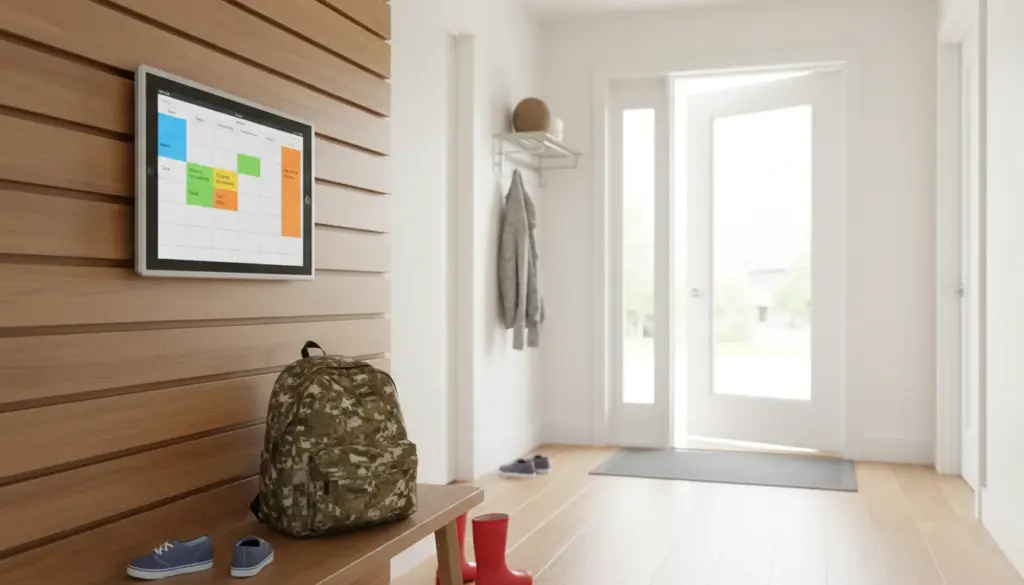
If the tablet is going to live in one spot – the kitchen, the nightstand, a hallway mount – keep it plugged in permanently. Old iPad batteries do better on trickle charge than on repeated 0-to-100 cycles. My dad’s mini 2 has been continuously plugged in for six weeks now and the battery health is unchanged. If you want the longer version of this argument, we’ve written up why leaving old iPads plugged in is fine.
If the tablet needs to be portable (kid tablet, travel reader), accept that you’re getting maybe two to three hours of actual use per charge and plan accordingly. A cheap USB brick in the diaper bag solves it.
Any mini 2 that swells, gets hot, or refuses to charge past a certain percentage is done. Recycle it. Old iPad Won’t Charge covers the fixable cases.
Best job for a mini 2: bedside reader
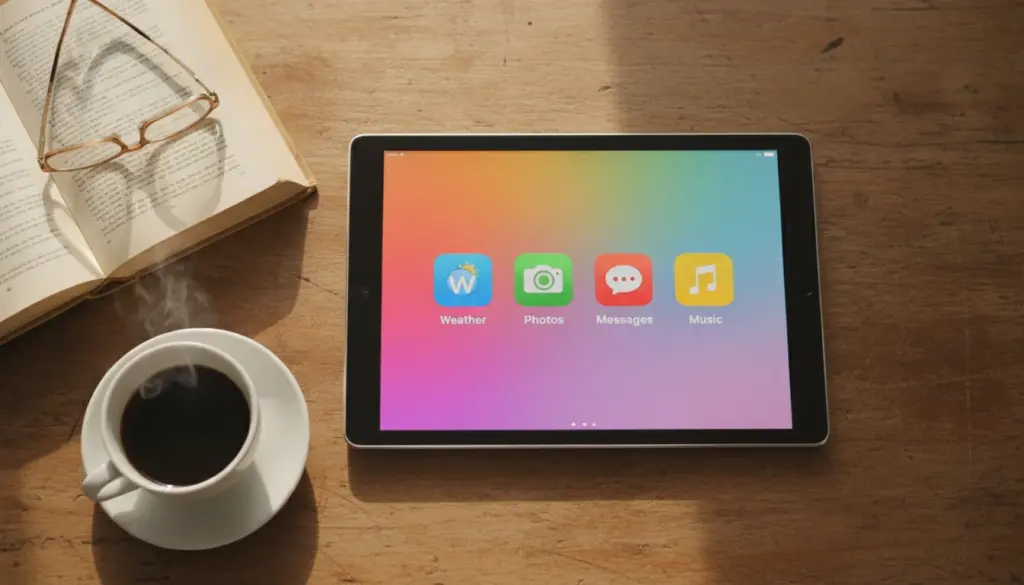
The 7.9-inch screen is genuinely closer to a paperback than any other iPad ever was. It’s the reason people who bought mini 2s in 2013 are still using them in bed now.
 Apple Books (built-in, free) reads your own DRM-free EPUBs and PDFs. This is what my dad reads on now. Library loans won’t open there: they’re copy-protected, and
  Libby itself now needs iPadOS 13, so it won’t install on the mini 2. If your library is in the US, borrow in Libby on your phone, send the book to Kindle, and read it in the Kindle app below.
- Amazon
 Kindle – the current App Store version requires iOS 17, but if you’ve ever installed Kindle on any device with your Apple ID, the older iOS-12-compatible version comes down through the App Store’s Purchased history. The companion post walks through that trick step-by-step. Once installed, your Kindle library syncs and reads normally.
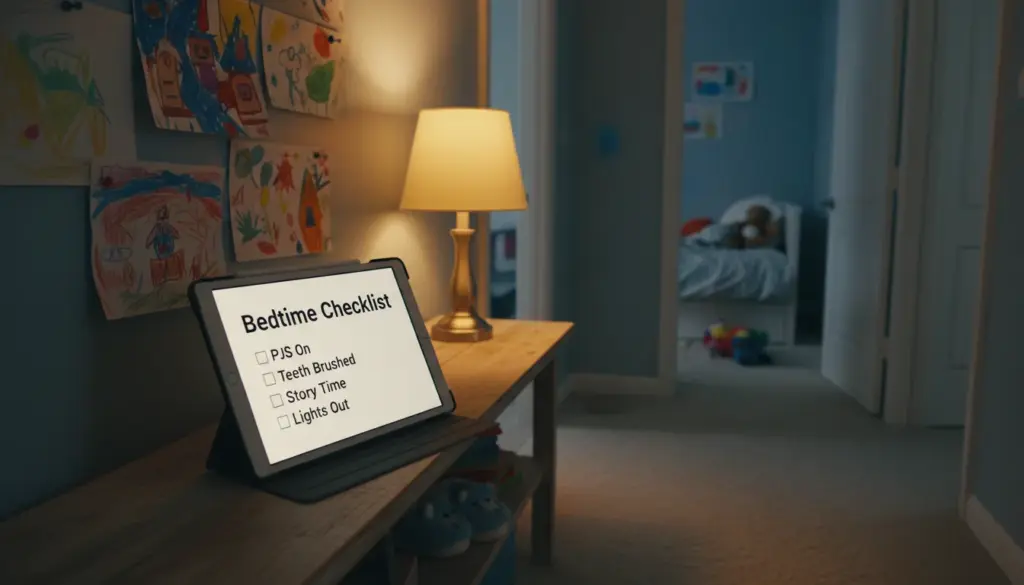
 - Clock (built-in) has a Bedtime tab that sets a bedtime reminder and a wake alarm. Turn on Do Not Disturb During Bedtime and the Lock screen dims and notifications go quiet overnight. Handy if the mini 2 lives on the nightstand.
The mini 2 as a dedicated reader is where the age difference stops mattering. Text on a Retina display renders exactly as well now as it did twelve years ago.
Second-best job: kitchen counter
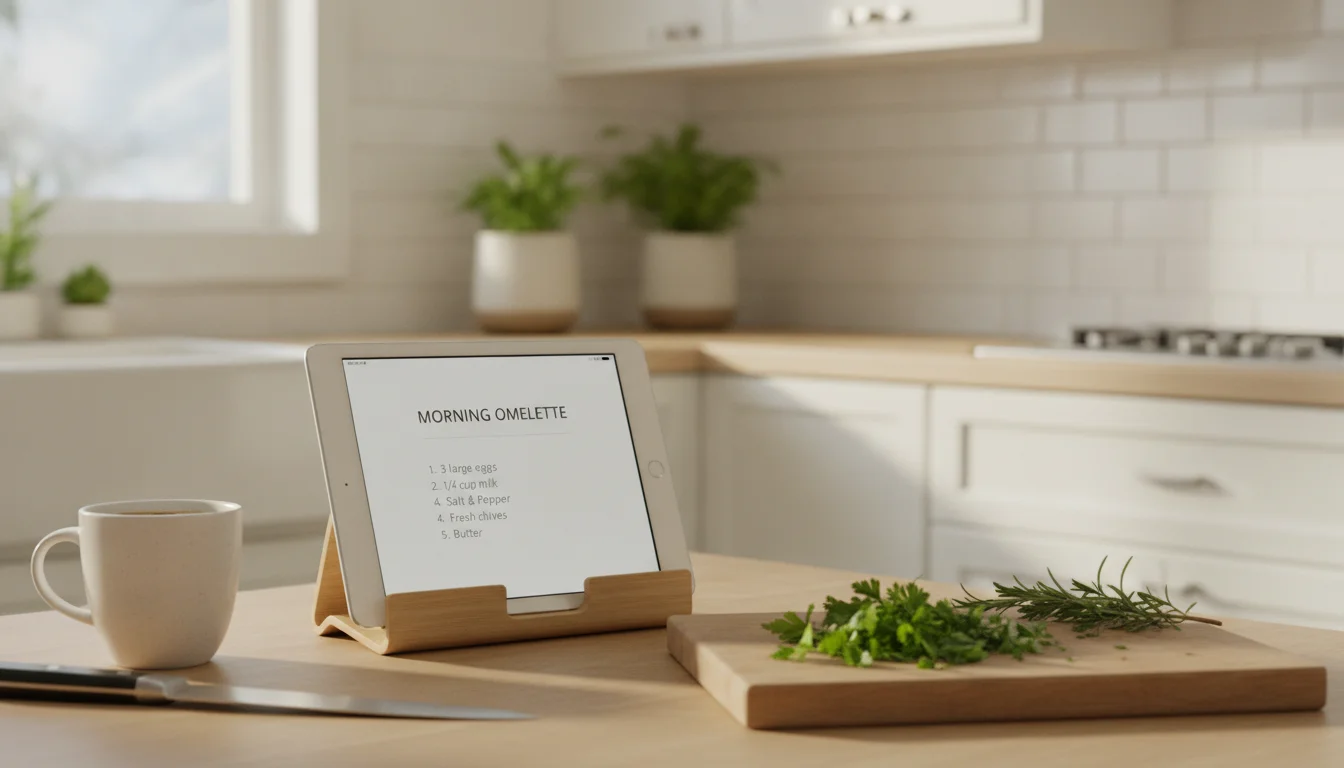
This is where my dad’s mini 2 lives now. Small enough to sit next to the toaster without dominating the counter, bright enough to read at arm’s length, and Paprika runs beautifully on it.
The anchor app is Paprika Recipe Manager ($4.99, iOS 12+). Paste any recipe URL, it strips the food-blog life story and gives you ingredients and steps. Meal planner and grocery list included. It’s the best five dollars you’ll spend on an old iPad, and the reason a mini 2 makes a legitimate kitchen assistant. For the recipes Paprika won’t scrape cleanly, Safari still loads almost every food site fine – some throw a “your browser is out of date” warning but the page renders. Timers are the one catch. On iOS 12 the built-in Clock app only runs one timer at a time. My husband Mark caught me assuming otherwise; multiple named timers didn’t arrive until iOS 17. For a roast and a pan of asparagus at once, use Paprika’s own timers: tap any cooking time in a recipe’s directions and it starts a timer for you.
Prop the mini 2 in a bamboo stand at a slight angle, plug it in, and you have a permanent recipe screen for less than the cost of one Nest Hub.
Kid tablet (if you have the storage)
The mini 2 is a legitimately good kid tablet up to about age seven, with one caveat: on the 16 GB model, you can install maybe two decent kids’ apps before running out of space. On 32 GB or 64 GB you have room to work with.
- Khan Academy Kids (free, iOS 12+) is the only kids’ app that matters. Free, no ads, no in-app purchases, and a genuinely good curriculum for ages 2-8. Runs surprisingly well on the mini 2.
- PBS Kids Games (free, iOS 15.6+ now – won’t install directly, but the Purchased-history trick still works if you had it before).
- Apple Books for kids’ EPUBs from the library.
Turn on Guided Access under Settings > General > Accessibility > Guided Access to lock the tablet to one app before you hand it over. Our kid-proof an old tablet guide walks through the full lockdown. Skip Kids’ YouTube on this – the app itself now needs iOS 16 and the browser version is too clunky for a five-year-old.
Photo frame
The mini 2’s Retina screen is the same 2048×1536 resolution as the iPad 3rd through 6th generation and every iPad mini up to the mini 5. It makes an excellent photo frame at almost no effort.
- Apple Photos (built-in). Create a shared
 iCloud album, add family members, open the album on the mini 2, tap a photo (or tap Select and pick several), tap Share, then tap Slideshow. That’s it. New photos pushed by anyone in the family appear automatically.
 - Prop it in landscape mode on a shelf or in a proper tablet stand. Set Auto-Lock to “Never” in Settings > Display & Brightness and keep it plugged in.
If you want the fuller version of this idea with mounting options, wall-plate ideas, and slideshow apps beyond Apple Photos, we’ve written it up in detail: Turn Your Old iPad Into a Digital Photo Frame.
What NOT to try to do with it
Being honest about the ceiling saves you an hour of frustration:
- Banking apps – Chase and Bank of America both require iOS 17 now, and the 2FA apps I checked land at iOS 16 (Google Authenticator) or iOS 17 (Microsoft Authenticator). Do banking on your phone.
- Instagram, TikTok, YouTube app – Instagram needs iOS 16.3, YouTube needs iOS 17, TikTok needs iOS 15. Older versions don’t reliably come down through Purchased history anymore. Safari on m.youtube.com works fine for YouTube; the other two you’re doing on your phone.
- Modern browsers – Chrome, Firefox, and Edge all dropped iOS 12 by 2021-2022. Safari is your only current browser, and honestly that’s fine.
- Video calling other than FaceTime –
 Zoom needs iOS 15 and
  Google Meet needs iOS 18, which makes Meet the single harshest OS gap on this page. If someone in the family needs to Zoom or Meet in from the mini 2, they can’t. FaceTime works.
For anything that won’t install and you think it should, Old iPad Won’t Download Apps covers the sign-in edge cases before you give up on it.
The one-page mini 2 setup
If you’re setting up a hand-me-down mini 2 this weekend, here’s the actual order I did it in:
- Update to iOS 12.5.8 if it isn’t there already: Settings > General > Software Update. This is what unlocks the January 2026 iMessage and FaceTime certificate fix.
- Sign into iCloud with your (or the recipient’s) Apple ID.
- Delete every app you don’t need. On 16 GB models this matters a lot. Weather, Stocks, Podcasts if you don’t use it, News, Home if there’s no HomeKit setup – all safe to remove.
- Install Paprika if this is the kitchen tablet, Khan Academy Kids if this is for kids, nothing if this is a reader.
- Use the Purchased-history trick from the iOS 12.5.8 supported apps post to pull down the last compatible version of Kindle if you want it. Skip WhatsApp and Signal: WhatsApp cut off iOS 12 in mid-2025, so old builds install but won’t connect, and Signal builds expire after about 90 days and won’t run below iOS 14.
- Settings > Display & Brightness > Auto-Lock > Never (only if it’s going to live plugged in).
- Plug it in and put it wherever it’s going to live.
My dad’s mini 2 is running a recipe right now. It has been in continuous use for six weeks. The App Store keeps trying to convince him that his tablet is a museum piece, but nothing about the actual device suggests that’s true. You just have to pick the right job for it.