That Old Galaxy Tab Is More Capable Than You Think
There’s probably an old Android tablet somewhere in your house right now. A Galaxy Tab from 2018 that got replaced. A Fire tablet the kids dropped one too many times. Some off-brand thing you bought on sale and forgot about.
You’re not going to sell it. Nobody’s buying a tablet running Android 9. And you’re not going to use it as your daily device again because your phone does everything better.
But old Android tablets are actually more flexible than old iPads for repurposing. You can sideload apps. You can install custom launchers. You can run Fully Kiosk Browser and turn the whole thing into a locked-down, single-purpose display. Android gives you options that Apple never will.
The trick is to stop thinking of it as a tablet and start thinking of it as a dedicated screen that happens to run apps.
For the Family
These are the ideas that earn their spot on the counter or the wall. The ones where someone in your house will actually miss it if you take it away.
Kitchen Display
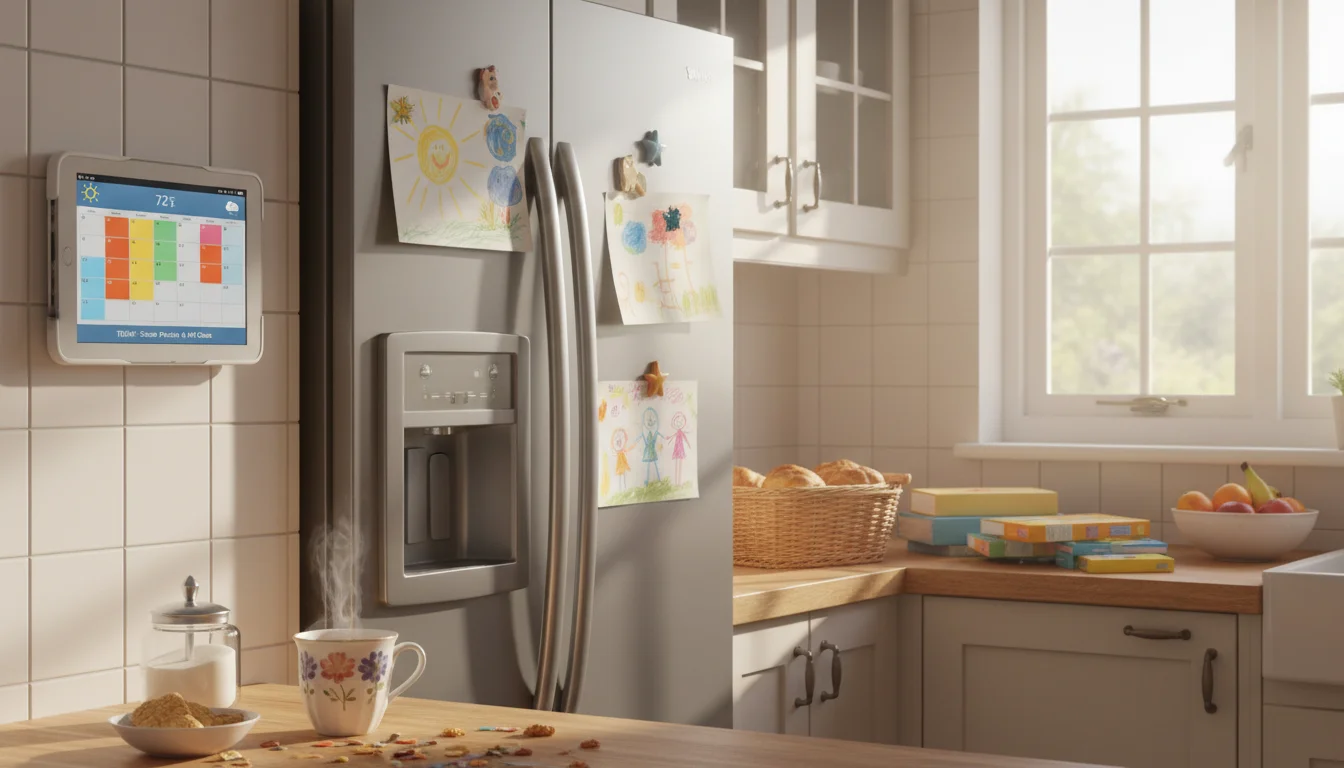
Mount it on the wall or lean it against the backsplash. Show the family calendar, today’s weather, and a grocery list. The stuff everyone checks constantly, always visible.
Android tablets have a real advantage here: home screen widgets. You can build a custom home screen with a calendar widget, weather widget, and a to-do list all visible at once, no app-switching required.  Fully Kiosk Browser takes it further by locking the screen to exactly what you want and preventing anyone from accidentally closing it.
We have a complete kitchen display guide that walks through the whole setup, and a dedicated kitchen assistant article with specific app recommendations.
Digital Photo Frame
 Google Photos has a built-in “photo frame” feature on Android that turns any tablet into a rotating slideshow of your shared albums. New photos from your phone appear automatically. No extra app needed.
The grandparent setup is where this really pays off: put a tablet at grandma’s house, connect it to a shared Google Photos album, and every new photo of the kids just shows up. No setup on their end, no apps to learn. If you’re setting up the whole tablet for them (not just the photos), our grandparent tablet setup guide walks through the full process.
We have a full photo frame walkthrough, an Android-specific setup guide, and a complete guide series if you want the deep dive.
Family Calendar
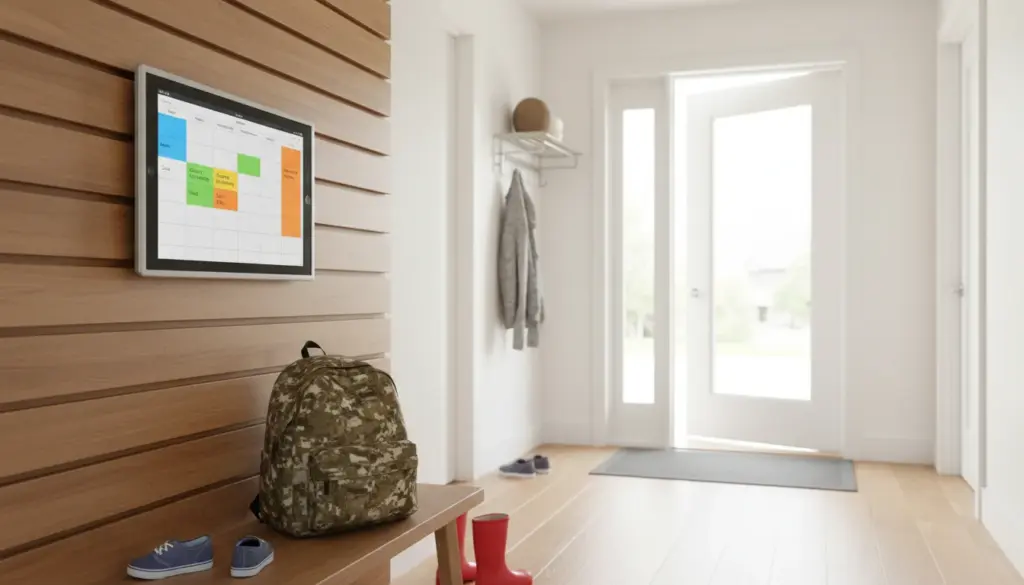
A tablet in the hallway or kitchen showing a full-screen calendar with everyone’s schedule. Color-coded by family member. Visible from across the room.
On Android, you can use Google Calendar’s tablet layout (which actually shows a full month view), or go with a dedicated app like DigiCal that’s designed for wall display. Pair it with Fully Kiosk Browser’s scheduling feature to dim the screen at night and brighten it in the morning.
More on this in our family calendar display guide and our calendar app roundup.
Smart Alarm Clock
Prop it on the nightstand. Sunrise simulation, sleep sounds, weather at a glance when you wake up. Android has dozens of clock apps that work on older devices, and you can customize the always-on display with apps like Night Clock or just use the built-in clock app in screen saver mode.
Fire HD 8 and Fire HD 10 tablets have an especially good “Show Mode” that basically turns them into an Echo Show. (The Fire 7 doesn’t support it.) If you have one sitting around, this is almost too easy. Full setup details in our smart alarm clock guide.
For the Kids
Old tablets and kids are a natural match. The device is already too old to care about, and grape juice on the screen doesn’t ruin your day.
Learning Station
Load it with Khan Academy Kids, Duolingo, and reading apps. Put it on a shelf where the kids know the “learning tablet” lives. Always charged, always ready.
Android makes this easier to lock down than iOS. You can use Google Family Link to restrict which apps are available, set time limits, and prevent the kids from installing anything on their own. Or use the built-in “Kids Mode” on Samsung tablets, which creates a completely separate environment with parental controls.
Our kids’ learning station guide covers the full app list. And you’ll probably want to kid-proof the tablet before handing it over.
Car Entertainment
Headrest mount, downloaded shows, volume-limiting headphones. Road trips solved.
Android tablets are better for offline video: you can download from Netflix, Disney+, and YouTube directly, and the file management is straightforward. Even if the tablet is too old for the latest streaming apps, you can sideload older APK versions or use VLC to play video files you’ve transferred over USB.
If your car doesn’t have a built-in infotainment system, you can also use an old tablet as an Android Auto display up front for navigation and music. The car entertainment guide covers headrest mounts and offline downloads in detail.
Retro Gaming Console
This is where Android tablets have the biggest edge. Emulators like  RetroArch run beautifully on old hardware, and you can sideload them without any jailbreaking or workarounds. NES, SNES, Game Boy, PlayStation 1, N64 – all playable with a cheap Bluetooth controller.
Even a Galaxy Tab from 2016 running Android 7 can handle everything up through PS1 games. Android’s open ecosystem means no restrictions on emulators, no sideloading certificates to manage, no profiles to trust. Our retro gaming setup guide walks through the whole process.
Around the House
These turn your old tablet into a dedicated appliance. One job, all the time.
Weather Station
Live radar, hourly forecasts, severe weather alerts. Prop it in the hallway and never wonder if you need a jacket. Android widgets mean you can build a custom weather dashboard right on the home screen without even opening an app.
Pair it with an inexpensive outdoor sensor (something like Govee’s $15 model) and a compatible app for hyperlocal temperature and humidity readings. See the weather station guide for app picks and sensor pairings.
Smart Home Control Panel
If you have smart lights, a thermostat, or security cameras, an old Android tablet mounted on the wall makes a solid control panel. Google Home, SmartThings, and Home Assistant all have Android apps that work on older devices.
Home Assistant users get a bonus: the  Home Assistant Companion app on Android supports widgets and Fully Kiosk Browser integration, making it easy to build a custom dashboard that fills the entire screen. We have a dedicated Home Assistant tablet setup guide if you want to go that route, and a broader smart home panel guide covering Google Home and SmartThings setups too.
Home Security Monitor
Show live camera feeds on a dedicated screen by the front door or in the kitchen. Most camera apps work on recent-ish Android versions: Ring needs Android 9+, Wyze needs Android 9-10+, and Blink needs Android 10+. If your old tablet is on Android 8, you may need tinyCam Monitor instead, which supports older devices and can pull feeds from most camera brands.
The always-on display works well here. Mount the tablet, plug it in, and the camera feed is always a glance away. The security monitor guide has the full app comparison and mounting tips.
Music and Podcast Hub
Connect a Bluetooth speaker, install Spotify or YouTube Music, and put it in the kitchen or living room. Dedicated music controls that anyone can use without handing over their phone.
On Android, you can also set up  Kodi as a media center for local music files, which works perfectly on older hardware and doesn’t need internet access. More in the music player guide.
For a quieter use case, a tablet on your desk showing your budget and spending keeps you honest without checking your phone.
If you want to take it further and control Plex, Chromecast, or your whole media setup from one screen, check out turning an old tablet into a media remote and streaming hub.
For the Tinkerers
These require more setup, but they’re satisfying weekend projects.
Second Monitor
Apps like  Spacedesk (free) and
  Duet Display turn an old Android tablet into a secondary screen for your PC or Mac. Spacedesk works over WiFi and costs nothing, which makes it the obvious first try.
The experience depends on your network. Wired Ethernet or 5 GHz WiFi works fine. 2.4 GHz WiFi across the house? You’ll notice the lag. The second monitor guide covers both apps in detail.
Digital Art Tablet
Pair a cheap capacitive stylus with drawing apps like  ibisPaint or
  Sketchbook (both free). Old Android tablets won’t match an iPad with Apple Pencil, but for kids learning to draw or casual sketching, they work fine. Some older Samsung tablets even have S Pen support. Our drawing tablet guide has stylus recommendations and app comparisons.
Dedicated E-Reader
Install Kindle,  Kobo, or Google Play Books. The bigger screen is nice for PDFs and comics, which look cramped on a phone. Not great for reading in bed (too heavy, too much blue light), but good for a reading corner.
If you have an old Fire tablet, you already have a Kindle app baked in. That’s basically what it was built for. The e-reader guide covers font sizing, blue light filters, and the best reading apps for older devices.
The Android Advantage (and the Honest Downsides)
What works better on Android:
- Sideloading apps. If the Play Store drops an old app, you can still install the APK manually from sites like
 APKMirror.
 - Custom launchers. You can completely change the home screen experience.
- Fully Kiosk Browser. The best kiosk-mode app on any platform, and it’s Android-only.
- Emulators. No jailbreaking, no sideloading certificates.
- Widgets. Build a multi-function dashboard right on the home screen.
- File access. Transfer files over USB without needing iTunes or special software.
What you should know:
- Cheap Android tablets (especially Amazon Fire tablets) sometimes have slow processors that struggle with even basic tasks. A Galaxy Tab A from 2019 is a different experience from a no-name tablet from the same year.
- Google Play Protect may flag sideloaded apps with warnings. This is normal and you can dismiss it, but it’s worth knowing.
- Some older tablets stop receiving security updates, which means you shouldn’t use them for banking or anything with sensitive credentials. That’s fine for a kitchen display or photo frame.
- Battery degradation is real. If the battery is swollen, stop using it immediately. If it just drains fast, keep it plugged in and mount it on the wall. We have a full article on tablet battery safety if you want the details.
What If It Really Won’t Work?
If the screen is cracked beyond use, the battery is swollen, or it won’t turn on at all, it’s time to recycle it properly. Don’t throw electronics in the trash.
Our recycling and disposal guide covers where to drop it off and how to wipe your data first.
Pick One and Start
You don’t need to do all fifteen. Pick the idea that solves a specific annoyance. The one where you think, “actually, that would be useful.”
My suggestion if you’re not sure where to start: the kitchen display or the photo frame. Both take about 15 minutes to set up, and both tend to stick around permanently once they’re running. The kitchen display especially. Once the family calendar is always visible on the counter, nobody wants to go back to checking their phones.
That Galaxy Tab in the drawer didn’t get worse. It just needs a narrower job description.