The Tank Doesn’t Move, Which Changes Everything
Most of the reasons your old iPad got demoted don’t apply to a fish tank. It doesn’t need to fit in your bag. It doesn’t need the latest camera. It doesn’t need a battery that lasts a full day. It needs to sit still, run a controller app or a browser, and show you what the temperature is at 2am when you’re wondering whether the heater latched on again.
That is a job an iPad Air 2 or a 6th-gen iPad still does well. In fact it’s one of the few places where an old iPad has an actual advantage: the tank is a fixed installation, and so is the screen next to it. Plug it in, mount it once, forget about it.
The reef and planted-tank forums have been quietly figuring this out for a decade. Reef2Reef has a thread literally titled “Finally a use for my 12 year old iPad,” and every year another one appears asking “which controller apps still work on the iPad in my drawer?” There’s never a consolidated answer, so I made one.
What This Setup Is (And Isn’t)
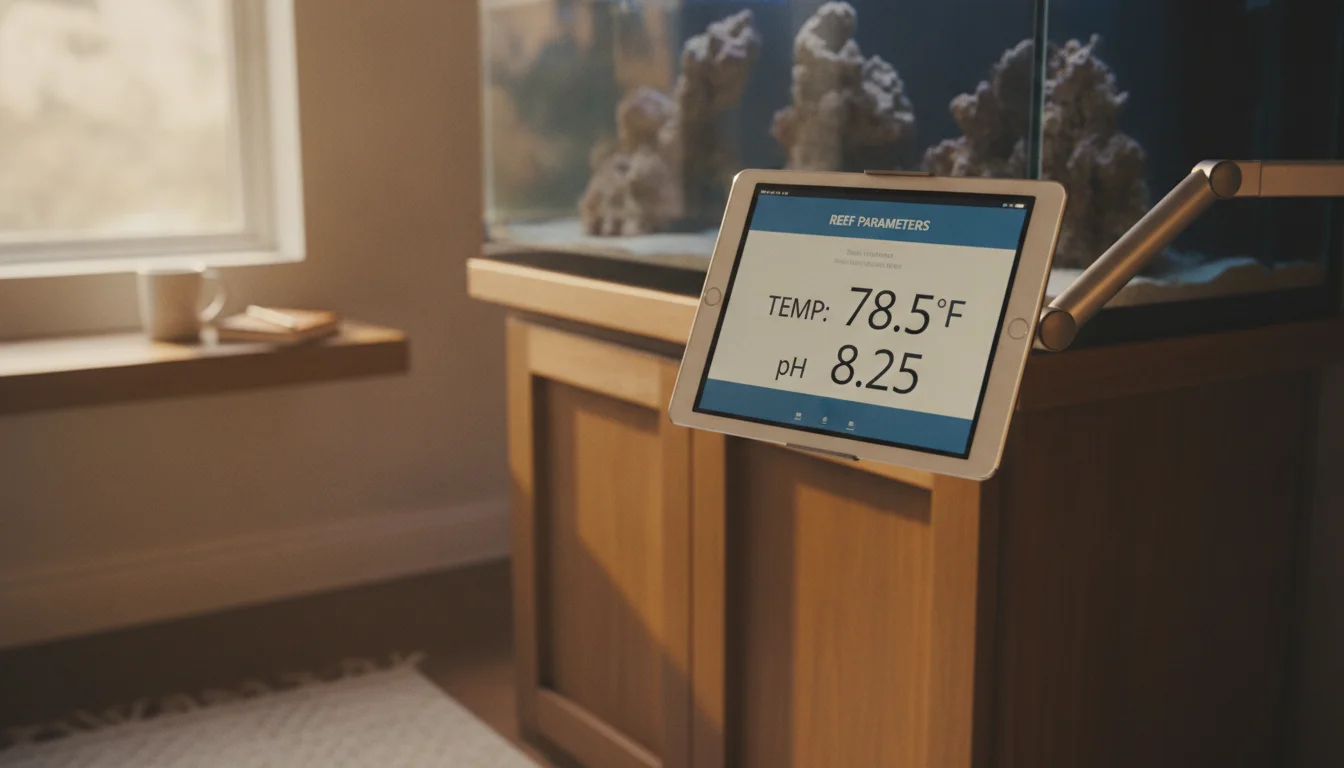
It is: a wall or arm-mounted display next to your tank that runs your controller’s iOS app, or if the app has abandoned your iOS version, a full-screen browser pointed at the controller’s web dashboard. Temperature, pH, salinity, ATO status, light schedules, pump modes, dosing logs. Glance at it from the couch or the sink; tap in changes without hunting for your phone.
It isn’t: the controller itself. The Apex, HYDROS, reef-pi, or Kessil unit is doing the actual work. The iPad is the pane of glass on top of it. If your tank has no controller, this article is not what starts you down that path. If it does, and there’s an old iPad in a drawer, keep reading.
The distinction matters because a lot of reef newcomers assume “iPad = controller” and try to make the tablet run pump timers directly. It won’t. iOS doesn’t sit on a tank in that role. The tablet’s job is dashboard, remote, and log viewer.
Which Controllers Actually Talk to an Old iPad
I checked the App Store listing for each of the mainstream reef controller apps in September 2026. Verify on the App Store the day you install; iOS floors move.
 Neptune Apex Fusion requires iPadOS 15.0 or later. That’s iPad Air 2 (iPadOS 15.8.x ceiling) and everything newer. The app is a mobile view on top of Neptune’s cloud dashboard, which means if the app won’t install, you can still open apexfusion.com in Safari and get the same interface. This is the escape hatch nobody mentions in the Neptune docs.
- HYDROS App (CoralVue’s Control, WaveEngine, Drain) requires iPadOS 15.6 or later. That cuts out iPad Air 2 by a hair, so iPad Pro 9.7-inch, iPad 5th gen and later, iPad mini 4 and later.
- Mobius (EcoTech Marine, controls Radion lights, Vectra pumps, Versa dosers) requires iPadOS 15.6 or later. Same floor as HYDROS. The app is rough – a two-star average in the App Store isn’t a great sign – but if you already own EcoTech gear you’ll use it because it’s the only option.
- Kessil WiFi is the outlier. Kessil publishes it with an iOS 12 floor, so an iPad Air 1 or an iPad mini 2 still runs it (iPad 3, iPad 4, and iPad mini 1 are below that line). If your reef is just a Kessil light and a heater, an ancient iPad genuinely works.
- reef-pi doesn’t have an iOS app at all. It’s the open-source Raspberry Pi controller, and its interface is a web page hosted on the Pi itself. Any iPad with a working browser opens it. See the next section, because this is the answer for iPads below every vendor’s iOS floor.
Two more you may run into in older threads: Reef Angel, the original DIY controller from the 2010s, similarly runs on a web dashboard now; and the pre-Fusion Neptune Apex classic, which serves its own local web page. Both are browser-based, both work on very old iPads, both are aging.
The Reef-pi Escape Hatch for Older iPads
If your iPad predates iPadOS 15 (iPad 4, Air 1, mini 2, mini 3), the Apex Fusion, HYDROS, and Mobius apps above won’t install. Kessil still will on Air 1, mini 2, and mini 3 (all top out at iOS 12.5.x); on the iPad 4 nothing does. Either way, the answer is the same: pick a controller whose interface is a web page.
reef-pi is the open-source, Raspberry Pi based reef controller that the DIY end of the hobby runs on. Adafruit publishes a full installation guide, and the project has been quietly maturing since 2016. The relevant fact for you: reef-pi doesn’t ship a native mobile app. Its whole UI is a web dashboard running on the Pi. Any browser that can render modern HTML opens it.
That means an iPad on iPadOS 12, 13, or 14 – which the vendor apps won’t touch – loads reef-pi’s dashboard perfectly. You point Safari at the Pi’s local IP address, use Safari’s “Add to Home Screen” to make it look like an app, and you have a full controller front-end on a tablet the App Store gave up on years ago.
The same trick works for any controller with a web interface. If you’re already committed to Neptune, the Apex classic (not Fusion) and the newer Apex on the local network both serve a browser dashboard on port 80. Point Safari at the controller’s IP, home-screen it, done.
Mounting: Where the iPad Goes, and Where It Doesn’t
An iPad next to a fish tank has a physical placement problem no other repurposing use-case shares: it’s near water, evaporation, and, on saltwater tanks, airborne salt creep.
Where to put it:
- On an articulating arm mount attached to the wall or cabinet, kept at least 18 inches from the sump lip and the top of the display tank. Splash from a pump priming or a top-off cup event travels further than you think.
- At standing eye level, angled slightly down. This is a glance-at surface, not a lean-over-and-tap-through-a-full-schedule surface.
- On the tank stand’s side wall (not the top), if the stand is enclosed. Ventilated stands where the sump breathes underneath will coat a downward-facing screen with humidity faster than you notice.
Where NOT to put it:
- Directly above the sump. The evaporation is warm and constant and will fog the digitizer over months.
- On the stand’s top surface, next to the display tank. One aiptasia paste application, one overflow test, one careless child, and it’s done.
- Inside the stand cabinet with the sump. Even a splash case can’t survive being lidded on top of an evaporating vat of salt water.
A RAM Mounts articulating arm or a cheaper Tackform equivalent, screwed into a wall stud, sits at the right distance and swings out of the way for water changes. Suction-cup mounts do not belong here. They fall onto rockwork.
Splash, Salt Creep, and Humidity
Assume some water will find the iPad eventually. Salt creep in particular finds ways.
- A silicone splash sleeve is worth the $15. It keeps the digitizer sealed against droplets. The touch response gets slightly duller and I don’t care because the trade is worth it.
- A wired charging cable, routed away from the tank rim, not a wireless charger sitting on the stand. Water finds the charging port on a horizontal surface first.
- Wipe the screen weekly with a barely-damp microfiber. Salt on the glass isn’t just cosmetic; over a year it etches the oleophobic coating and makes future cleanings harder.
- Never leave the iPad face-up next to an open sump. If you’re doing tank maintenance and need it flat for a schedule change, take it off the mount and put it on the couch.
Heat is a lesser problem than in a car (the tank room is usually house-temperature), but the constant humidity in a fish room is not what an iPad was designed for. If you have a dedicated fish room with a dehumidifier, you’re fine. If your tank is in an apartment kitchen with a bathroom fan you don’t run enough, expect the tablet’s battery to age faster than one on your bookshelf.
Feeder Schedules, Live Cam, and Parameter Tracking
Once the iPad is mounted, the useful jobs are the ones you’d otherwise hunt through your phone for.
- Feeder schedules. If your feeder is a Neptune AFS or a HYDROS Auto Feeder, the schedule lives in the app. The iPad on the wall is where you tweak it when you decide the fish are getting too much frozen mysis on Tuesdays. The old iPad kitchen assistant setup has more on scheduling patterns; the ideas transfer.
- Live cam. A cheap Wyze or Reolink camera pointed at the display tank, and the iPad on a live feed 24/7, is genuinely useful. You’ll see a fish trying to jump out an hour before you would have noticed at the sink. The tablet-as-home-security-camera setup covers the camera side. In an aquarium context, aim the camera at a corner that captures the whole tank width, not the front glass, or you’ll be watching your own reflection at night.
- Parameter tracking. Apex users get graphs of temperature, pH, ORP, and salinity through Fusion. HYDROS users get similar in-app graphs. reef-pi does its own charting through the dashboard module. In every case, the iPad on the wall shows you a trend that a spot-check on your phone doesn’t. A slow pH drift over three days is exactly what you notice when the graph is glanceable and not otherwise.
- Alerts. Set your controller’s alert thresholds, then leave push notifications on. This is what turns the tablet from a passive display into something that actually calls for help. Verify the notification sound isn’t set to a whisper. Ask me how I know.
If your tank is running a controller you built yourself around reef-pi, you can also drop a  Plex tile or a browser tab pointed at a home-server dashboard onto the same iPad’s home screen. The screen is idling anyway; put it to work.
What Doesn’t Work
- The iPad is not the controller. Every year on Reef2Reef somebody asks whether they can skip the Apex or reef-pi and just have the iPad run everything with a bunch of smart plugs and shortcuts. You can, sort of, for a light schedule and a heater. You cannot for anything that needs real interlocks, redundancy, or a low-water float switch. A controller is $200-800 and it’s the wrong place to save money.
- Wi-Fi-only iPads have no GPS. For a fish tank this doesn’t matter. It’s mentioned only because people ask.
- Charging cables in wet environments fail early. Third-party ones fail sooner. Get an Apple-certified Lightning or USB-C cable and route it above the tank rim, not below.
- Salt water and factory splash resistance are not the same thing. Even an “IP-rated” tablet warranty will not survive a saltwater dunk. Assume the iPad is not water-resistant and design placement around that assumption.
Quick Setup Checklist
- Identify your iPad model and the highest iOS/iPadOS it runs. This determines which controller apps install.
- If your iPad is iPadOS 15+, install your controller vendor’s app directly.
- If your iPad is below iPadOS 15, use Safari pointed at the controller’s local web dashboard, and Add to Home Screen for one-tap access.
- Buy an articulating arm mount ($40-80 RAM or Tackform), a silicone splash sleeve ($15), and a six-foot Apple-certified charging cable ($15). Total under $100.
- Mount the arm into a wall stud, 18+ inches from any water surface, at standing eye level.
- Set Auto-Lock to Never (Settings > Display & Brightness). This is what stops the display from turning black five minutes after you walked away.
- Turn on Do Not Disturb for the hours you don’t want feeder-schedule taps waking the tablet with unrelated notifications, and leave push notifications on for your controller’s alerts.
- Wipe the screen weekly. Watch for creep around the home button and camera cutouts on saltwater tanks.
That old iPad has been quietly waiting for a wall to be mounted on. A reef tank is a good wall. Consider the other twenty or so working setups if reef-keeping isn’t your thing, and browse what to do with a wall-mounted tablet for more on the physical install if you decide to go this way.